If you want to access your computer remotely from another device, learning how to configure Remote Desktop Windows 8.1 is essential. Remote Desktop allows users to connect to their PC from anywhere using Microsoft’s Remote Desktop Protocol (RDP).
Although Windows 8.1 is an older operating system, many users still rely on it for legacy software, testing environments, or offline systems. Setting up a remote desktop connection in Windows 8.1 can help you control your computer remotely, manage files, and troubleshoot systems without being physically present.
In my experience configuring remote desktop environments, most users can enable remote access in just a few minutes by adjusting system settings and firewall rules.
In this complete 2026 guide to remote desktop Windows 8.1, you will learn:
- How to enable remote desktop Windows 8.1
- How to use Remote Desktop Connection
- Setup for Chrome Remote Desktop
- Configuration of RDP Wrapper
- Troubleshooting remote access problems
These steps work for users in the United States, Canada, the UK, Australia, and Europe and apply to most Windows 8.1 systems.
What is Remote Desktop in Windows 8.1
Remote Desktop is a Windows feature that allows users to control a computer remotely over a network or the internet.
Key benefits include:
- remote system management
- remote troubleshooting
- remote access to files and applications
How to Enable Remote Desktop Windows 8.1 (Step-by-Step Guide)
If you want to remotely access your computer from another device, you must first enable Remote Desktop in Windows 8.1. This feature allows another computer to connect to your system using Microsoft’s Remote Desktop Protocol (RDP).
Remote Desktop is commonly used for:
- remote IT support
- accessing files from another location
- managing servers or workstations
- remote work environments
Before you start, make sure your system is running Windows 8.1 Pro or Enterprise, because the Windows 8.1 Home edition cannot host remote desktop connections.
Once you confirm that your system supports remote desktop, follow the steps below.
Step 1: Open Control Panel
The first step is to access the system settings where Remote Desktop can be enabled.
Steps
- Move your mouse to the bottom-left corner of the screen.
- Right-click the Start button.
- Select Control Panel from the menu.
Alternatively, you can open Control Panel using the Run command:
- Press Windows + R
- Type:
control
- Press Enter
The Control Panel window will open.
Step 2: Go to System and Security
Inside Control Panel, you need to open the system configuration settings.
Steps
- In Control Panel, select System and Security.
- Click System.
This page displays important information about your computer, including
- Windows edition
- processor
- installed memory
- computer name
- system type
You will also see options for remote access settings.
Step 3: Open Remote Settings
Now you need to open the Remote Desktop configuration panel.
Steps
- On the left sidebar, click Remote settings.
- A new window called System Properties will open.
- Select the Remote tab.
This section controls whether your computer allows remote connections.
Step 4: Enable Remote Desktop
Once you are in the Remote settings window, you can enable remote access.
Steps
- Under Remote Desktop, select:
Allow remote connections to this computer
- If you receive a prompt, please confirm the change.
- Click Apply.
- Click OK.
Your computer is now configured to accept remote desktop connections.
Step 5: Enable Network Level Authentication (Recommended)
For better security, Microsoft recommends enabling Network Level Authentication (NLA).
What NLA Does
Network-level authentication requires users to authenticate before establishing a remote session. This mechanism prevents unauthorized users from attempting to connect to your computer.
Steps
- In the Remote Desktop settings window
- Check the option:
Allow connections only from computers running Remote Desktop with Network Level Authentication
- Click Apply.
This improves security for remote connections.
Step 6: Allow Remote Desktop Through Firewall
Windows Firewall may block remote desktop connections by default. You need to ensure that Remote Desktop is allowed.
Steps
- Open Control Panel
- Click System and Security
- Select Windows Firewall
- Click Allow an app or feature through Windows Firewall
Now locate Remote Desktop in the list.
Configure Firewall Access
- Check Remote Desktop
- Enable both:
- Private network
- Public network (optional)
- Click OK
Your firewall is now configured to allow remote connections.
Step 7: Find Your Computer Name or IP Address
To connect remotely, you must know the computer name or IP address of the host computer.
How to Find Computer Name
- Open Control Panel
- Go to System
- Look for the computer name
Example:
DESKTOP-PC01
You can use this name when connecting remotely.
How to Find IP Address
You can also connect using the computer’s IP address.
Steps:
- Press Windows + R
- Type:
cmd
- Press Enter
Now type:
ipconfig
Look for the IPv4 address.
Example:
192.168.1.25
This address can be used for remote desktop connection.
How to Use Remote Desktop Connection in Windows 8.1
After enabling Remote Desktop, you can connect to the computer from another device using the Remote Desktop Connection client.
This tool is built into Windows and allows you to remotely control another computer.
Step 1: Open Remote Desktop Connection
The Remote Desktop client can be opened using a simple command.
Steps
- Press Windows + R
- Type the following command:
mstsc
- Press Enter
The Remote Desktop Connection window will open.
Step 2: Enter the Remote Computer Address
You now need to enter the computer name or IP address of the computer you want to connect to.
Steps
- In the computer field, type:
- Computer name
or - IP address
Example:
192.168.1.25
- Click Connect
Windows will attempt to establish the connection.
Step 3: Enter Login Credentials
If the connection is successful, Windows will ask for login credentials.
Steps
- Enter the username of the remote computer.
- Enter the password.
- Click OK.
Example login:
Username: John-PC\John
Password: ********
Once authenticated, the remote desktop session will begin.
Step 4: Control the Remote Computer
After connecting, you will see the remote computer’s desktop inside the Remote Desktop window.
You can now:
- open applications
- manage files
- run programs
- troubleshoot systems
- install software
The remote computer behaves exactly as if you were sitting in front of it.
Step 5: Adjust Remote Desktop Display Settings
Before connecting, you can customize the remote desktop experience.
Steps
- Open Remote Desktop Connection
- Click Show Options
- Go to the Display tab
Here you can configure:
| Setting | Function |
|---|---|
| Display resolution | Adjust remote screen size |
| Full-screen mode | Use entire monitor |
| Color depth | Improve performance |
Step 6: Configure Remote Desktop Performance
To improve performance on slower networks:
- Click the Experience tab
- Adjust connection speed settings.
Disable features like:
- desktop background
- font smoothing
- animation
This technique reduces bandwidth usage.
Common Remote Desktop Problems and Fixes
Here are some common issues users encounter when setting up remote desktop Windows 8.1.
| Problem | Because | Solution |
|---|---|---|
| Remote desktop cannot connect | Remote desktop disabled | Enable RDP in system settings |
| Firewall blocking connection | Firewall rules missing | Allow remote desktop in firewall |
| Wrong IP address | Incorrect network info | Use ipconfig to verify |
| Login failure | Wrong credentials | Use correct username/password |
Security Tips for Remote Desktop Windows 8.1
Because Remote Desktop allows remote system access, it is important to secure it properly.
Recommended Security Practices
- Enable Network Level Authentication
- Use strong passwords
- Restrict access to specific users
- Use VPN when connecting over the internet
- Disable Remote Desktop when not needed
These measures help prevent unauthorized access.
Remote Desktop Chrome for Windows 8.1 (2026 Setup Guide)
Although Windows 8.1 officially reached end of support in January 2023, many users still operate legacy systems or testing environments, which can pose security risks and compatibility issues when accessing modern applications. One of the easiest ways to remotely control a Windows 8.1 computer in 2026 is by using Chrome Remote Desktop.
Chrome Remote Desktop is a free remote access tool developed by Google that works through the Chrome browser. Unlike Microsoft Remote Desktop, it works across multiple platforms, including
- Windows 11 computers
- macOS laptops
- Linux systems
- Android phones and tablets
- iPhones and iPads
- Chromebooks
This feature makes it ideal if you want to control a Windows 8.1 PC from a modern device in 2026.
Requirements for Chrome Remote Desktop
Ensure that you meet the following requirements before starting the setup.
| Requirement | Details |
|---|---|
| Internet connection | Required on both devices |
| Google account | Needed for authentication |
| Google Chrome browser | Installed on Windows 8.1 |
| Chrome Remote Desktop extension | Installed from Google |
Most modern browsers still support Windows 8.1, although some may require older Chrome versions.
Step 1: Install Google Chrome on Windows 8.1
Chrome Remote Desktop works through the Chrome browser, so you must install Google Chrome first.
Steps
- Open your browser on the Windows 8.1 computer.
- Visit the Chrome download page:
https://www.google.com/chrome
- Click Download Chrome.
- Run the installer.
- Follow the installation instructions.
After installation, launch the Chrome browser.
Step 2: Open Chrome Remote Desktop Website
Next, open the Chrome Remote Desktop setup page.
Steps
- Open Google Chrome.
- Go to:
https://remotedesktop.google.com/access
- Sign in using your Google account.
This account will be used to manage remote connections.
Step 3: Enable Remote Access on Windows 8.1
To allow remote connections, you must enable remote access.
Steps
- On the Chrome Remote Desktop page, locate Set up remote access.
- Click Turn On.
- Download the Chrome Remote Desktop Host installer.
- Run the installer file.
Once installed, Chrome will ask you to create a secure PIN.
Step 4: Create a Secure Access PIN
The PIN protects your computer from unauthorized access.
Steps
- Enter a 6-digit or longer PIN.
- Confirm the PIN.
- Click Start.
Example:
PIN: 458712
Your Windows 8.1 computer is now ready for remote access.
Step 5: Connect from Another Device
Now you can control the Windows 8.1 PC from another device.
Connecting from another computer
- Open Chrome on the second computer.
- Go to:
https://remotedesktop.google.com/access
- Sign in with the same Google account.
- Select the Windows 8.1 computer.
- Enter your PIN.
The remote desktop session will start.
Step 6: Connect from Mobile Devices (2026)
You can also control the Windows 8.1 PC from a smartphone or tablet.
Supported devices
- Android phones
- iPhones
- iPads
- Android tablets
Steps
- Install the Chrome Remote Desktop app from the app store.
- Sign in with your Google account.
- Select your Windows 8.1 computer.
- Enter the PIN.
You can now control the computer remotely using touch controls.
Advantages of Chrome Remote Desktop in 2026
Chrome Remote Desktop remains popular because it works across modern devices.
Key benefits
- completely free
- works on multiple operating systems
- easy setup
- secure encryption
- browser-based access
For users running older Windows systems like Windows 8.1, Chrome Remote Desktop is often the easiest remote access solution.
RDP Wrapper Windows 8.1
RDP Wrapper is an advanced tool that allows users to enable additional Remote Desktop features on Windows systems.
Normally, Windows restricts Remote Desktop functionality depending on the edition of the operating system. For example:
- Windows 8.1 Home cannot host RDP sessions
- Windows 8.1 Pro allows only one remote user session
RDP Wrapper helps bypass these limitations.
What RDP Wrapper Does
RDP Wrapper works by modifying how Windows handles the Remote Desktop Protocol service without altering system files.
Main benefits
| Feature | Description |
|---|---|
| Multiple remote sessions | Allow several users to connect |
| Works with Windows updates | Does not modify core files |
| Enables RDP on unsupported editions | Useful for home editions |
However, using RDP Wrapper requires caution because it is not an official Microsoft tool.
How to Install RDP Wrapper on Windows 8.1
Step 1: Download RDP Wrapper
Download the RDP Wrapper package from the official repository.
Extract the files to a folder on your computer.
Step 2: Install the Wrapper
- Open the extracted folder.
- Run the file:
install.bat
- Right-click the file.
- Select Run as Administrator.
The installation process will configure the RDP service.
Step 3: Verify Configuration
After installation, check whether the RDP service is working correctly.
Run the file:
RDPConf.exe
This utility shows the RDP status.
If everything is configured properly, you should see:
Wrapper state: Installed
Service state: Running
Listener state: Listening
Your system should now accept remote desktop connections.
Remote Desktop Troubleshooting (Windows 8.1)
Even after setup, remote desktop connections may fail due to network or configuration issues.
Below are the most common problems and their solutions.
Remote Desktop Not Connecting
Possible Causes
- Remote desktop disabled
- firewall blocking connection
- incorrect IP address
Solution
- Open System Properties
- Verify Remote Desktop is enabled
- Check firewall settings.
RDP Port Blocked
Remote Desktop uses port 3389.
If the port is blocked, the connection will fail.
Steps to check port
- Open Command Prompt.
- Type:
netstat -an
- Look for:
0.0.0.0:3389
If the port is missing, firewall rules must be updated.
Remote PC Not Detected
Sometimes the remote computer cannot be located.
Possible reasons
- incorrect IP address
- network issues
- DNS problems
Solution
- Check the IP address using:
ipconfig
- Verify both computers are on the same network.
Remote Desktop Session Disconnects
This issue usually occurs because of:
- unstable internet connection
- firewall restrictions
- outdated drivers
Fix
- update network drivers
- Restart the router.
- Disable aggressive firewall settings.
Quick Troubleshooting Table
| Problem | Because | Solution |
|---|---|---|
| Remote desktop not connecting | Remote desktop disabled | Enable RDP in system settings |
| Firewall blocking RDP | Firewall rule missing | Allow port 3389 |
| Cannot find remote computer | Wrong IP address | Use ipconfig |
| Connection drops | Network instability | Restart router |
Security Tips for Remote Desktop in 2026
Because Windows 8.1 is an older operating system, it is important to secure remote access.
Recommended security practices
- use strong passwords
- enable Network Level Authentication
- use VPN when accessing remotely
- restrict remote users
- disable remote access when not needed
These measures reduce the risk of unauthorized access.
Remote Desktop Tools Comparison (Best Remote Access Tools for Windows 8.1 in 2026)
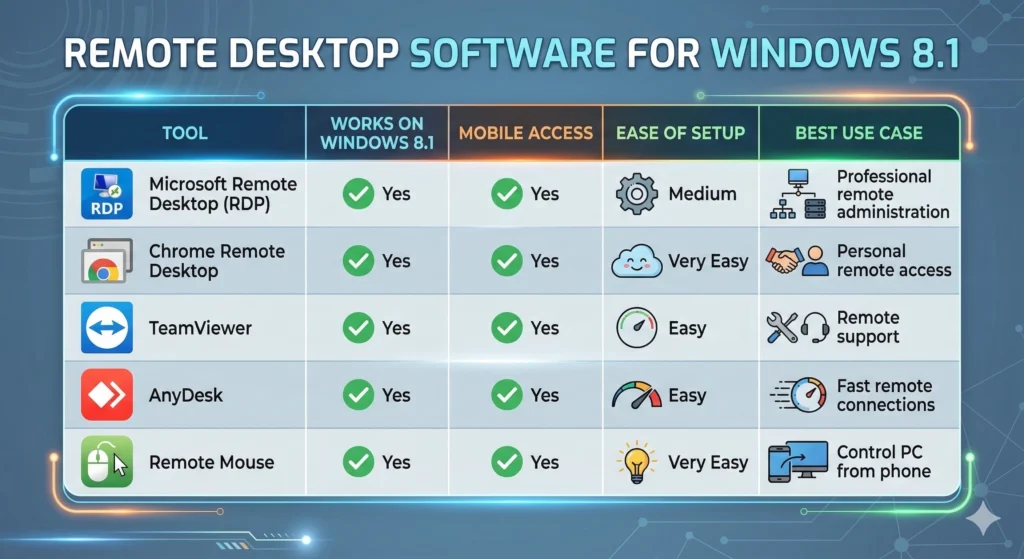
If you want to control a Windows 8.1 computer remotely, several remote desktop tools are available in 2026. While Microsoft Remote Desktop remains the built-in solution, other tools like Chrome Remote Desktop and TeamViewer provide easier cross-platform access.
The table below compares the most popular remote desktop tools compatible with Windows 8.1 systems.
Remote Desktop Software Comparison
| Tool | Works on Windows 8.1 | Mobile Access | Ease of Setup | Best Use Case |
|---|---|---|---|---|
| Microsoft Remote Desktop (RDP) | Yes | Yes | Medium | Professional remote administration |
| Chrome Remote Desktop | Yes | Yes | Very Easy | Personal remote access |
| TeamViewer | Yes | Yes | Easy | Remote support |
| AnyDesk | Yes | Yes | Easy | Fast remote connections |
| Remote Mouse | Yes | Yes | Very Easy | Control PC from phone |
1. Microsoft Remote Desktop (RDP)
Microsoft Remote Desktop uses Remote Desktop Protocol (RDP) built into Windows.
Advantages
- built into Windows
- high performance
- secure enterprise-level protocol
- works across Windows, Mac, Android, and iOS
Limitations
- requires configuration
- Windows Home editions cannot host RDP
- firewall configuration required
This tool is commonly used in IT administration and corporate networks.
2. Chrome Remote Desktop
Chrome Remote Desktop is one of the easiest ways to access a Windows 8.1 computer remotely in 2026.
Advantages
- free remote desktop solution
- works in Google Chrome
- cross-platform support
- simple setup
Compatible devices
- Windows computers
- Mac computers
- Linux systems
- Android phones
- iPhones and iPads
Because of its simplicity, Chrome Remote Desktop is ideal for home users and remote work setups.
3. TeamViewer
TeamViewer is a well-known remote desktop tool used by IT professionals.
Advantages
- strong encryption
- file transfer support
- multi-device compatibility
- remote support features
Limitations
- free for personal use only
- commercial licenses can be expensive
TeamViewer is often used by IT technicians providing remote support.
4. AnyDesk
AnyDesk is a lightweight remote desktop application designed for speed.
Advantages
- fast connection speeds
- small installation size
- low bandwidth usage
- strong security
AnyDesk works well for remote work environments with slower internet connections.
5. Remote Mouse
Remote Mouse is slightly different from traditional remote desktop tools.
Instead of displaying the full desktop, it allows a smartphone to control the computer like a wireless mouse and keyboard.
Features
- mobile touchpad
- wireless keyboard input
- presentation control
- media player control
This tool is useful for presentations or controlling a PC from a phone.
Which Remote Desktop Tool Is Best for Windows 8.1?
For most users in 2026, the best options are
| Scenario | Recommended Tool |
|---|---|
| Simple remote access | Chrome Remote Desktop |
| Professional remote administration | Microsoft Remote Desktop |
| IT support | TeamViewer |
| Low-bandwidth connection | AnyDesk |
| Mobile control only | Remote Mouse |
Chrome Remote Desktop remains the easiest solution for users who want to control a Windows 8.1 computer from modern devices.
Remote Desktop Troubleshooting Flowchart (Quick Fix Guide)
If your remote desktop Windows 8.1 connection is not working, use the troubleshooting flowchart below to quickly identify and fix the problem.
Remote Desktop Connection Troubleshooting
Remote Desktop Not Working?
        ↓
Is Remote Desktop Enabled?
        ↓
NO → Enable Remote Desktop in System Settings
        ↓
YES
        ↓
Is the firewall blocking port 3389?
        ↓
YES → Allow Remote Desktop in Windows Firewall
        ↓
NO
        ↓
Is the IP address correct?
        ↓
NO → Check IP Address Using "ipconfig"
        ↓
YES
        ↓
Is the Network Connection Stable?
        ↓
NO → Restart Router or Check Internet
        ↓
YES
        ↓
Remote Desktop Should Work
Quick Answer
If Remote Desktop Windows 8.1 is not working, first make sure Remote Desktop is enabled in System Settings, verify that port 3389 is allowed in the firewall, and confirm the correct IP address of the remote computer. Most connection problems occur due to firewall restrictions or incorrect network configuration.
Expert Tip (2026 Remote Desktop Usage)
Because Windows 8.1 is no longer officially supported, many users prefer using Chrome Remote Desktop or AnyDesk to access older Windows machines from newer devices such as
- Windows 11 PCs
- MacBooks
- Android smartphones
- iPhones and tablets
These tools provide better compatibility with modern operating systems.
Does Windows 8.1 support Remote Desktop?
Yes. Windows 8.1 Pro and Enterprise editions support hosting remote desktop connections.
How do I enable Remote Desktop in Windows 8.1?
Go to System → Remote Settings → Allow remote connections.
Can I use Chrome Remote Desktop on Windows 8.1?
Yes. Chrome Remote Desktop works with Windows 8.1 and allows remote access through a web browser.
What is RDP Wrapper, a tool that allows multiple users to connect to a Windows 8.1 machine using Remote Desktop Protocol (RDP)?
RDP Wrapper enables multiple remote desktop sessions on Windows systems.
What port does Remote Desktop use?
Remote Desktop uses TCP port 3389.
Conclusion
Setting up Remote Desktop on Windows 8.1 allows you to access your computer from anywhere and manage systems remotely. Whether you use Microsoft’s Remote Desktop Connection, Chrome Remote Desktop, or third-party tools, configuring remote access can significantly improve productivity and system management.
By following the steps in this guide, you can quickly enable remote desktop, configure firewall settings, and troubleshoot common remote connection problems.