After the recent upgrade, there were several problems associated with Windows 8.1 HDMI audio. Some of them will go away as there are further updates to this new version.
Users also connect TVs and other media devices to Windows 8.1 computers using HDMI cables. Users often encounter a problem where they see a picture but hear no sound. But what is an HDMI?
Barely speaking, it’s just a standard like the web. But the standard is used for connecting high-definition video devices. It stands for High Definition Multimedia Interface. This gives a strong foundation for the transmission of high-definition video and multichannel audio among a wide variety of electronic products like Hitachi, Panasonic, Philips, Sony etc.
To be precise, I personally do not own an HD TV. So there is no question of this problem affecting me. But as an avid user, I was searching forums when I found that there are many users with this problem. So I decided to research a fix.
Common Fix to Windows 8.1 HDMI No Sound
A forum user (epitomeofcait) on tomshardware.com recently posted his problem of not playing sound on TV through HDMI connected to his ASUS laptop, whose OS was 8.1.
I am running Windows 8.1. I have an ASUS Q550L notebook; you can see all the specs here: Asus 15.6″ Touchscreen Laptop Intel Core i7 8GB Memory 1TB Hard Drive Q550LF-BSI7T21 – Best Buy). -HDMI or similar does not show up in ‘Playback Devices.’ – All of my drivers are up to date.
The best solution to this kind of problem is restarting the Windows audio service. This option can be found under the Services section of Administrative Tools in the Control Panel section. Alternatively, you can press the Win+R keys to open the Run dialog box and type “services.msc.” (A shortcut method of getting it quickly).


Restart this service and select TV as your audio device. This approach should generally provide a solution.
But the above method also doesn’t rectify it, so restart your computer while the TV is on and connected to your computer through HDMI. Audio should play as normal.
But the root cause could be that the TV and laptop are not communicating the HDMI signal properly. If you can resolve the issue, you should be able to proceed without any problems.
Secondary Problems with Windows 8.1 HDMI No Audio
Another user by the name of alpacino2368 had a similar problem. But his laptop was an Asus N550JV. His problem was resolved when he restarted his laptop.
But this workaround is an annoying solution, as every time you connect to the TV, you need to restart. There was an additional problem in this scenario.
The start screen became smaller with smaller tiles and icons, as if the resolution was adjusted. For this kind of problem, the forum suggested that you unplug the HDMI cable and plug it in again.
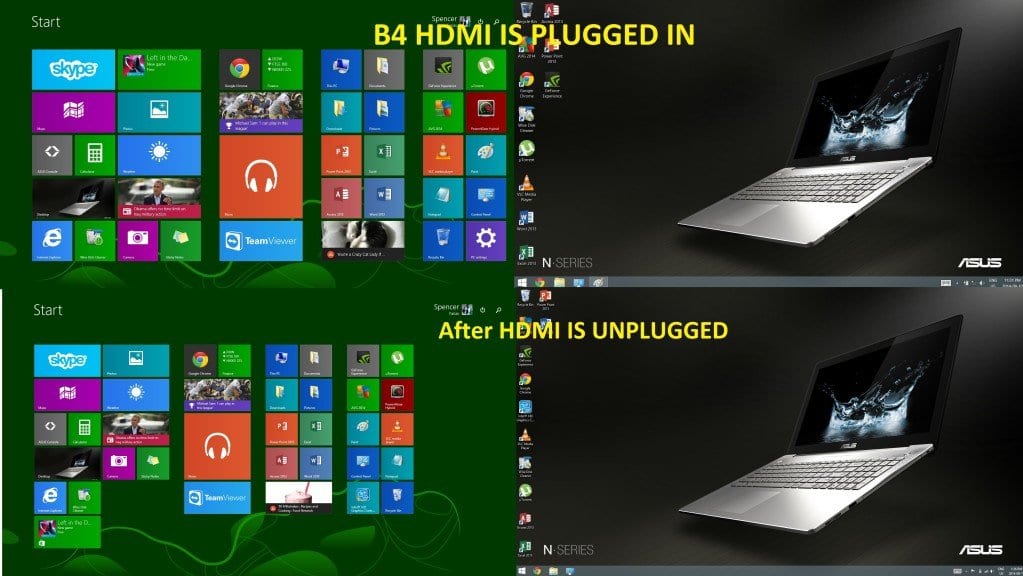
James Roethler on Microsoft’s forum had a similar problem, which was fixed with the help of technical support. He was suggested 2 methods. The first method was making the HDMI device the default sound option. For this purpose you need to open the “Sound” dialog box present in the Control Panel. On that there will be the “Playback” tab. One of the options in this view is the “Digital Output Device (HDMI).” “Select that. Make that the default. Now your sound should play through the HDMI cable to the TV.
In the second method, the tech guy suggested updating the sound driver. This option can be accessed in the Device Manager.
BIOS Solutions to Windows 8.1 HDMI Audio Problem
semicomputernoob was another user who had this audio problem. But his was little different. He was not getting sound from the computer speakers after connecting to a new monitor. He tried different options like deleting previous audio drivers and updating with new ones, restarting the computer and plugging in speakers, removing the graphics card and reinstalling it again in the motherboard, etc. But it’s of no avail.
For such cases the accepted solution is enabling your audio in BIOS. In addition to that, it should be made sure that analog audio is selected for your default audio device or driver.
Some other people wanted to have audio from both computer and TV speakers. The best solution is that if you want independent audio from different programs on the computer and TV, respectively, there will not be much of a problem. If you want your PC and TV to play the same sound, it may be hard, but not impossible.
Secondary Sound from Multiple Speakers—Windows 8.1
Mikeybb was having a different problem. He has a Creative Sound Blaster X-Fi sound card (Creative Sound Blaster X-Fi Xtreme 7.1 Channels 24-bit 96 KHz PCI Express x1 Interface Sound Card). When he listens through his headphones, audio is ok. But when he tries to connect to monitor speakers through HDMI, he has problems.
The accepted solution in this regard is that you need to use your video card’s built-in audio hardware. Then you need to select that audio driver as the default audio device. The audio driver will probably have a strange name in your Windows settings, most likely the name of your monitor. It should work instantly.
Dual Monitor Setup—Windows 8.1 Laptop No Sound
Karel Vanlisse, in another scenario, had a dual-monitor setup. The sound was coming from the PC monitor, but not from the TV. The best solution for this kind of problem is selecting the HDMI audio device and setting it as default. This procedure can be done by right-clicking the sound/speaker icon in the notification area, selecting the playback tab, and selecting the one you need.
The ASUS X550LB was another laptop model that had this “no audio” problem. For this issue, you can download the right drivers from the manufacturer’s site and install them. http://www.asus.com/Notebooks_Ultrabooks/X550LB/HelpDesk_Download/. However, I couldn’t locate the HDMI drivers when I searched this link. You can Google for the latest drivers.
The HP Envy 15 had a similar problem. The sound was ok with Windows 8. The user had this problem only after updating to 8.1. For this issue he had to reboot the notebook, and then he had audio. Also with 8.1, you need to switch off the notebook and plug the HDMI cable into the TV prior to switching back on. This step was not required in Windows 8.
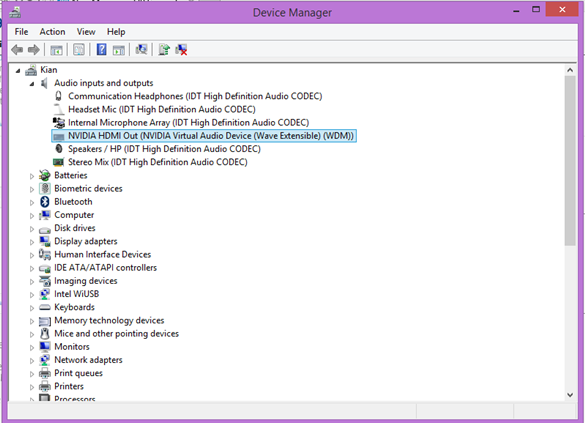
Enable Default Playback Audio in Windows 8.1 Device Manager – Fix
Another solution was to go to “Playback Devices” in your Sound options. Click your HDMI sound device and go to Properties. Then go to the enhancements section and disable all enhancements. You should be able to obtain your HDMI sound back again.
There was also an issue with HD 4400 Intel graphic drivers. The installer packages for HD 4400 Graphics drivers are failing to install the “Display Audio” driver. For this, you need to manually use the Device Manager in Windows.
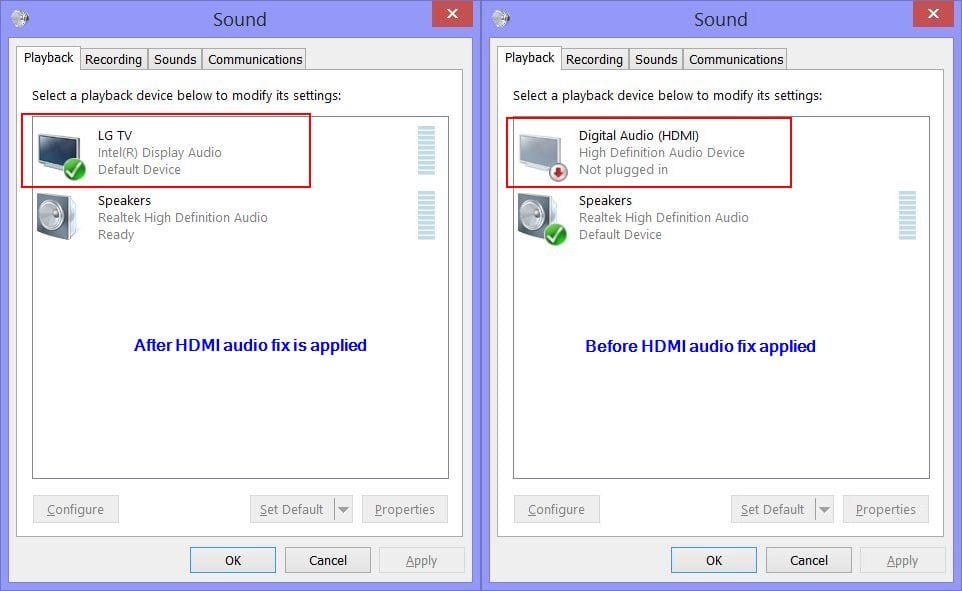
After the fix is applied, you can see the TV symbol appearing and is used as the default audio device
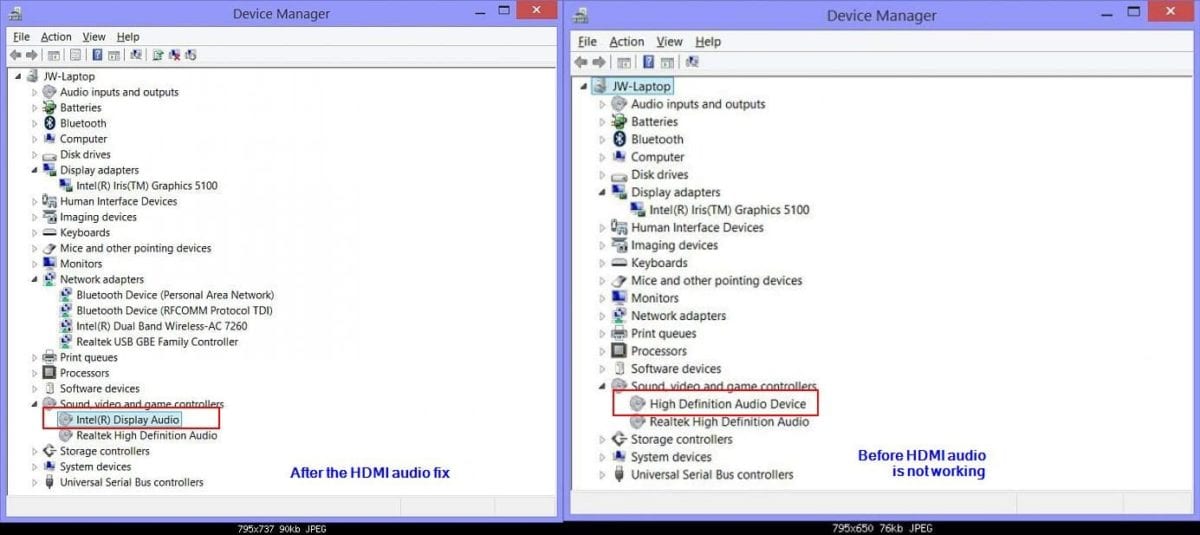
A common solution from eightforums.com is in this user post.
My PC is an Asus notebook running Win 8.1 with an Intel Iris 5100 Graphics adapter and Realtek HD Audio. I then installed a new driver for the “Display Audio” device. The new driver was part of my Intel Iris 5100. Display driver files are located in a folder called “DisplayAudio.” There was no Setup.exe for this driver, so it had to be installed manually—in other words, by right-clicking on the Display Audio device in Device Manager and selecting “Update Driver Software” and then “Browse my computer for driver software.”
After installing this driver, I did the reboot, plugged in the HDMI cable, and set Duplicate display again (you have to do all three steps after each new driver install).
HP—Windows 8.1 HDMI Audio Problem and Solutions
One of the problems was on an HP device. One user with an HP Envy 15 didn’t receive any audio when he connected his HDMI to the TV after updating from Windows 8 to 8.1. The video was without many problems. One tough solution found for this problem was to switch off the notebook or laptop completely. Then plug the HDMI cable into the TV and switch it on. After that, start your HP Envy notebook.
But a more complete solution is to use these drivers from “Intel.” This should resolve any incompatibility of drivers with Windows 8.1
Download Windows 8.1 Audio & Video Drivers
SONY – Windows 8.1 update Problem
Another user on the Sony forum had a problem with his Sony Vaio Pro 13. His HDMI audio was not working properly after the Windows 8.1 update. To resolve this problem, first of all, you should properly follow the instructions mentioned on the Sony support page to upgrade to Windows 8.1.
If the updates don’t install automatically, you need to install them manually. Then, you need to verify PLAYBACK in the Control Panel. Set the SONY amp audio as the default playback device when connected to an HDMI device. Furthermore, restart the computer after plugging in the HDMI cable on both ends.

[Image Source: community.sony.com]
DELL—Problem with Video Drivers for HDMI audio in Windows 8.1
Another user had the problem with Dell Inspiron 5520, 5521, and 5537 models. The user reports that HDMI audio worked fine in Windows 8, but it failed to work in Windows 8.1. The problem is not caused by audio drivers but is related to video drivers. To solve the problem, you need to go to the Dell support page, download video drivers for your laptop model, and install them. The process of installing from the support page needs further research, which you can obtain from other Dell support pages.
Conclusion
Improper drivers primarily cause most problems with Windows 8.1 HDMI audio on HP, Dell, and Sony systems. So before you go searching Google and other places to solve this problem, it’s best to search the support FAQs of the concerned brand website pages. Proper installation of audio and video drivers will mostly rectify the problems related to connecting the HDMI port of a computer to a TV or any other device. This article was written on the basis of Google research.
The most common solution to the “no sound” problem after updating to Windows 8.1 is that you need to pull out some HDMI cables and re-insert them again. Furthermore, you need to restart your laptop, which was not required in 8. You should also make your default HDMI audio device, which may have TV names, as the default audio device.

Good blog you have got here.. It’s hard to find high quality
writing like yours nowadays. I seriously appreciate people like you!
Take care!!