
I was away from my Windows 7 PC (desktop) for a few minutes, and the computer shut down by itself, which made me look up my Windows 7 power options to see if anything had changed. Although I couldn’t find the exact reason for this issue, this led me to write this tutorial post. Since I’m on a Windows 7 desktop, I could only provide screenshots of desktop settings.
How to open the Windows 7 Power Options?
To change/play with your power settings/options for your Windows 7 desktop, open the following window.
Control Panel –> All Control Panel Items (Small Icons mode) –> Power Options
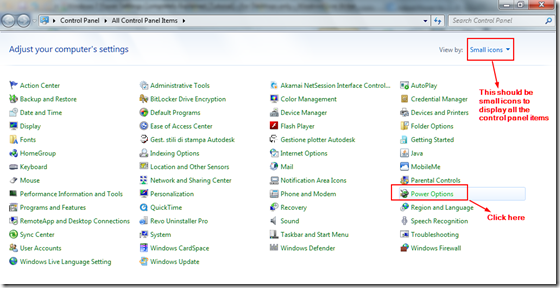
The following Windows 7 power options are displayed.
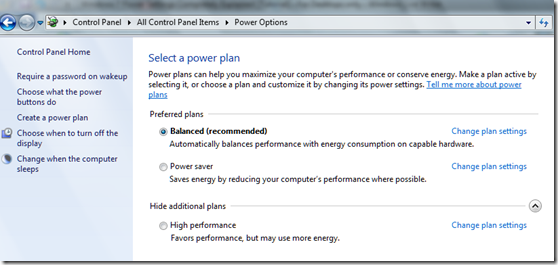
You normally have 3 different plans, displayed on the right-hand side of the screen. (Balanced, Power Saver, High Performance).
- Balanced (Recommended) – Automatically balances performance with energy consumption on capable hardware.
- Power saver—Saves energy by reducing your computer’s performance where possible
- High performance—Favors performance, but may use more energy.
You can click on “Change plan settings” beside each plan to change further options. This will open a window like the image below.
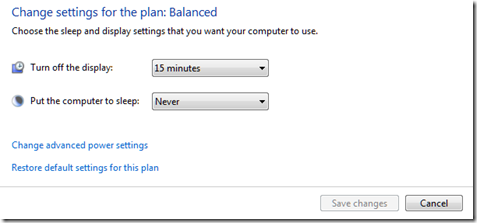
There you have the option of “Change advanced power settings.” Click that link. This action action will open the pop-up window shown below.
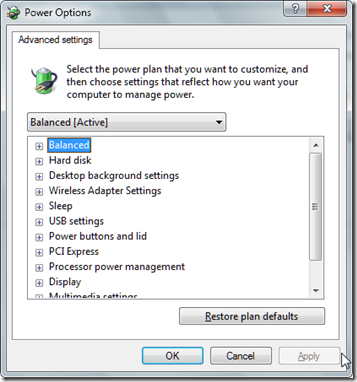
Advanced Windows 7 Power Options Explained (Recommended)
I’ll explain each of the advanced Windows 7 power options below:
Balanced
- Require a password on wakeup: This option will cause the computer to ask for a password or not after waking up from sleep.
- Setting: Yes/No
- Default: Yes
Hard disk
- Turn off hard disk after: This option will specify the number of minutes after which the hard disk is turned off or not.
- Setting: Never/(number in minutes)
- Default: 20 Minutes (Not recommended)
Desktop background settings
- Slide show: This setting will allow you to have a slideshow theme for your desktop background, or it can be paused.
- Setting: Available/Paused
- Default: Available
Wireless Adapter Settings
- Power Saving Mode: This setting will allow you to set the power saving information for your wireless adapter settings.
- Setting: Maximum Performance/Low Power Saving/Medium Power Saving/Maximum Power saving
- Default: Maximum Performance (Recommended)
Sleep:
- Sleep After: – This setting will allow you to set the number of minutes after which the computer will go to sleep.
- Setting: Never/(number in minutes)
- Default Setting: 30 Minutes
- Allow hybrid sleep: – This setting will give the option to toggle hybrid sleep on or off
- Setting: On/Off
- Default Setting: On
- Hibernate after: This setting will cause the computer to hibernate after a specified number of minutes.
- Setting: Never/(Number in Minutes)
- Default Setting: Never
- Allow wake timers: This setting will cause the computer to wake up after sleep or determine whether timed events should be allowed to wake the computer from sleep state.
- Setting: Enable/Disable
- Default Setting: Enable (Not Recommended)
USB settings
- USB selective suspend setting: This setting will toggle the option of putting a USB device driver in a low-power state (suspended state) so that Windows 7 does not wait for it to respond before going into sleep or hibernate mode.
- Setting: Enabled/Disabled
- Default Setting: Enabled
These kinds of Windows 7 power options are a little difficult to understand and have given an explanation for their settings.
Power buttons and lid
- Power button action: This setting will set the action for the power button (present in the multimedia keyboard).
- Setting: Sleep/Hibernate/Shutdown/Do nothing
- Default Setting: Shutdown
- Sleep button action: This setting will set the action for the sleep button (present in the multimedia keyboard).
- Setting: Sleep/Hibernate/Do nothing
- Default Setting: Sleep
PCI Express
- Link State Power Management
(There are basically 2 levels of power management in the PCI Express options.
The difference between these 2 options is the power savings versus the latency (time to recover from the sleep state).
If you select the first option, Moderate Power Savings, the power savings are less, but the time to recover from the Sleep state (latency) is much shorter.
If you select the maximum power savings, the power savings are greater, but the time to recover from the sleep state (latency) is longer.
Setting: Off/Moderate Power saving/Maximum Power savings
Default Setting: Moderate power savings
Processor power management
Processor power management basically refers to the speed of the CPU.
- Minimum processor state: This setting sets a minimum performance state for the computer’s processor. To save power, lower the permitted minimum performance state, and to maximize responsiveness and processing performance, increase it.
- Setting: 0 – 100% (Recommended – 30 to 100%)
- Default Setting: 5%
- System cooling policy: This feature helps in increasing the fan speed if the option is active, and the processor will run hotter than normal if it’s passive.
- Setting: Active/Passive
- Default Setting: Active (Recommended)
- Maximum processor state—This sets a maximum or peak performance state for the computer’s processor. To save power, reduce the permitted maximum performance state, and to increase the performance, increase it to a higher percentage.
- Setting: 0% – 100%
- Default Setting: 100% (Recommended)
Display
- Turn off display after—This will turn off the monitor or display after the specified number of minutes.
- Setting: Never/(number in Minutes)
- Default Setting: 10 Minutes
Multimedia settings
- When sharing media—This setting determines what the computer does when a device or another computer plays media from the computer.
- Setting: Allow the computer to sleep. Prevent idling to sleep. Allow the computer to enter Away mode
- Default Setting: Prevent idling to sleep (Recommended)
- When playing video—This setting determines the power optimization mode used when playing video.
- Setting: Optimize video quality. Balanced/Optimized Power settings
- Default Setting: Optimize video quality (Recommended)
Internet Explorer
- JavaScript Timer Frequency—This will set the power-saving and performance options when the JavaScript engine runs in your Internet Explorer browser.
- Setting: Maximum Performance/Maximum Power Savings
- Default Setting: Maximum Performance (Recommended)
This explains most of the Windows 7 power options and will explain the laptop or UPS or battery settings in another post.

Hi, my PC would keep shutting down randomly, sometimes after immediate log in sometimes after a few or even 10 mins. I’ve followed the setting you’ve recommended and so far so good. Thank you for the easy explanation yet detailed instructions.
I personally prefer limiting my CPU usage to about 20% when I’m relying on a battery. Gives me a bit of extra time.