
Sometimes firewalls can be a deterrent to the smooth usage of your Windows 7 PC. Although the main purpose of firewalling your computer is for better security, there are reasons to not use it for better performance. One reason I can give is your network speed.
Presently I am using “Tikona,” which is an ISP in India, and the technician immediately disabled my Windows 7 firewall on the first day.
I re-enabled the firewall to protect against unauthorized access to my computer and network. The firewalled PC or computer mainly prevents hackers from taking control of your system and eliminates any sensitive and confidential data hacking.
How to Disable Windows 7 Firewall?
- Go to Control Panel.
- Change the list view to small icons.
- Then at the bottom you see a Windows Firewall text link.
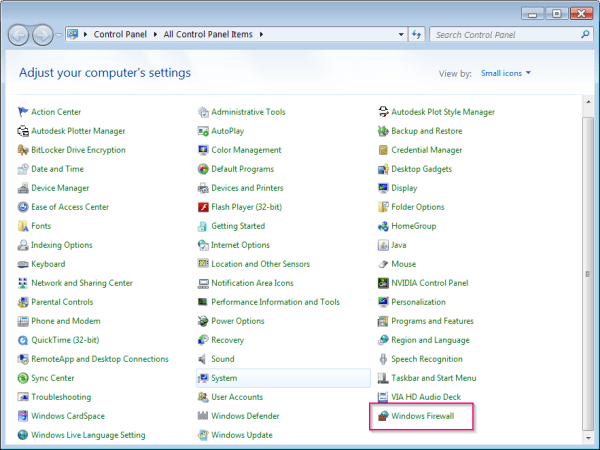
- Click that link. That will open the following window.
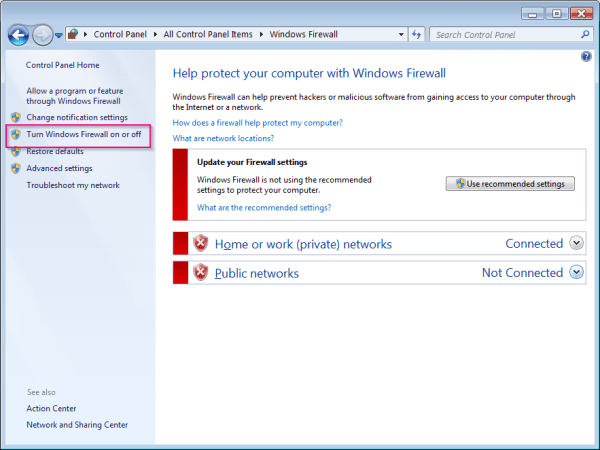
- As you can see above, my Windows 7 firewall is already disabled.
- To enable or disable it again, click the link on the left-hand side pane that says “Turn Windows Firewall on or off.”
- That will open another window.
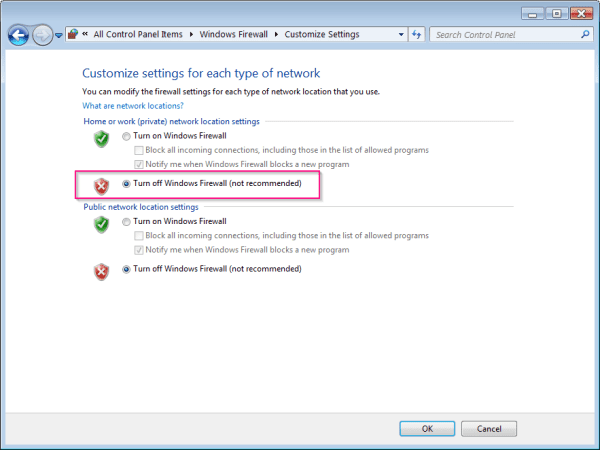
- Click that option that says “Turn off Windows Firewall.” This action will disable your Windows 7 firewall.
Note: As you can see in the brackets, Microsoft says that disabling the firewall is not recommended. But as I said above, the action was necessary so that my internet connection runs smoothly. Furthermore, this action will improve network speed.
Disclaimer: The consequences of disabling a firewall can be detrimental. Please consider using this feature with caution and be aware of the potential side effects.
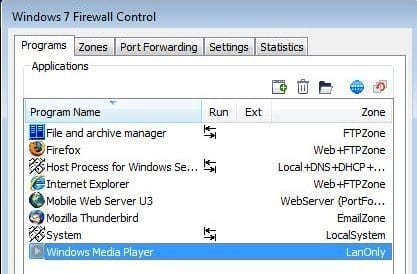
But if you found this tip annoying and are not interested in completely disabling your firewall, there are ways to control your Windows 7 firewall. One of the methods is using software called “Windows 7 Firewall Control” by Sphinx.
Review
The main purpose of this software is to have fine-grained control over your Windows 7 firewall that is built into your OS and block the inbound and outbound connections.
This software works on the following operating systems. Windows 8/7/Vista/2008/XP/2003. There are 32-bit and 64-bit versions. There is a FREE version and a PREMIUM version. The paid version costs $29.95.
The following are the features of this application.
- Local and remote application protection from incoming and outgoing threats
- Remote and distributed network/cloud management
- Per-application security settings
- Flexible permissions settings
- Instant notifications of blocked activity
- Automatic Port Forwarding-to-applications management/synchronization
- Group zone and application network access management
- IPv6 support
- Decreased expenses of mobile/satellite connections
- Zone-based network permissions management
- Integration with Window Explorer for direct access permission management
- Special editions for portable devices (USB flash/HDD drives, iPod, etc.)
- Simplicity of the operations
Windows 7 Firewall Control can control an entire network or cloud by implementing a distributed security model and creating virtual sub-networks on physical networks/clouds. It can also automatically synchronize the hardware firewalls or routers by port forwarding.
Read More: Advanced Appearance Settings in Windows 8 and 7
This software tells the Windows 7 firewall to block applications from making outbound connections to the internet or customize the way they make those connections. This step is important because if you are infected with a Trojan or a virus, that malware makes an outbound connection without your knowledge and lets some outsider take control over your PC.
How does Windows 7 Firewall Control help us?
When you run the program, whenever an application tries to access the Internet, a screen pops up with the application name, the publisher, and similar information, as well as its path and file name.
You can then enable or disable inbound or outbound connections it tries to make, either permanently or just this one time. If you’re not sure if the program is malware or not, go to www.processlibrary.com and search the file name for details.

Spot on with this write-up, I seriously feel this website needs much more attention. I’ll probably be back again to read more, thanks for the advice!