
In Windows 7, the ability to take screen captures and video recordings is very useful for tutorial makers. With Movavi’s Screen Capture software, you can accomplish this task effortlessly. Microsoft has provided the Screen Recorder utility, which has some limitations. So, you have to rely on third-party software for maximum benefits.
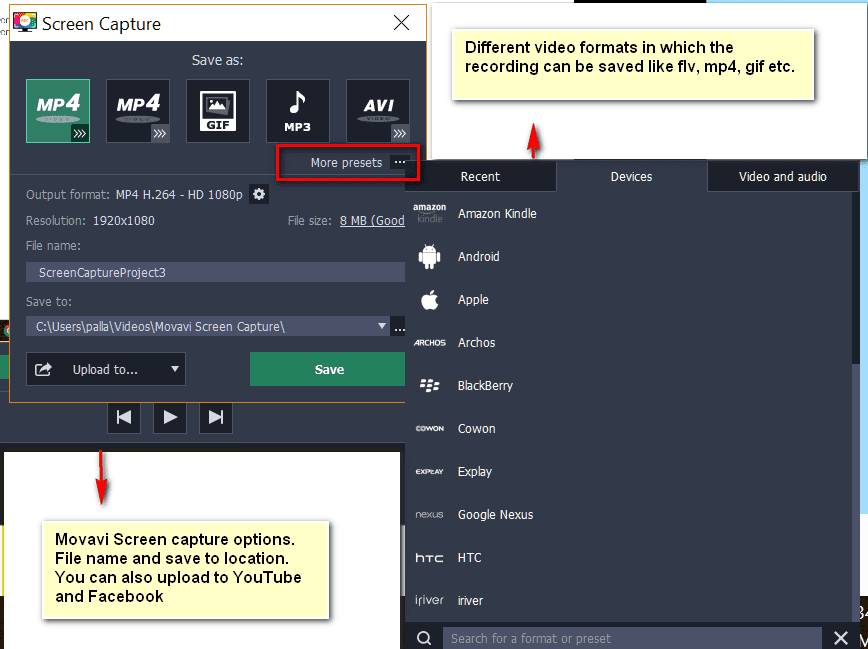
But unlike other vendors, with this screen capture and recording software, you can save your video to different formats like MP4, AVI, GIF, MOV, FLV, etc. But in 2017, the dominance of the mobile market requires that you save the recorded file in its corresponding format. So, in this software, there is a provision to save the video based on device like Android, Apple, BlackBerry, Amazon Kindle, HTC, etc.
How to do screencast recording in Windows 7 using Movavi?
The process is basic. First install the 7-day trial version of the software if you want to know its features before you buy it. Otherwise, you can buy it for $29.99, after a 40% discount.
The initial screen will have the following options.
- Record Screen
- Take a screenshot
- Repeat last recording
- Quick capture shortcuts
- Edit captured files
The above options are also available in compact mode.
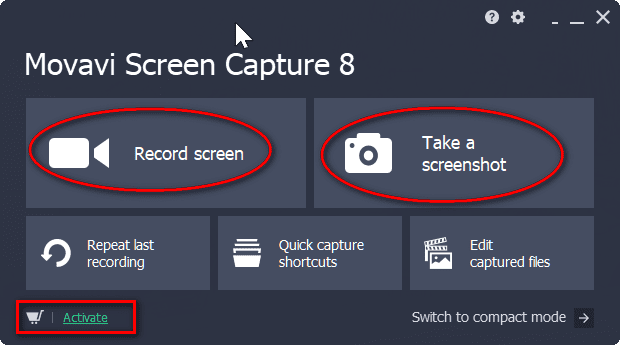
Using the Movavi Screen Capture software, you can either record screen as a video or take a screenshot of your screen
How to Record Video on Windows 7 of Your Screen Process?
The below steps will guide you through this procedure.
- Just click the Record Screen button.
- Select the capture region of which you want to record.
- A welcome screen and the Movavi Screen Capture controls window will open.
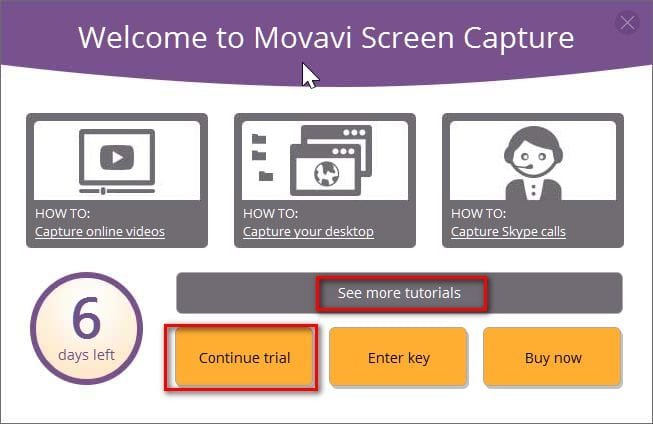
If you want to read the tutorials on how to capture online videos, capture your desktop, capture Skype calls, etc., you can click the corresponding icon. Otherwise, just click continue trial or enter the key for activation of the product. You also have several other tutorials.
- Another small window will have different controls to fine-tune your settings.
The following are the different options that you can set.
- Capture Area
- Dimension of the Area
- Webcam
- System Audio
- Microphone
- So, before you start recording your screen, you need to set these controls. If you click the capture area button, you will get a vertical and horizontal line with a pointer at the center.
- Go to one corner, left-click the mouse, and drag it to capture the required region.
- You can fine-tune this region with the Custom setting option beside it.
- You can enter the width and height values in pixels to enlarge and decrease the region. Otherwise, you can just select standard options like full screen, standard, widescreen, etc., which also have preformatted sizes.
Using the Movavi Screen Capture, you can record both video and audio.
- If you have a webcam, you can also select that option. Then you will be able to record your cam.
- Regarding audio, you have two options— 1. Speakers (System Audio) and 2. Headphones (Microphone).
- The selected options will turn green.
- After these steps, you just click the big red circle button “Rec” to record the screen.
Then you can follow the operations on your screen that you want to record.
- The trial version allows only 2-minute recording, and a watermark of the software is laid.
- But in the activated version, these limits are removed.
- Then you can click the pause or stop button to finish the recording.
This action will open the video in an editor.
The editor displays the video frame by frame. You can delete the unwanted frames.
After this step, you can save the video in your desired format.
There are several options here—
- Output format
- Resolution
- File name
- Save to location
- Upload to
For example, if you want your recording in high-resolution format, you can save it in MP4 H.264— HD 1080p. The recording will be stored as an .mp4 file. If you click the wheel icon, you have some more settings. You can select the video and audio codecs.
Since it’s Internet time, you can directly upload these videos to iTunes, Facebook, or YouTube.
The file size is also displayed.
If these editing options are not sufficient, you can further edit the video using “Open in Editor.” Then you can use the “Movavi Screen Capture Studio” to do further corrections. This software is another product of Movavi and has a demo version.
You can also take a screenshot in a similar way. If you want to save a frame of the video, you can do the same. You can change some default options, such as storage location, language selection, keyboard shortcuts, and audio quality, under Settings > Preferences.
You can also have several effects, like showing the cursor on the recording, highlighting the cursor, highlighting clicks, mouse click sounds, etc. Furthermore, keystroke recording options like keyboard shortcuts, all keystrokes, etc., can be enabled here.
One can also record the video for a specified period. You can mention the time duration. Otherwise, you can schedule the video by mentioning the start record time and end time. Furthermore, you can make your computer sleep and shut down after the scheduled recording activity is over.
Conclusion
On a personal note, I tested the trial version for a few recordings. I determined that the software is effortless to use. The recording of the screen is also completely without errors. The size of the file saved in different formats is also not big. But with increased duration, the file size may increase. The best thing is that you can upload the video directly to your YouTube or Facebook account.
You can also save the desired frames for use as screenshots. Finally, the editing of the video makes Movavi Screen Capture an apt choice for bloggers, tutorial makers, and troubleshooting technicians.

I have heard about movavi in the past from a friend, will try it for sure. Great tutorial sir, thanks for sharing.
Keep doing the awesome job 🙂
If you’re a gamer then you might wanna try Fraps too as it’s more optimized for that cause.
Very informative! Thanks for showing clearly how to record computer screen. I’d also recommend Acethinker Screen Recorder which I have been using for many years. It’s a free web-based application to record computer screen right from the browser, you don’t have to download or install anything. Share it here as an alternative to Movavi.