
Everybody knows how to pin a program to the Windows 7 taskbar and utilize the jump list.
If you right-click the pinned program on the taskbar, you can see different options of the files available for that program. You can open the required file effortlessly and quickly. There is a better method to directly pin a file or folder to the Windows 7 taskbar.
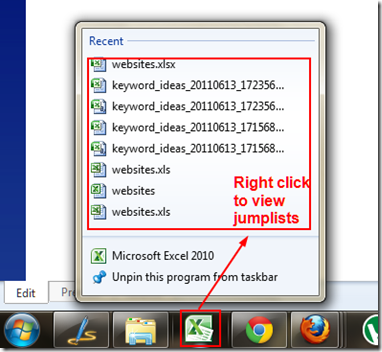
Pinning a program to the taskbar is easy. Pinning a file or folder requires a small tweak.
How to Pin a File to the Windows 7 Taskbar?
1. Make sure you can see the extensions of files.
You can do this by opening Windows Explorer and pressing the ALT key.
The menu bar will be visible. Just select Tools > Folder options.
Select the View pane. Uncheck the box next to “Hide extensions for known file types.”
Now the file extensions will be visible for any type of file. Examples of file extensions are “.txt,” “.exe,” “.pdf,” etc.
2. Let’s say you want to pin an “Excel file” to the Windows 7 taskbar.
Go to the particular file in Windows Explorer and create a desktop shortcut.
Right-click on the shortcut (pointing to your file location) present on the desktop and click on Properties > Shortcut Tab and copy the “url” from the “Target” textbox.
Copy the URL of the file location.
3. Right-click the Desktop and create a new text document. Name the file whatever you want and change the extension from “.txt” to “.exe.” ”.
For example, “websites.exe.” Drag that icon to the Windows 7 taskbar and pin it to it.
4. Right-click the icon on the taskbar, then right-click the file name (e.g., “websites” here) and select Properties > Shortcut tab. Delete all the text in the “Start In” text box.
5. Replace the URL in the “Target” textbox with the earlier URL you copied from the shortcut you made of your file.
6. Now you can also change the icon with a suitable “.ico” file. Click on Apply and OK.
7. Now you can delete the “.exe” file you earlier created on the Desktop. You can also delete the “Shortcut” to the file you created.
That’s it!
Your file is pinned to the Windows 7 taskbar.
You can directly open the file by clicking the icon on the taskbar.
How to Pin a Folder to the Windows 7 Taskbar?
1. Copy the URL of the “Folder” you wish to pin to the taskbar.
For example, “C:Program Files.”
2. Create a new text file on the Desktop and change the extension to “.exe.” Now drag that icon to the taskbar to pin it. Right-click on the icon in the taskbar and select the filename. This is similar to Step 4 in the earlier method.
3. Now replace the URL in the “Target” textbox with the folder location URL.
4. Change the icon file, and the other steps remain the same as earlier.
Hurray! Your folder is pinned to the Windows 7 taskbar.
Note: You cannot name the “.exe” file you created with either of these two words. They’re “installer” and “uninstaller.”
Explorer UI Ribbon in Windows 8 to Windows 7
The File Explorer in Windows 8 has a ribbon interface. But the ribbon is not available in Windows 7. If you like that feature, then you can easily implement it in the old version of OS, using the two methods.
There are two useful software programs that bring this Windows 8 Explorer experience to Windows 7—BExplorer and STDU Explorer.
BExplorer—Bring Windows 8 Explorer Ribbon UI to Windows 7
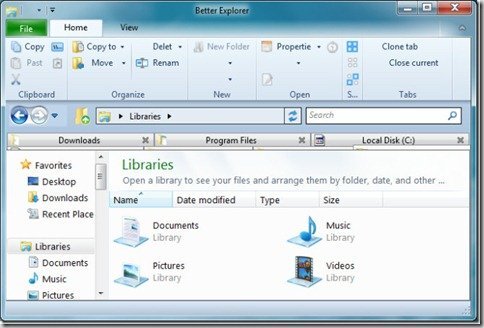
This software does not replace the Windows Explorer but brings the Windows 8 tabbed explorer to 7. On launching, you can open items in separate tabs. BExplorer adds two new sections—Home and View.
The Home tab contains verbose cut, copy, paste, rename, clone tab, and close tab options. The View tab provides sorting options to sort items by date, size, type, format, etc.
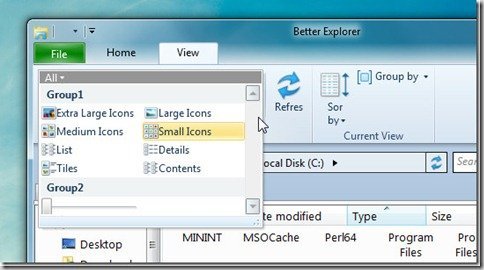
The common viewing options, such as extra large, large, medium, and small icons; details; content tiles; and list view, have been added as a separate menu that contains two groups.
Cons
Unfortunately the boasting doesn’t work completely. Many of the BExplorer sections, including the two groups mentioned above, don’t work as said. Most of the menus appear empty, including the File tab.
The developer has promised more customizations like extended jump list support, command prompt synchronization, dual panel support, and a library/folder icon customization feature in the coming versions.
But the heart-calming feature is that the tabbed interface and Windows 8 Ribbon UI work with ease. You can also minimize the Ribbon UI, unlike in Windows 8, which is not possible.
STDU Explorer – Brings Windows 8 Explorer Ribbon UI to Windows 7
This tool does not replace the default Windows 7 Explorer, but it imitates the Ribbon UI design in Windows 8 Explorer.
Apart from supporting all the basic file management operations like copy, paste, cut, copy all, etc., it comes with an in-built file viewer as well, and preview images are present in different formats like JPG, GIF, PNG, PSD, etc., as well as plain text (TXT, CSV, LOG) and eBook file formats (PDF, FB2, DCX, CBZ, DjVu).
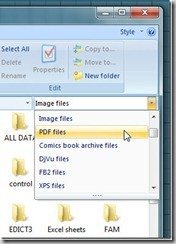
STDU Explorer can also filter folder by commonly used file types such as Images, PDF documents, comic book files, etc.
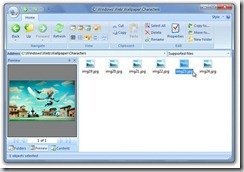
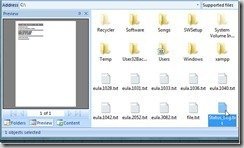
You can also switch between 3 different views—Folders view, File preview, and Content pane.
The Preview pane renders all the supported file types and shows them in the main preview area with options to zoom in/out the documents and images and play/pause media files, etc.
There is also the option to change to different UI themes by using the Style pull-down menu present at the right corner of the tab bar. You can change color and look with this option
This tool works on XP, Vista, and Windows 7.
Conclusion
The Ribbon UI is a welcome feature in Windows 8 Explorer.
Getting it in Windows 7 makes you feel you are with the latest changes.
