
If you want to have a dual-monitor taskbar in Windows 7, then you need to install a third-party tool.
Though you can duplicate and extend the display using the in-built functions of Windows 7, the taskbar cannot be replicated. Multiple tools have come into force that implement this functionality.
As with the Windows 7 taskbar, several properties are available in a single monitor. To get all the features in a multiple-monitor taskbar is difficult.
Setting up a dual-monitor configuration in Windows 7 can greatly enhance your productivity by providing more screen real estate for multitasking.
When you connect multiple monitors to your computer, you can choose to either duplicate the screen or extend your desktop across both displays. One common question users have is how to manage the taskbar in a dual-monitor setup.
It’s a process of experimentation.
Depending upon your hardware and software, third-party tools also work to duplicate the taskbar on the second monitor, but with limited functionality. So if it works on your computer, then you are lucky. Otherwise, you have to be satisfied with what you get.
If you connect multiple monitors to one PC, you can create a large screen and high-resolution dual-display backdrop. 2024 will see the widespread use of displays with resolutions higher than full HD for a variety of purposes.
If the screen size is 13″ or 14″ and is extended onto this high-resolution monitor, then the font size will shrink and be hard to read. It is better to keep the same resolution on all the multiple monitors.
How to Show Taskbar on All Displays in Windows 7: A Step-by-Step Guide
If you have a dual-monitor setup in Windows 7 and want to extend the taskbar to the second monitor, follow these simple steps to show the taskbar on all displays.
Total Time: 4 minutes
Step 1: Right-click on the taskbar
Start by right-clicking on an empty area of the taskbar on your primary monitor. This will open a context menu with various taskbar options.
Step 2: Select “Properties.”
From the context menu, click on “Properties.” This action will open the Taskbar and Start Menu Properties window.
Step 3: Navigate to the “Taskbar” tab
In the Taskbar and Start Menu Properties window, click on the “Taskbar” tab. This tab contains settings specific to the taskbar’s appearance and behavior.
Step 4: Check “Show taskbar on all displays.”
Under the “Multiple displays” section, locate the option that says, “Show the taskbar on all displays.” Click the checkbox next to it to enable this feature. This will extend the taskbar to the second monitor in your Windows 7 dual-monitor configuration.
Step 5: Choose taskbar button behavior (optional)
In the same “Multiple displays” section, you’ll discover a drop-down menu labeled “Show taskbar buttons on.” This allows you to choose whether taskbar buttons appear on all taskbars or only on the taskbar where the window is open. Select your preferred option from the drop-down menu.
Bonus Step: Apply changes and enjoy your extended taskbar
After enabling the “Show taskbar on all displays” option and selecting your preferred taskbar button behavior, click “Apply” and then “OK” to close the Taskbar and Start Menu Properties window. Your changes will take effect immediately, and you’ll now have the taskbar visible on all monitors in your Windows 7 multiple-monitor setup.
By following these steps, you can easily show the taskbar on all displays and enjoy the convenience of accessing your applications and system tray icons from any monitor in your dual-monitor setup.
Windows 7 Taskbar on both Monitors
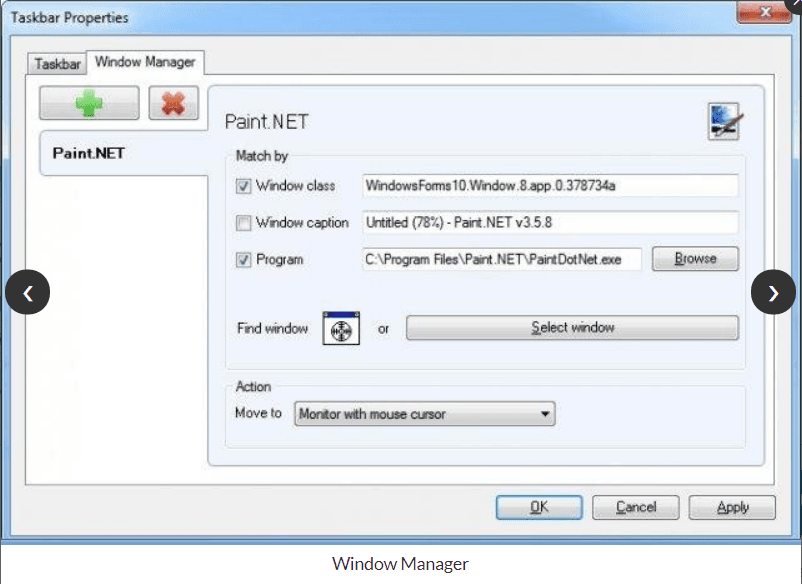
Dual Monitor Taskbar is one utility that works for Windows 7 and Server 2008 R2. It is designed to show the taskbar on all displays in Windows 7.
It has other support for Windows Manager, the notification area, pinned programs, mirror mode, the start button, Aero support, and auto hide. It has roughly 300 downloads per week as of 2024. It has 92 five-star reviews. But beware that you check this download with your antivirus or Internet security tool before you use it.
By default, the taskbar appears only on one screen in a dual-monitor configuration. However, you can easily extend the taskbar to the second monitor by adjusting your settings. This allows you to access your applications and system tray icons from either monitor, making it more convenient to manage your workflow.
To enable the taskbar on all monitors in Windows 7, simply right-click on the taskbar, select “Properties,” and navigate to the “Taskbar” tab. From there, check the option that says “Show taskbar on all displays.” You can also choose to show taskbar buttons on all taskbars or just the one with the open window.
With these simple steps, you can optimize your dual-monitor setup in Windows 7 and enjoy a more seamless and efficient computing experience.
Dual Monitor Taskbar has all the features of the primary taskbar, like hover focus, show desktop, and preview, and works without any prejudice. You can change the position of the taskbar, use large labels, and show/hide the clock and create rules for specific programs.
Show Taskbar on Both Monitors Windows 7
Actual Multiple Monitors is another third-party tool that supports a fully functional taskbar on multiple displays. It has a Start Menu and system tray on each monitor.
You can move windows quickly from one monitor to another. But this application is a premium tool. Up to 64 monitors are supported.
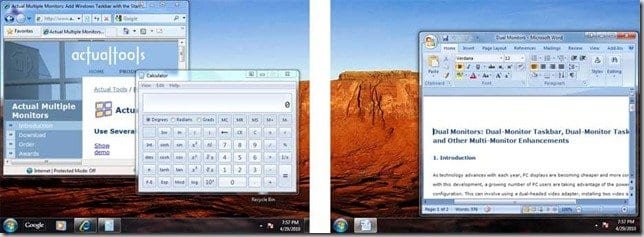
To access the taskbar, you no longer need to move the cursor to the primary monitor. Actual Multiple Monitors allows you to have a taskbar for each monitor.
Aero Peek and Jump lists. Notification area. Clock and Show Desktop button. Custom taskbar groups. Recycle bin on the taskbar.
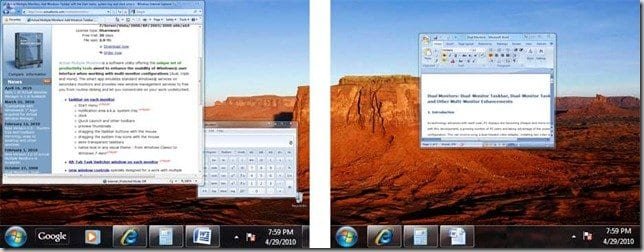
With this feature-rich software, you can easily control the open windows (activate/maximize them, switch between them) in normal fashion, without worrying whether you are on the primary monitor or the dual monitor.
This software multi-monitor taskbar also works in two modes. 1. Individual (default) mode and 2. Mirror mode.
In individual mode, each taskbar displays the buttons only for windows that are on the same monitor. In mirror mode, all taskbars display all open windows no matter what monitor a particular window is on (i.e., all taskbars show the same set of buttons).
The secondary taskbar has all the essential controls, like the Start button, the notification area (i.e., system tray), the clock, and any of the primary taskbar’s toolbars (Quick Launch, Address, Desktop, Windows Media Player, etc.), just like you play with on the primary taskbar.
Taskbar on Multiple Monitors Windows 7
If an NVIDIA graphics card is installed on your Windows 7 computer, then you can implement this feature using the NVIDIA Control Panel.
- Open NVIDIA Control Panel
- Click on the Desktop drop-down menu located at the top of the window
- Mouse over Surround Displays
- Uncheck ‘Confine taskbar to single display.’
Source: superuser.com
Having two taskbars on a dual-monitor setup is not that easy to work with. If one screen is bigger and the other smaller, then you need to adjust the resolution that fits the correct taskbar height.
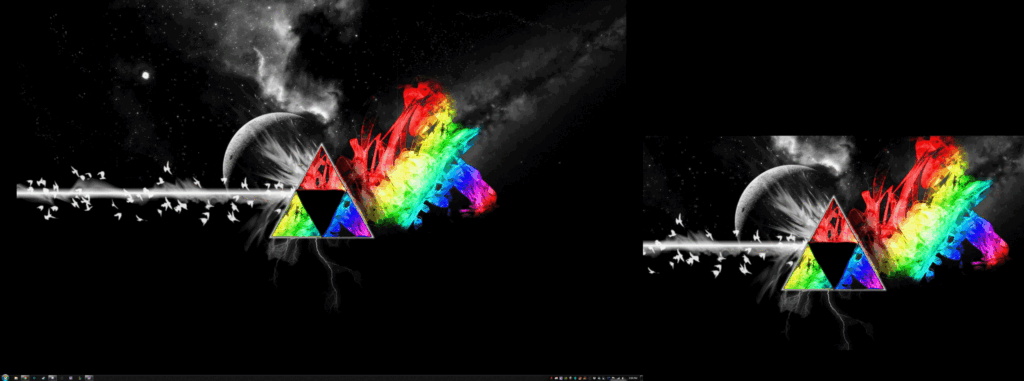
You can have a large resolution of 5760×1080 pixels using 3 monitors and 5760×2160 using 6 monitors. Even a dual monitor setup of 23″ to 24″ full HD (1920×1080 pixels) can have a lot of usefulness at work and at home.
Show Taskbar on all Displays Windows 7 – Extend
With Windows 7, you got a new and improved taskbar, which has sufficient features to fill your geek thirst.
There are many features and facilities like Pin, Peek, Jump Lists, and more.
But still Windows 7 lacks some basic amenities for multiple monitor displays, like extending the new taskbar across all the multiple displays.
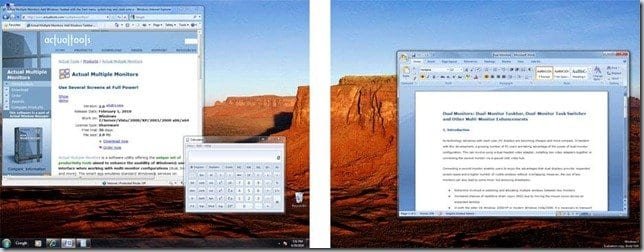
But luckily there are third-party solutions that allow the taskbar to appear on multiple monitors in Windows 7.
Though the features of different products may vary, you can choose the right one depending on your need.
Some software allows extending the taskbar to both dual monitors, and some duplicates the taskbar on both the monitors.
Taskbar on both screens Windows 7 Software
I’ll list some of the software that can be used for the above purpose:
DisplayFusion (Free and Pro)
It comes with loads of powerful features like multi-monitor taskbars, title bar buttons, and fully customizable hotkeys.
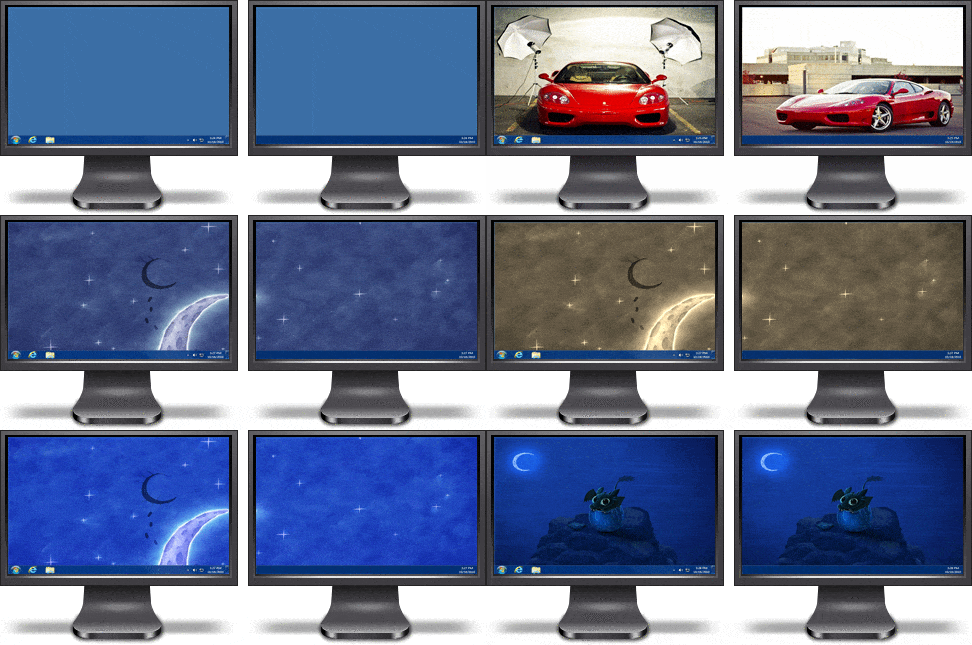
Since we’re talking about the multi-monitor taskbar for Windows 7, let me tell you about those features in this software.
Keep your windows easily organized by adding a taskbar to each of your monitors. The taskbar on each monitor can be configured to show all windows or only the windows that are located on that monitor. Use button grouping, auto-hide, window previews, shortcuts, a Start button, and much more to help you work more easily with your application windows.
Ultramon (Free)
It has a special “Smart Taskbar” that will help you manage multiple applications efficiently by adding the improved taskbar for each other monitor.
There are basically two different modes in this application.
- Standard: each taskbar only shows applications from the monitor it’s on, so you won’t have to search for an application after activating it. If you move an application to a different monitor, its taskbar button will be moved to the corresponding taskbar
- Mirror: each taskbar shows all tasks, allowing you to quickly switch tasks on any monitor
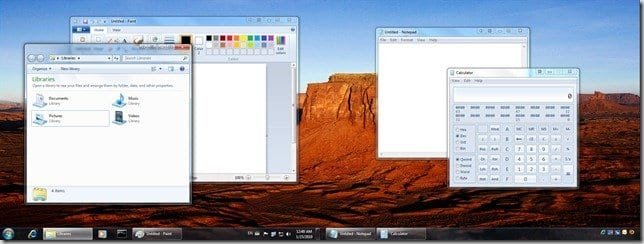
The easiness of this software is that it doesn’t replace the original taskbar in Windows 7.
It simply adds an additional taskbar, which you can use on the secondary monitor with the Windows taskbar on the primary monitor.

The 9 steps at the top are completely wrong. Selecting “Duplicate desktop on 1 and 2“. does exactly that, it DUPLICATES the screens. It DOESN’T extend them the way the article claims. FAIL!
@Sit: Thanks for your comment. Here is the article content – “But using multiple displays one can also extend taskbar in windows 7.”. It means that you can have the taskbar on the second or multiple monitors also. The meaning should not be taken literally. To extend the taskbar to other monitors, you can use the multiple monitor software tools mentioned below. Thanks.
The article has been updated with new content that fits the requirement of the article.