
Windows users are so familiar with the drag & drop feature that they get so frustrated when their mouse stops working or gives trouble. The default behavior of drag and drop in Windows 7, XP, Vista, and now even in Windows 8 is to copy, move, and create shortcuts of files and folders. Did you know that this default behavior depends on whether your files or folders are on the same partition? Well, this information was new to me! I failed to understand why drag and drop doesn’t work sometimes and seems to work the other times.
Default behavior of Drag & Drop in Windows 7, Vista, XP, and Windows 8
The standard behavior of the drag-and-drop feature is to move files from one folder to another folder if you are on the same drive, i.e., from D:\A to D:. B. But if you are using the drag-and-drop feature on different drives, i.e., C:A and E:B, the default behavior is to copy files from one folder to another folder. This default behavior can be changed by using the Alt, Ctrl, and Shift keys along with drag and drop. When you press the Alt key and use drag & drop, the files are copied from one Explorer window to another window, even if you are on the same drive or partition. Similarly, you can create a shortcut of a file if you press the Ctrl key and do drag & drop. Pressing the Shift key and doing drag & drop will move the files.
How to Customize the Default “Drag and Drop” behavior in Windows 7, Vista, XP, and 8
Sometimes, users want to customize the default behavior of drag & drop (i.e., leaving the Alt, Ctrl, and Shift key functions) to accommodate their needs. You may want to copy files instead of moving them even though you are on the same drive. Otherwise, you may want to create shortcuts whenever you do drag & drop of files. Drag & Drop Editor is a free & small software program from WinAero that performs this customization requirement with ease.
The functionality and user interface of this application are very simple. Just download the .zip file and run the .exe file after extracting it. The zip file also contains a separate executable for Windows 8.
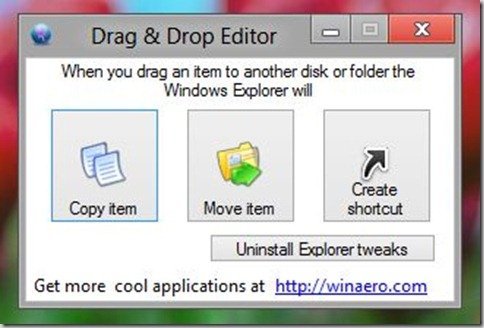
As you can see above, you can customize the default drag-and-drop behavior to any of the following 3 actions. 1. Copy item 2. Move item 3. Create shortcut You just need to double-click the icon to make it the default functionality of the drag & drop feature. But after some time, if you decide to get the normal drag-and-drop feature back, just click on the “Uninstall Explorer tweaks” button. You will be back where you started. This customization will not affect the Alt, Ctrl, and Shift key functionalities with drag and drop. The application works with Windows XP, Vista, 7, and 8.

Excellent Info!
I was looking for this solution since long time ago
Is it possible to change drag-n-drop behavior of MSWord so it will copy selected text by left click and hold and drag and drop without need to press ctrl button?