

You’ve seen the prices. Microsoft Store wants $139 for Windows 11 Home and $199 for Windows 11 Pro. Then you’ve seen the other prices—$12, $20, and $25 keys—and you wonder whether those are legitimate, a scam, or a cheap, genuine Windows 11 license key.
Here’s the honest situation: the Windows 11 license market is genuinely confusing, and the confusion costs people real money in two directions—either by overpaying Microsoft’s full retail price when cheaper legitimate options exist or by buying a grey-market key that stops working six months later.
This guide cuts through all of it. We’ll explain exactly what a genuine Windows 11 activation key is, what license types exist and what they mean for you, whether you might qualify for a completely free upgrade, and where to buy Windows 11 license cheap genuine key if you do need to pay.
We also cover the step-by-step activation process and what to do if your key ever stops working. By the end, you’ll know what to buy, where to get it, and how much to pay—without risking a bad key.
Featured Snippet Answer
What is the cheapest way to buy a genuine Windows 11 license?
The cheapest way to get a genuine Windows 11 license is to upgrade free from Windows 10 via Windows Update—Microsoft still permits this path. If you need to purchase one, an OEM Windows 11 Home license from an authorized Microsoft partner costs $30–$50—significantly cheaper than Microsoft’s $139 retail price while remaining fully genuine and legitimate.
Could you please clarify what a “genuine” Windows 11 license actually means?
Before spending a dollar, it helps to understand what you’re actually buying when you purchase a Windows 11 license—and why the word “genuine” in your search is doing important work.
best refurbished Windows 11 laptops that come pre-activated
The Difference Between Genuine and Counterfeit Windows Activation Keys
A genuine Windows 11 license is a product key issued by Microsoft that activates an installation of Windows 11 and keeps it activated. Microsoft’s servers validate the key when you enter it, verify it hasn’t been used on too many machines, and then mark your copy of Windows as legitimate.
A counterfeit key is one that was either generated fraudulently, stolen from a corporate volume license pool, or purchased through fraudulent credit card transactions. These keys often activate successfully at first—Microsoft’s servers don’t always catch them immediately—but they get flagged and revoked later, sometimes weeks or months after you’ve built your entire workflow around the system. When that happens, Windows shows “Not Activated,” and many personalization features are disabled.
The critical distinction isn’t always visible at the point of purchase. That’s why understanding the source of the key matters more than the price tag.
Why a “Too Cheap to Be True” Key Can Stop Working Without Warning
Keys sold for $5–$10 are almost invariably from one of three illegitimate sources:
- Stolen corporate volume licenses—taken from enterprise agreements that Microsoft can and does audit and revoke
- Keys obtained through fraudulent transactions—purchased with stolen payment credentials, which Microsoft voids when the fraud is reported
- Generated keys that activate temporarily due to exploits before Microsoft patches them
When Microsoft identifies and revokes these keys, your activation disappears. There’s no recourse—the seller has your money, and Microsoft has no obligation to replace a key you purchased from an unauthorized source. Keys in the $12–$35 range sit in a different category (grey-market), which we’ll address in detail below—the risk profile is genuinely different.
Is Windows 11 a One-Time Purchase or a Subscription?
Windows 11 is a one-time purchase—a lifetime operating system license. You pay once, and Windows 11 continues working on that machine indefinitely. There are no annual renewal fees, no subscription costs, and no expiry date.
This scenario is one of the most common buyer confusions, largely because Microsoft also sells Microsoft 365 as a subscription alongside Windows. They are entirely separate products. A Windows 11 license does not require Microsoft 365, and Microsoft 365 does not include a Windows 11 license. Buy one without the other if that’s all you need.
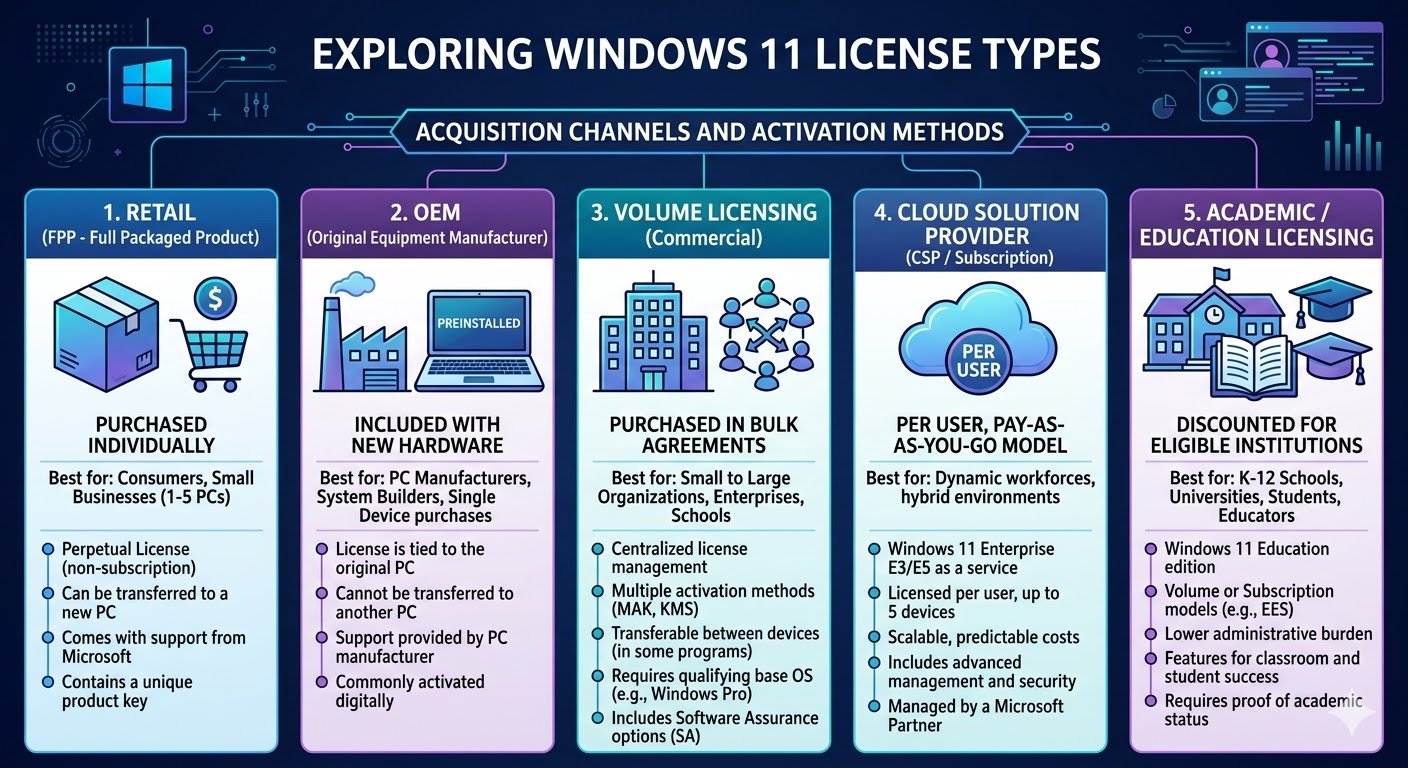
Windows 11 License Types Explained—OEM, Retail, and Volume
The license type is arguably more important than the price—because it determines what you can do with the key after you’ve bought it. Getting this wrong is the single most expensive mistake Windows buyers make.
OEM License—What It Is, What It Restricts, and Why It’s Cheaper
OEM stands for Original Equipment Manufacturer. An OEM license is designed for hardware builders—it’s sold at a lower price than retail because it comes with restrictions.
The core restriction: an OEM Windows 11 license is permanently bound to the first machine it activates on. If you replace your motherboard, or if the PC fails and you need to transfer Windows to a new machine, an OEM license cannot move with you. It dies with the hardware.
This limitation is why OEM licenses are cheaper—you’re getting a license for one machine, one time, with no flexibility. For users who have no intention of switching hardware, the price is a completely acceptable trade-off. For users who upgrade PCs regularly, it’s a recurring cost.
OEM licenses are the right choice if you’re buying Windows for a specific machine you plan to use long-term without major hardware changes.
Retail License—Full Transferability and When It’s Worth the Premium
A retail (also called Full Packaged Product or FPP) Windows 11 license is fully transferable. You can activate it on one machine, deactivate it, and move it to an entirely different PC. There’s no hardware binding.
The premium exists for good reason—if you’re a PC builder who upgrades regularly, the ability to carry your license forward across machines means you’re paying once for Windows rather than once per build.
how to check if your PC supports Windows 11 before upgrading
Retail licenses are the right choices if: You upgrade your PC hardware regularly, build new systems periodically, or want maximum flexibility.
Volume and MAK Licenses—Enterprise Use Only, Not for Personal Buyers
Volume licenses (including Multiple Activation Keys, or MAK) are Microsoft’s bulk licensing product for businesses and institutions. They allow large organizations to activate Windows across many machines using a single key.
These licenses are not sold to individual consumers through legitimate channels. When you see extremely cheap “Windows 11 Pro” keys on grey-market sites, volume license keys are frequently what you’re actually purchasing—keys leaked or stolen from corporate agreements. This is why they carry significantly higher deactivation risk.
If a seller is offering Windows 11 Pro for $8–$15, it is almost certainly a volume license key sold as if it were a retail or OEM key. This type of transaction is the scenario to avoid.
Which License Type Should You Buy? A Simple Decision Guide
| Your Situation | Correct License Type |
|---|---|
| Using this PC long-term, no hardware changes planned | OEM license |
| You build or upgrade PCs regularly | Retail license |
| Upgrading from Windows 10 on the same machine | Free upgrade (no license purchase needed) |
| Business deploying multiple PCs | Volume license (through Microsoft) |
| Student or charity worker | Education/charity pricing (see below) |
Could you please clarify whether you need Windows 11 Home or Windows 11 Pro?
The Home vs. Pro decision costs buyers real money every year because most people buying Pro don’t actually need it.
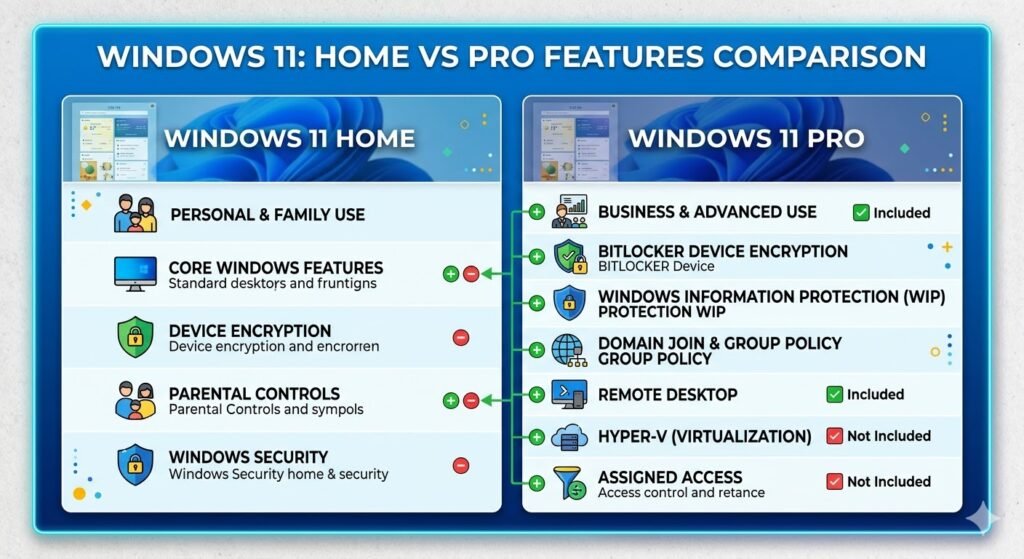
What Windows 11 Pro Has That Home Doesn’t
Windows 11 Pro includes several enterprise-focused features that Home lacks:
- BitLocker drive encryption—full-disk encryption for security-sensitive users
- Remote Desktop (hosting)—lets other PCs connect to your machine remotely
- Domain and Azure Active Directory join—required for corporate IT environments
- Hyper-V virtualization—runs virtual machines natively without third-party software
- Group Policy editor—advanced system configuration tool for IT professionals
- Windows Sandbox—an isolated environment to test software safely
- Assigned Access—locks a device to a single application
Who Genuinely Needs Windows 11 Pro vs Home
Buy Windows 11 Pro if you work in a corporate IT environment, need BitLocker encryption for sensitive data, host Remote Desktop connections, run virtual machines regularly, or your employer’s IT department requires it.
Buy Windows 11 Home if you are a home user, student, creative professional, gamer, or small business user who does not need the enterprise features listed above. The overwhelming majority of personal users fall into this category.
The performance, speed, interface, security updates, and feature updates of Windows 11 Home and Pro are identical. Pro simply adds enterprise tools. If you don’t need those tools, paying the premium is wasted money.
Price Difference—Is the Pro Upgrade Worth It for You?
The official Microsoft price difference between Home and Pro is $60 ($139 vs. $199). On the grey market, the difference narrows significantly—often $5–$10 between a Home and Pro key.
If you are genuinely uncertain whether you need Pro, ask yourself one question: do I need BitLocker encryption or the ability to host Remote Desktop? If the answer is no, buy Home.
Check Your PC Before You Buy—System Requirements for Windows 11
This step is non-negotiable. Buying a Windows 11 license before verifying your PC can run it is one of the most avoidable mistakes in computing.
The Full Windows 11 System Requirements Checklist (2026)
| Requirement | Minimum Specification |
|---|---|
| Processor | 1 GHz or faster, 2+ cores, 64-bit, compatible with Windows 11 |
| RAM | 4 GB minimum |
| Storage | 64 GB minimum available |
| TPM | TPM 2.0 required |
| Firmware | UEFI with Secure Boot capable |
| Display | 720p or higher, 9-inch diagonal |
| GPU | DirectX 12 compatible |
| Internet | Required for Windows 11 Home setup |
The TPM 2.0 requirement is the most common reason PCs fail Windows 11 compatibility. Most machines made before 2017 do not have TPM 2.0 or have it disabled in BIOS by default.
How to Run the Microsoft PC Health Check Before Purchasing
- Go to microsoft.com and search “PC Health Check app.”
- Download and install the free application
- Open it and click “Check now” under the Windows 11 compatibility section
- Read the result—”pass” means you’re good to buy; “fail” gives you the specific requirement blocking you
Do these steps before purchasing any license. The PC Health Check is free and takes under two minutes.
What to Do If Your PC Fails the Windows 11 Requirements
If your PC fails:
- TPM 2.0 is absent, but the CPU supports it. Check BIOS settings—many machines have TPM 2.0 disabled by default. Enable it and rerun the verification
- Processor too old: A Windows 11 license will not help—the hardware itself needs upgrading. Consider a refurbished Windows 11 laptop instead of a license purchase.
- Under 4GB RAM: RAM upgrade first, then license purchase.
Windows 8.1 end of support—your free upgrade options explained
Every Way to Get Windows 11 Cheap—Ranked From Free to Full Price
Here are all six options, ranked from cheapest to most expensive, with an honest assessment of each.
Option 1—Get Windows 11 Free: Upgrade From Windows 10
If you are currently running Windows 10 on a compatible PC, you can upgrade to Windows 11 for free through Windows Update. This is the official Microsoft path, and it works as of 2026—despite Windows 10’s end of support in October 2025.
How to do it:
- Go to Settings → Windows Update
- Click “Check for updates.”
- If your PC is eligible, you’ll see “Windows 11 is ready, and it’s free.”
- Click Download and install
Your existing Windows 10 activation carries forward automatically. You do not need to purchase a new license key—your Windows 10 digital license converts to a Windows 11 digital license tied to your hardware.
This is the single best option for any Windows 10 user on compatible hardware. Zero cost, zero risk, full legitimacy.
Option 2—Get Windows 11 Free: Upgrade From Windows 8.1
Windows 8.1 is not officially in the free upgrade path—Microsoft ended that promotion years ago. However, the activation servers still accept valid Windows 8.1 product keys for Windows 11 activation as of early 2026. This route is an unofficial path that Microsoft has not actively blocked.
The process:
- Download the Windows 11 Installation Assistant from Microsoft’s site
- Run it on your Windows 8.1 machine
- When prompted for activation, Windows will attempt to activate using your existing digital license.
- If it fails, you can enter your Windows 8.1 product key directly in Settings → Activation
This path works for many users but is not guaranteed. Treat it as a first attempt before purchasing a new license—if it fails, move to Option 4.
Option 3—Buy Cheap via Microsoft Education and Charity Pricing
This is the most overlooked legitimate option in the entire guide.
Microsoft Imagine / Azure Dev Tools for Teaching—students and staff at qualifying educational institutions can get Windows 11 Pro for free or heavily discounted through their institution’s Microsoft agreement. Check with your IT department or student portal.
Microsoft Nonprofit pricing—registered charities and nonprofit organizations can purchase Windows 11 through Microsoft’s nonprofit program at up to 90% below retail pricing. Visit microsoft.com/nonprofits to check eligibility.
If you are eligible for either program, this option is definitively the cheapest legitimate path to a genuine Windows 11 license.
Option 4—Buy OEM License From Authorised Microsoft Partners (~$30–$50)
This option is the best choice for most users who need to purchase a license outright.
Authorized Microsoft partners and distributors sell legitimate OEM Windows 11 keys—not grey-market, not volume licenses stolen from enterprises, but genuine OEM licenses that Microsoft has authorized for individual sale.
The key sources for authorized OEM licenses:
- Amazon—specifically listings sold by Microsoft directly or by verified Microsoft-authorised resellers (check “Sold by” in the listing)
- Newegg—strong selection of OEM Windows 11 licenses with clear “System Builder” labelling
- B&H Photo and Adorama—reliable US retailers with authorised Microsoft reseller status
Expected prices:
- Windows 11 Home OEM: $30–$50
- Windows 11 Pro OEM: $50–$70
These keys arrive digitally via email, activate instantly, and come with legitimate buyer protection through the retailer. This price point is the sweet spot of cheap, genuine, and safe.
Option 5—Buy From Grey-Market Key Sites (CDKeys, Kinguin)—The Full Truth
Grey-market key sites are the most controversial topic in the Windows license conversation, and most guides either dismiss them entirely or endorse them uncritically. Neither is accurate.
What these sites sell: Typically OEM keys are sourced from regions where Windows is legitimately sold at lower prices (India, Eastern Europe, certain Asian markets) and resold into higher-price markets like the US and UK. This is the grey-market mechanism—not illegal manufacture, not stolen keys, but keys from lower-priced regional markets.
CDKeys specifically has operated for over a decade and has a strong track record. Keys generally activate and remain active. Their refund policy for non-activating keys is reasonable.
Kinguin is a marketplace (sellers set their own standards) rather than a single seller, making quality more variable. The Buyer Protection program adds cost but reduces risk.
The real risk: Not all keys on grey-market sites are regionally sourced OEM keys. Some volume license keys are misrepresented as retail. These carry higher deactivation risk. CDKeys is more reliable in this regard than open marketplaces like Kinguin or G2A.
Our honest assessment:
- CDKeys: Moderate risk, generally reliable, worth considering for Pro keys where the savings are most significant
- Kinguin with Buyer Protection: Moderate risk with reasonable recourse if the key fails
- G2A without Buyer Protection: High risk—the savings don’t justify the uncertainty
Option 6—Buy Directly From Microsoft Store at Full Price
The Microsoft Store is the highest-trust, highest-cost option. Windows 11 Home at $139 and Windows 11 Pro at $199 are MSRP prices—you are paying for certainty, unlimited customer support, and a retail license that transfers with you to new hardware.
When the full Microsoft Store price makes sense:
- You need a transferable retail license and plan to upgrade hardware regularly
- You need Microsoft’s direct customer support guarantee
- Your purchase is a business expense and you need a proper receipt and full retail documentation
- You simply want zero uncertainty and are willing to pay for it
Are Grey-Market Windows 11 Keys Legal? The Honest Answer
What Grey-Market Key Sites Actually Sell
As described above, reputable grey-market sites primarily sell regionally sourced OEM keys—legitimately manufactured Windows licenses purchased in lower-price markets and resold internationally. Less reputable sites mix in volume license keys, which carry higher deactivation risk.
The EU First-Sale Doctrine and What It Means for Key Resellers
The EU Court of Justice ruled in the UsedSoft v. Oracle case (2012) that software licenses can be resold under the doctrine of exhaustion—once a software copy is sold, the original publisher cannot prevent its resale. This ruling underpins the legal argument for gray-market key resellers operating in the EU.
This does not mean Microsoft endorses grey-market sales. It means the legal position in Europe is more nuanced than “illegal.” In the US, the position is less clear—no equivalent court ruling exists, and Microsoft’s Terms of Service prohibit resale of OEM keys, though the matter is a contractual rather than a criminal issue.
Microsoft’s Official Position on Third-Party Key Purchases
Microsoft’s official position is straightforward: they recommend purchasing Windows only from authorized resellers. They actively revoke keys that they identify as fraudulently obtained, stolen from volume license pools, or violating their distribution terms.
Microsoft cannot revoke a legitimately manufactured OEM key simply because it was resold through a grey-market channel—the key itself is genuine. What they can and do revoke are keys that were fraudulently obtained in the first place.
The Real Risks—When a Cheap Key Stops Working and Why
Keys get deactivated when:
- They were stolen from a corporate volume license agreement (Microsoft audits and revokes these)
- They were purchased with fraudulent payment credentials (the transaction is reversed and the key voided)
- They were sold multiple times and exceeded the activation limit
The risk with CDKeys-tier sites is low, but there is still some risk. The risk with G2A-tier sites is meaningfully higher. The risk with authorized OEM keys from Amazon or Newegg is effectively zero.
How to Minimise Risk If You Buy From a Third-Party Key Seller
- Buy from CDKeys over Kinguin; avoid G2A for operating system keys
- Always purchase Buyer Protection if the marketplace offers it
- Link your activated Windows to a Microsoft account immediately—this creates a digital license record tied to your account, which can help with reactivation
- Screenshot your purchase confirmation and key receipt
- Test activation within 30 minutes of purchase while you’re still within the refund window
Where to Buy a Genuine Windows 11 License—Trusted Sources in 2026
Microsoft Store—Official, Most Expensive, Highest Trust
microsoft.com/en-us/windows—direct purchase, digital delivery, retail license, and full customer support. Best for: buyers who need retail transferability and want zero uncertainty.
Amazon (Microsoft-Sold Listings)—Official OEM Keys at Lower Prices
On Amazon, specifically look for listings where “Sold by: Microsoft” or “Sold by: [verified Microsoft reseller]” appears. These are genuine OEM System Builder licenses at significantly lower than retail prices. Avoid third-party Amazon sellers for Windows licenses unless they have a strong track record and at least 95% positive feedback.
CDKeys.com—The Most Reputable Grey-Market Option
CDKeys is the most established grey-market key platform, with a decade of operation and generally positive customer outcomes. Windows 11 Home keys run approximately $20–$25; Windows 11 Pro keys run approximately $28–$38. The refund policy for non-activating keys is reliable.
Kinguin—Higher Risk, Buyer Beware Policy Explained
Kinguin is a marketplace where individual sellers list keys. Quality is inconsistent because sellers vary. The Kinguin Buyer Protection program (approximately $1–$3 additional) provides replacement or refund if a key fails. Always use Buyer Protection on Kinguin.
G2A—Our Honest Assessment of the Highest-Risk Key Marketplace
G2A is the largest grey-market gaming and software marketplace—and carries the highest risk for operating system keys. Reports of deactivation are more frequent, seller vetting is weaker, and dispute resolution is slower. For a $10 saving over CDKeys, the risk-to-reward ratio is unfavorable. We recommend avoiding G2A for Windows license purchases specifically.
Windows 11 License Prices by Region—US, UK, India and Europe
Microsoft Store Official Prices
| Region | Windows 11 Home | Windows 11 Pro |
|---|---|---|
| United States | $139 | $199 |
| United Kingdom | £119 | £219 |
| India | ₹8,999 | ₹14,999 |
| Germany | €145 | €259 |
| France | €145 | €259 |
| Australia | AU$225 | AU$329 |
Why Windows 11 Is Legitimately Cheaper in India and Eastern Europe
Microsoft prices Windows regionally based on purchasing power parity. The Indian retail price of ₹8,999 (approximately $108 at mid-2026 exchange rates) is legitimately lower than the US price—not a discount or a grey-market price, but Microsoft’s actual regional pricing.
This situation is why some grey-market keys are described as “legitimate”—they are keys purchased in India or Eastern Europe at the local Microsoft price and resold internationally. The key itself is genuine; the grey-market element is the resale across regions.
Price Comparison Table—All Options Side by Side
| Method | Windows 11 Home | Windows 11 Pro | Risk | Transferable? |
|---|---|---|---|---|
| Free upgrade (Win 10) | $0 | $0 | None | Existing license |
| Microsoft Education | $0–$20 | $0–$30 | None | Varies |
| OEM (Amazon/Newegg) | $30–$50 | $50–$70 | Very low | ❌ No |
| CDKeys (grey-market) | $20–$25 | $28–$38 | Low-moderate | ❌ No |
| Kinguin + Buyer Protection | $18–$24 | $25–$35 | Moderate | ❌ No |
| Microsoft Store (retail) | $139 | $199 | None | ✅ Yes |
How to Activate Windows 11 With Your License Key—Step-by-Step
Step 1—Check System Requirements First
Before entering any key, confirm your PC passes the Windows 11 compatibility check. Run the PC Health Check tool—a failed system requirement will prevent activation regardless of key validity.
Step 2—Purchase and Receive Your Product Key
Purchase from your chosen source. Digital keys arrive via email, typically within minutes from authorized sources. Your key is a 25-character alphanumeric code in the format XXXXX-XXXXX-XXXXX-XXXXX-XXXXX. Keep a copy stored securely—in a password manager, a secure note, or a screenshot.
Step 3—Access the Activation Screen on Windows 11
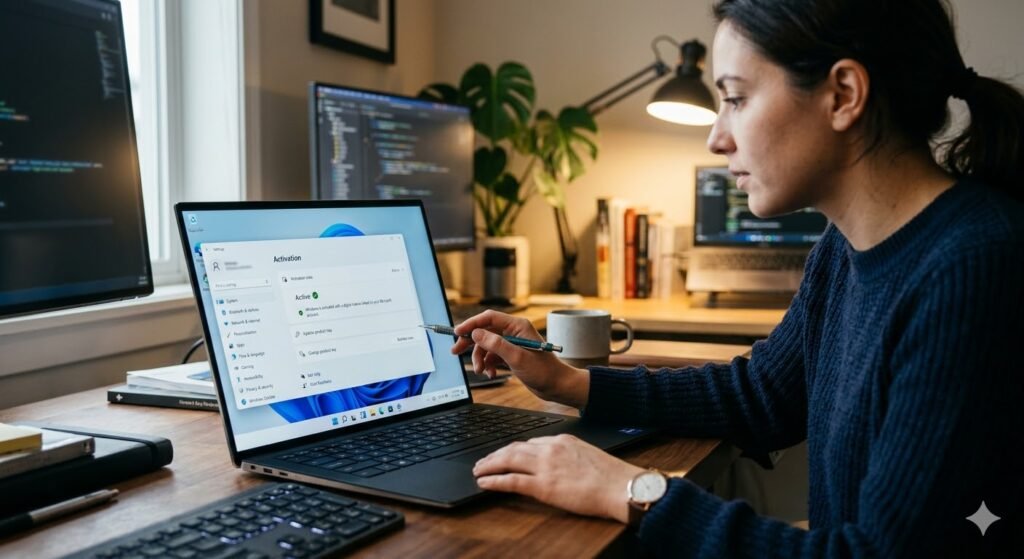
Navigate to Settings → System → Activation → Change product key
Alternatively, you can activate it during Windows 11 installation by clicking “I have a product key” at the appropriate screen.
Step 4—Enter the Product Key and Activate Online
Please enter your 25-character key carefully, as even one incorrect character may cause the activation to fail. Click Next. Windows connects to Microsoft’s activation servers and validates the key. Successful activation shows: “Windows is activated with a digital license.”
This process typically takes 10–30 seconds on a stable internet connection.
Step 5—Activate by Phone If Internet Activation Fails
If online activation fails:
- In the Activation screen, select “Activate by phone.”
- Select your country
- Call the displayed Microsoft automated activation number
- Follow the voice prompts—enter the Installation ID shown on screen
- The automated system provides a Confirmation ID
- Enter the Confirmation ID to complete activation
Phone activation works when online activation fails due to connectivity issues or if the key has a flag that requires phone verification.
Step 6—Link Your License to a Microsoft Account for Recovery
After successful activation:
- Go to Settings → Accounts → Your info
- Sign in with or create a Microsoft account
- Your Windows 11 digital license becomes linked to your account
This procedure is the most important post-activation step. Linking your license to a Microsoft account means if you ever need to reinstall Windows 11 or transfer to new hardware (for retail licenses), your account holds the license record, and recovery is significantly easier.
What to Do If Your Windows 11 Key Stops Working or Gets Deactivated
Why Windows 11 Keys Get Deactivated
Keys stop working for three main reasons:
- Hardware change too significant—replacing the motherboard changes the hardware fingerprint that the OEM license is bound to
- Key revoked by Microsoft—the key was identified as fraudulently obtained (volume license sold as retail, stolen credentials, etc.)
- Used on too many machines—a key activated on more machines than its license permits triggers automatic deactivation
How to Check Your Current Activation Status
Go to Settings → System → Activation. The status will show one of the following:
- “Windows is activated with a digital ‘license’—fully activated, no action needed
- “Windows is activated with a digital license linked to your Microsoft account—activated and recoverable
- “Windows is not ‘activated’—activation required
- “Activation error”—a specific issue to troubleshoot
How to Reactivate After a Hardware Change
If you’ve replaced your motherboard and Windows deactivates:
- Go to Settings → System → Activation → Troubleshoot
- Select “I changed hardware on this device recently.”
- Sign in with your Microsoft account
- Select the device that matches your new setup
This process works for retail licenses linked to a Microsoft account. OEM licenses that are hardware-bound cannot be reactivated on new hardware through this method—a new license is required.
What to Do If a Third-Party Key Is Revoked
If a grey-market key is revoked:
- Contact the seller immediately—CDKeys and Kinguin with Buyer Protection both have replacement/refund policies for revoked keys
- Document the “Not Activated” status with a screenshot
- If the seller refuses, dispute through your payment provider (credit card chargeback or PayPal dispute)
- Purchase a replacement key from a more trusted source
Windows 11 continues functioning without activation—you lose personalization features (custom wallpaper, color themes, and lock screen settings), but the OS itself operates normally. It’s inconvenient, not catastrophic.
When to Contact Microsoft Support Directly
Contact Microsoft if:
- Activation fails repeatedly despite entering the correct key
- You have a legitimate license but cannot activate due to a hardware change
- You received a key from a retailer that Microsoft is flagging as invalid
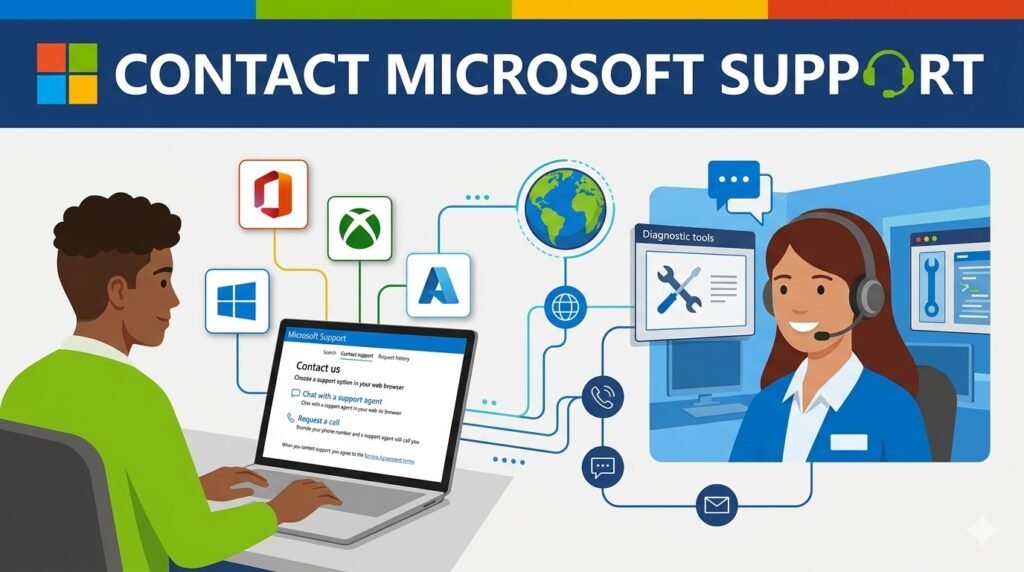
Microsoft support at support.microsoft.com can verify license legitimacy and assist with activation issues on genuinely purchased licenses. They will not assist with keys purchased from unauthorized third-party sources.
How to Transfer a Windows 11 License to a New PC
Which License Types Can Be Transferred (Retail vs OEM)
Retail licenses can be transferred. You deactivate on the old machine and activate on the new one. The license follows you, not the hardware.
OEM licenses cannot be transferred. They are permanently bound to the original hardware. If you sell your old PC and buy a new one, an OEM license stays with the old machine. You need a new license for the new PC.
This is why the OEM vs. retail decision matters at purchase time—not when you’re trying to move your license and discovering it won’t budge.
Step-by-Step: Deactivating on Old PC and Activating on New PC
On the old PC:
- Open Command Prompt as Administrator
- Type “—”: this clears the product key from the registry
- Type “—”: this uninstalls the product key and deactivates Windows
- Please confirm that the old machine now shows “Not Activated.”
On the new PC:
- Install Windows 11 (download the ISO from Microsoft and create installation media)
- During setup or after installation, go to Settings → System → Activation
- Enter your product key
- Activate online
What to Do If Your Old PC Is Dead and You Can’t Deactivate
If your old machine died before you could deactivate it:
- Sign in to account.microsoft.com with your Microsoft account
- Go to “Devices”—your old PC should be listed with its linked digital license.
- Select “Remove this “device”—this clears the license association from the dead PC
- Activate on the new PC using the same Microsoft account and the license should transfer
If the old PC wasn’t linked to a Microsoft account, you may need to contact Microsoft support with proof of purchase to have the license transferred manually.
Common Mistakes to Avoid When Buying a Windows 11 License
Buying Pro When Home Is Sufficient—Wasting $30–$80
This is the most frequent and easily preventable error. Most home users, students, and small business owners have no use for BitLocker, Remote Desktop hosting, or domain join. If you cannot articulate a specific reason you need Pro, buy Home. The Pro features you are paying for will go unused.
Not Checking System Requirements Before Purchasing
Buying a Windows 11 license before verifying your PC meets requirements is an easy way to waste money. Run PC Health. Check first, every time, before any purchase. A failed TPM 2.0 check or incompatible processor makes the license worthless on that machine.
Buying From Unverified Sellers With No Buyer Protection
Any key purchase from a seller without a return/replacement policy is a gamble. Even on relatively trusted grey-market sites, verify the refund/replacement policy for invalid keys before completing the purchase. The small extra cost of Buyer Protection on Kinguin, or the slightly higher price on CDKeys, is cheap insurance.
Confusing Windows 11 Licenses With Microsoft 365 Subscriptions
Windows 11 is not a subscription. Microsoft 365 is a subscription. They are separate products. If you see “Windows 11 + Microsoft 365” bundles, you are being sold a Windows 11 one-time license and a Microsoft 365 annual subscription. These are not the same thing and are not required together.
Purchasing a Volume License Key Sold as a Retail Key
Very cheap keys on low-quality grey-market sites are frequently volume license keys misrepresented as retail or OEM. If the price is under $10 for any version of Windows, assume a volume license until proven otherwise. Volume license keys carry the highest deactivation risk of any category.
Frequently Asked Questions
How do I activate Windows 11 with a license key step by step?
Go to Settings → System → Activation → Change product key. Enter your 25-character product key and click Next. Windows connects to Microsoft’s servers and activates automatically. If internet activation fails, select “Activate by phone” and follow the automated instructions. Link your license to a Microsoft account to enable recovery on future devices.
Are OEM Windows 11 licenses legal to buy?
Yes—OEM licenses are fully legal. Microsoft sells them to hardware builders and authorized partners. OEM licenses are non-transferable and permanently linked to the first machine they activate on. Buying a legitimate OEM key from an authorized reseller like Amazon or Newegg is completely legitimate and significantly cheaper than retail.
Please let me know the expected time frame for receiving a Windows 11 license key after purchase.
From authorized digital sellers—Microsoft Store, Amazon (Microsoft-sold listings), and CDKeys—delivery is instant to 15 minutes via email. Physical USB versions from retailers take 1–3 working days. Grey-market sites also deliver digitally within minutes, though key validity cannot be guaranteed in all cases. Always check your spam folder before contacting support.
What is the best price for a genuine Windows 11 Pro license?
The best legitimate price is the free upgrade from Windows 10, which costs nothing and requires no key purchase. If buying, an OEM Windows 11 Pro license from an authorized Amazon or Newegg reseller costs $50–$70. CDKeys-tier grey-market sites sell Pro keys at $28–$38. Microsoft’s official retail price is $199—justified only if you need a transferable retail license.
Final Verdict—How to Buy Windows 11 Cheap and Genuine in 2026
The Windows 11 license market rewards informed buyers. The same operating system that costs $199 from Microsoft can be obtained legitimately for $0, $30, or $50 depending on your situation—but only if you know which path is right for you.
Our Recommended Path by User Type
If you’re on Windows 10: Try the free upgrade via Windows Update before spending a penny. If your machine is compatible, you pay nothing, and your license is as genuine as it gets.
If you’re on Windows 8.1: Try the free upgrade path first—many 8.1 licenses still activate Windows 11 via the unofficial path. If it fails, buy an OEM key from Amazon or Newegg for $30–$50.
If you’re building a new PC: Buy an OEM System Builder key from an authorized partner. Newegg and Amazon are reliable sources. Expect to pay $35–$50 for Home, $55–$70 for Pro.
If you need Windows 11 Pro on a budget, CDKeys is the most reliable grey-market option at $28–$38. Accept that there’s a small risk of key issues and verify their replacement policy before buying.
If you need maximum certainty and transferability: Buy direct from the Microsoft Store. You’re paying a premium, but the retail license is fully transferable and backed by Microsoft’s customer support.
The Cheapest Fully Legitimate Options at a Glance
| User | Best Option | Cost |
|---|---|---|
| Windows 10 user | Free upgrade via Windows Update | $0 |
| Windows 8.1 user | Free unofficial upgrade path | $0 |
| Student/charity worker | Microsoft Education/Nonprofit pricing | $0–$20 |
| New PC builder (Home) | OEM key from Amazon/Newegg | $30–$50 |
| New PC builder (Pro) | OEM key from Amazon/Newegg | $55–$70 |
| Regular hardware upgrader | Microsoft Store retail license | $139–$199 |
When Paying Full Microsoft Price Is Actually Worth It
Full Microsoft Store pricing makes sense when you need a transferable retail license, require direct Microsoft customer support, are making a business purchase that needs proper receipts and documentation, or simply want absolute certainty with zero risk. For everyone else, a legitimate OEM key from an authorized partner delivers the same Windows 11 experience at a fraction of the cost.
Buy what you need, pay what it’s worth, and stop overpaying for an operating system that has perfectly legitimate cheaper routes to your PC.