
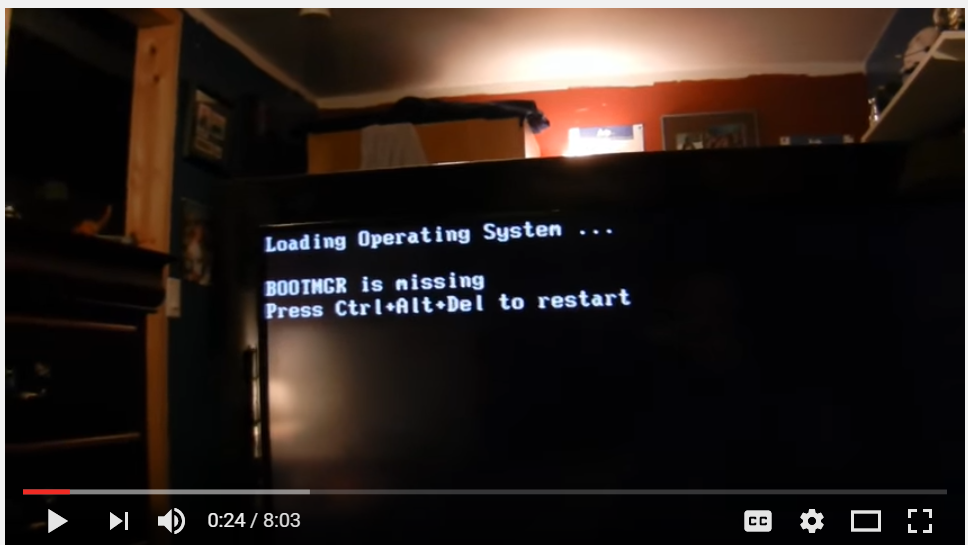
After a failed Windows 7 install, you may encounter the “BOOTMGR is missing” error when you make another futile attempt to install or run the OS. It will show you a black screen. There are no fixes provided along with the error. It will simply say to press “CTRL+ALT+DELETE” or “RESTART” your computer. Just like many illogical Microsoft solutions, this solution is also stupid.
People who don’t know about computer error messages or are less knowledgeable about OS will try to fix it with their intuitive solutions, like wiping out the hard disk, repetitively running the install DVD or USB several times, playing with BIOS, etc. If you faced this error, you must have done that. Didn’t you? (Don’t be timid; I have done this procedure several times myself).
The major problem lies in the Windows 7 boot loader, and you need to repair the MBR (Master Boot Record). This is the most common problem and solution. Other problems exist and require alternatives.
Just like any other computer or software error, this issue also has several reasons and fixes. So before I give some typical solutions for this problem, let us understand the “booting process” first.
What is BOOTMGR, and why does this error occur?
The boot manager is a tiny piece of program that resides in your boot drive. It automatically runs when you start your PC. It loads your OS from your hard drive. So basically it’s like a middle manager between your hardware and OS. It is the crucial link for the OS to initiate. Earlier there was a boot loader called NTLDR in the XP and NT era. But from Vista to Win 10, currently this “little code piece” links the hardware to the OS.
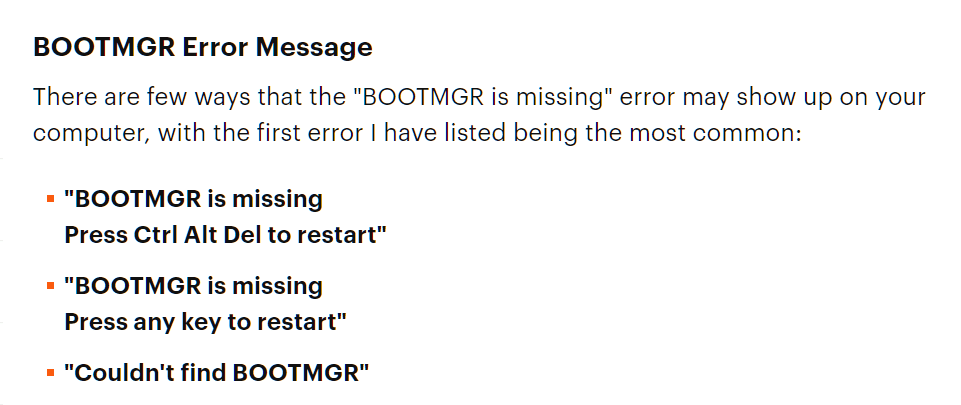
First of all, let’s see the many reasons why you get this message immediately after starting the computer.
- Corrupt and Misconfigured files
- Hard-drive and Operating system upgrade issues
- Corrupt Hard-drive sectors (hardware related)
- OutDated BIOS
- Damaged or Loose Hard-Drive Interface cables
[Source: pcsupport.about.com]
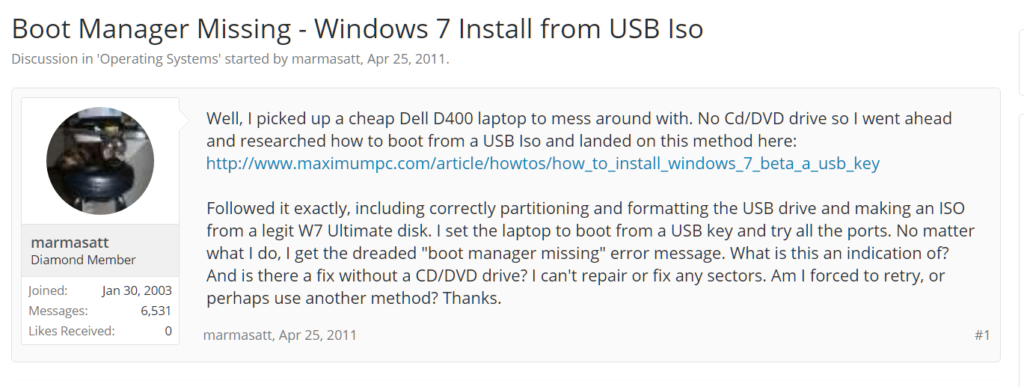
To understand the process for this error, please provide a few more details.
- When your PC starts, the BIOS starts a set of processes known as POST (short for Power On Self Test). This step happens just before the Windows boot.
- POST generally checks for RAM, peripheral devices, hardware, etc. The error appears just after this little process is complete.
- The Windows BOOTMGR starts after BIOS completes these tasks, leading to the appearance of this error. When the BIOS fails to locate this “tiny piece of program,” it commonly results in the error “BOOTMGR is missing.”
- It can be due to several reasons—the BOOTMGR file may be missing, may not exist on the boot drive, or may be due to boot sector viruses, faulty hardware, BOOTMGR corrupted by failed Windows installs, etc.
Different Things to Try to Eliminate “Bootmgr is Missing” Error
As said above, the cause of this error can be many. But just like a good doctor, who doesn’t know the cause of a “typical fever,” we will implement some solutions by eliminating each cause.
Please ensure you read this article thoroughly before proceeding with the implementation of these solutions. Such an approach will save you a lot of time. I gathered these solutions after reading several forums and posts and from my own experience. For the complete procedure of each solution, you can look up the source.
Fix #1
First let’s implement the Microsoft support solution itself.
a. Run Startup Repair from Windows Recovery Environment (WinRE)
(or)
b. Rebuild the boot configuration data (BCD) from WinRE.
(or)
c. Run System Restore from WinRE.
(or)
d. Use Startup Repair on Windows OEM machines like laptops, etc.
Fix #2
Verify your bootable source. For example, it can be a DVD or CD or USB drive. Verify that the ISO image of the Windows 7 installation file is correct and from a reputable source. Sometimes, the DVD or flash drive can be corrupt, which also may cause this error. Ensure that the source includes all the installation files.
Fix #3
Please ensure that you are not inserting a DVD into a CD drive. This mistake can also be a cause for the “Bootmgr is missing” error. Such mistakes may look silly, but some users have made this type of error. The solution is of KISS standard. Just put in a reliable DVD drive and insert the appropriate media.
Fix #4
There is another trick that can solve the above error. You can force the computer to go into ADVANCE BOOT. This procedure is generally done by pressing the F8 button recurrently, before the booting process starts or right after restart. For different companies like Dell, Samsung, etc., these are the keys.
Asus – F8
HP/Compaq – Esc
Sony – F2
Acer – F12
Gateway – F10
eMachines – F10
Toshiba – F12
Dell – F12
IBM/Lenovo – the blue Thinkvantage button
This feature is generally useful if you face a non-bootable source problem. Before that, please ensure that you change the BIOS options to choose the right boot source. Once the installation disc or media starts, you can apply Solution Number #1.
Fix #5
Verify the hardware of your computer or laptop. These can be faulty hard disks, RAM, SATA cables connecting different media, etc. Better you can do a memory test or a rigorous disk test to make sure each block or sector, respectively, is working fine.
Fix #6
Occasionally an easier solution is to bypass the HDD and boot from an installable media source like a DVD. Before that, remove all the USB devices and any secondary optical disks that do not contain Windows 7 or OS.
This is generally the solution if Windows 7 is already installed and maybe some files are corrupt. You need to have a DVD or flash drive containing the Windows 7 installable source and ONLY the HDD that has the OS.
When the error appears, just unplug the connection to the HDD. Occasionally you may get an error “DISK ERROR—PLEASE INSERT.” Now the booting will take place from DVD. So when you reach the phase to detect the OS HDD, plug the disk back in. You should be ready to proceed.
[Source: YouTube.com]
Fix #7
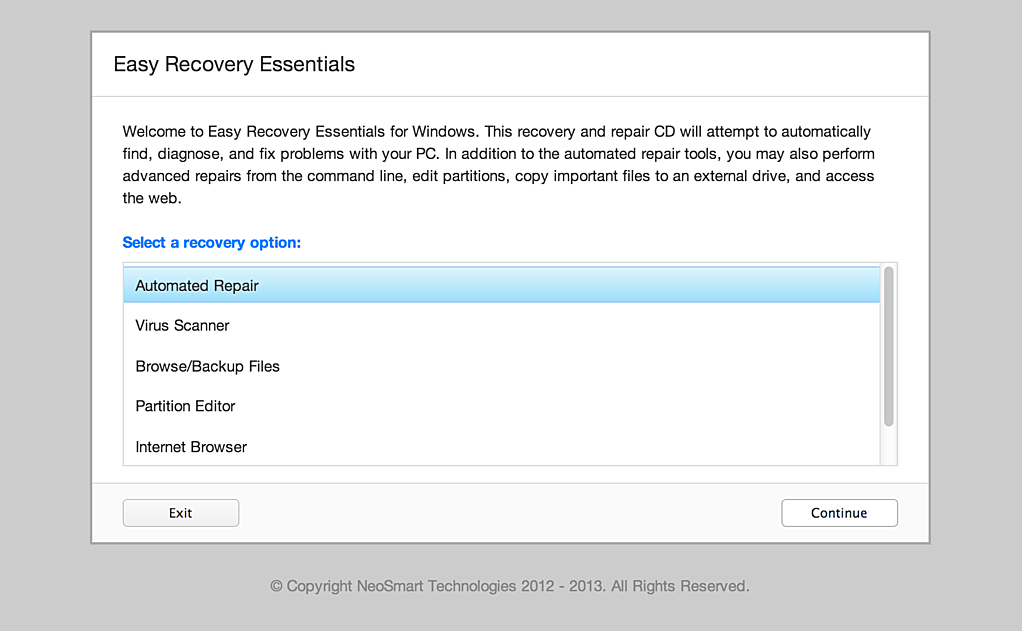
You can use third-party software to eliminate this error. Two popular software programs remove this error if the boot entries or BOOTMGR is corrupted.
1. Easy BCD
2. Easy Recovery Essentials.
[Source: neosmart.net]
Fix #8
Normally the partition (primary or logical) on your HDD containing the Windows 7 or OS is called the active partition. Generally, the BOOTMGR also resides on it if it’s only 1 single OS.
The partition may become inactive for unknown reasons, such as altering disk management and computer management tools. In such cases, you just need to make that partition active again, restore the boot files, and rebuild them.
[Source: deskdecode.com]
Fix #9
You can also try this /force command to the bootsect option.
The command that is generally used in this case is
bootsect /nt60 h: /force
where h: is the bootable and active drive.
[Source: forums.anandtech.com]
Fix #10
To save space on your HDD, you should compress files on your hard disk. Unknowingly, such actions can also compress your boot records or boot manager files. So generally it is recommended not to COMPLETELY compress your boot or main partition like C:.
[Source: Windows7themes.net]
Fix #11
This solution mainly helps in dual-boot issues related to “BOOTMGR is missing.”
Another reason why you encounter this problematic error message is the computer trying to boot from a non-bootable source. What does this error mean? For example, you may see this message if your computer is trying to boot from a USB, optical drive, or floppy drive that is not properly configured to boot or is incompatible with that particular BIOS or computer.
The most general case is you have broken something, and this error popped up. The other major cause for this problem is when you have installed an older version of Windows, like XP, on the same PC that already has Windows 7 installed. This procedure wipes out the bootloader, and you need to reinstall it.
Boot from the Windows 7 Installation DVD
- Change your BIOS settings to boot from CD/DVD and boot off the install disc. Click through until you see the “Repair your computer” link in the lower left-hand corner.
- Select the correct installation of Windows (if you’re multibooting Windows or have more than one version installed) and click the Next button.
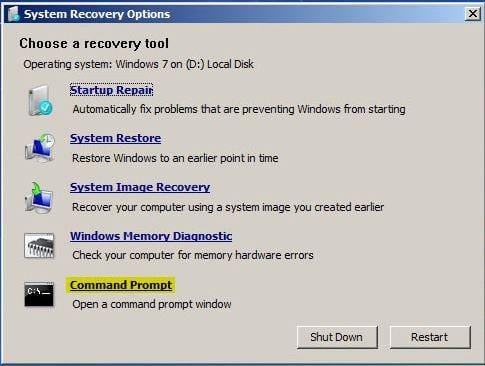
- There you’ll get the System Recovery Options, where you find the option of going to “Command Prompt.”
Repairing the Master Boot Record
- To restore the master boot record, you can simply type in the following command.
bootrec /fixmbr
- To write a new boot sector onto the system partition, use this command. (more helpful)
bootrec /fixboot
- To see the remaining options for the base command, you need to type
bootrec /?
Replace Win XP NTLDR Boot loader with Win 7 BOOTMGR
If you installed Windows 7 first and installed XP next, you’ll find that you can’t boot into Windows 7 anymore. You can use the following commands to restore the Windows 7 boot loader.
bootrec /FixMbr
bootrec /FixBoot
bootrec /RebuildB--
Then reboot. This command will replace the NTLDR boot loader, and you can boot into Windows 7 again. This step will also remove the dreaded “BOOTMGR is missing” message.
Fix #12
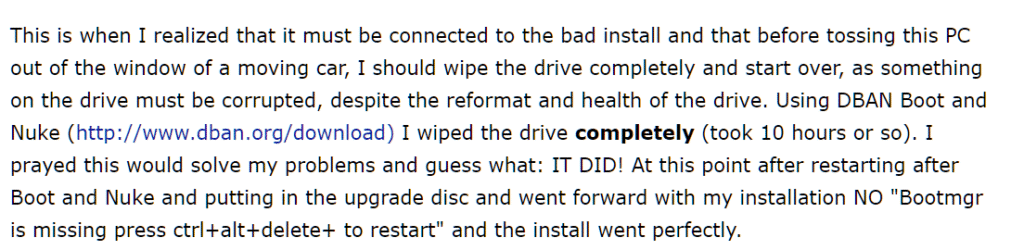
The final alternative, when all the above solutions fail, is to completely wipe off the physical disk. Then do a fresh install. Initially, keep only one HDD and a working Windows 7 installation source (DVD/USB/CD), along with an uncorrupted ISO image of the Windows 7 installation file.
You can take the help of DBAN Boot and Nuke to wipe the drive completely. Generally it may take some time if you have lots of data. (like 6 to 12 hours). Then you can install Windows 7 fresh using the upgrade disc or the installation ISO file written to DVD.
[Source: tomshardware.com]
There are several videos on YouTube that explain the solution for BOOTMGR failure, fixing MBR records and boot files.
Conclusion
Usually, when a Windows 7 installation fails, you may get this error. If it’s only a single OS and a single HDD, you can just wipe off the disk completely and start from the installation phase again. This procedure will 100% definitely resolve the error. This method is like “1 nuclear weapon” for any cause and in most of the cases is fast and easy.
But if you already have an existing Windows 7 installation, then you cannot do the above. In that case, use a piece of software like EasyBCD to correct your boot entries, and installing the BOOT Manager is the simple and working solution.
Furthermore, don’t forget to check your hardware (like DVD, HARD DISK, RAM, CABLES, etc.) before you try these solutions. Also always use working installation disks and ISO files downloaded from Microsoft or reputable sites.
If you like this article, just leave a comment below on your experience in solving the BOOTMGR is missing problem. You can also share with your friends about this solution, which is common in Windows OS. Apart from Windows 7, the above solutions also work for Windows 8, 8.1, and 10. It took two days to write this article, so I would appreciate a thank you if you found it helpful.

Booting from a recovery DVD or the installation media always solves it for me. So, I would recommend trying these two methods first.