Your old laptop is not broken. It is just slow. And in most cases, one upgrade fixes that completely.
Replacing a hard disk drive (HDD) with the best SSD upgrade old laptop 2026—a solid-state drive (SSD)—is the single most impactful upgrade you can make to an aging laptop. Boot times shrink. Apps open faster. Windows stops freezing. Everything just works—without spending $800 on a new machine.
In this guide, you will find the 9 best SSD upgrades for old laptops in 2026, a simple compatibility checklist before you buy, a step-by-step installation walkthrough, and honest pricing context so you know exactly what to spend. Whether you run Windows 8.1, Windows 10, or Windows 11, this guide is written for home users and small business owners—not IT professionals.
Featured Snippet Answer
What is the best SSD upgrade for an old laptop in 2026?
The best SSD upgrade for an old laptop in 2026 is a 1TB NVMe M.2 SSD if your laptop supports it, or a 1TB SATA SSD for older models with no M.2 slot. Either option replaces slow HDDs, reduces boot times to under 15 seconds, and costs between $40 and $90—far cheaper than buying a new laptop.
Why Upgrading Your Old Laptop’s SSD in 2026 Still Makes Perfect Sense
Laptops from 2014 to 2020 are not slow because their processors are weak. They are slow because they are still running on spinning hard drives. An HDD reads and writes data at around 80–120 MB/s. A basic SATA SSD does 500 MB/s. An NVMe SSD hits 3,500 MB/s or more. That gap is what you feel every morning when Windows takes two minutes to load.
best external hard drives for laptop backup in 2026
The Real Cost: SSD Upgrade vs. Buying a New Laptop in 2026
A new laptop costs between $500 and $1,200. A quality 1TB SSD upgrade costs between $40 and $90. If your laptop’s screen, keyboard, and processor still work fine, replacing the storage drive extends its useful life by 3 to 5 years. The math is simple.
- 1TB SATA SSD: $35–$60
- 1TB NVMe M.2 SSD: $55–$90
- Budget entry-level new laptop: $500–$700
- Mid-range replacement laptop: $800–$1,200
For a $60 investment, you can make a 2016 laptop feel like a 2022 machine. That is exceptional value for home users, students, and small businesses.
How Much Speed Can You Actually Gain? Real-World Before & After
The improvement is dramatic—and not just in benchmarks. Here is what real users experience after an SSD upgrade:
- Windows 10 boot time: 90 seconds on HDD → 12 seconds on SSD
- Microsoft Office launch: 18 seconds → 3 seconds
- Chrome with 10 tabs: sluggish → instant response
- File transfers: 40 MB/s → 500 MB/s on SATA SSD
- Waking from sleep: 8 seconds → under 2 seconds
If you are still on Windows 8 or 8.1 running on an HDD, the improvement will feel like an entirely different computer.
2026 SSD Pricing Trends—Is Now a Good Time to Buy?
SSD prices rose slightly in late 2025 due to NAND flash supply adjustments but have stabilized heading into 2026. Right now is a solid time to buy—especially 1TB drives, which hit the value sweet spot. Prices are not expected to drop significantly in the next 6 months, so waiting is unlikely to save you much. Buy now and enjoy the speed today.
Quick Answer—The Best SSD Upgrades for Old Laptops at a Glance
Not everyone has 20 minutes to read a full buying guide. If you want the quickest answer, here it is.
| Model | Interface | Capacity | Read Speed | Write Speed | Price | Best For |
|---|---|---|---|---|---|---|
| Samsung 870 EVO | SATA III | 1TB | 560 MB/s | 530 MB/s | ~$60 | Pre-2018 laptops |
| Crucial BX500 | SATA III | 1TB | 540 MB/s | 500 MB/s | ~$40 | Budget users |
| WD Black SN7100 | PCIe 4.0 NVMe | 1TB | 7,200 MB/s | 6,500 MB/s | ~$70 | 2018–2022 laptops |
| Kingston NV3 | PCIe 3.0 NVMe | 1TB | 6,000 MB/s | 4,000 MB/s | ~$55 | Value sweet spot |
| Samsung 990 Pro | PCIe 4.0 NVMe | 1TB | 7,450 MB/s | 6,900 MB/s | ~$90 | Gaming laptops |
| Sabrent Rocket 4 Plus | PCIe 4.0 NVMe | 1TB | 7,100 MB/s | 6,600 MB/s | ~$100 | Ultrabooks (2230) |
| WD Black SN850X | PCIe 4.0 NVMe | 1TB | 7,300 MB/s | 6,600 MB/s | ~$105 | Power users / 4K |
| Crucial P3 Plus | PCIe 4.0 NVMe | 1TB | 5,000 MB/s | 4,200 MB/s | ~$60 | Dell laptops |
| Seagate FireCuda 530 | PCIe 4.0 NVMe | 1TB | 7,300 MB/s | 6,900 MB/s | ~$110 | Engineering / 4K |
Best SSD Upgrade Old Laptop 2026
The Samsung 870 EVO wins for pre-2018 laptops. Reliable, quick, and universally compatible with virtually every laptop made after 2010.
Best Budget SSD Upgrade
The Crucial BX500 punches well above its price at under $40. Handles everyday tasks perfectly and comes with free Acronis cloning software.
Best NVMe SSD Upgrade
The Kingston NV3 hits the value sweet spot—PCIe 3.0 NVMe speeds at a price that makes it the obvious choice for 2017–2021 laptops with NVMe slots.
Best SSD for Gaming Laptops
The Samsung 990 Pro delivers the 4K random read IOPS that matter for game loading—and the thermal management that keeps it running fast under pressure.
SSD 101—What You Need to Know Before You Buy
What Is an SSD, and How Does It Work?
An SSD (solid-state drive) stores data on NAND flash memory chips—the same technology used in USB drives, but much faster and more reliable. Unlike a hard disk drive (HDD), an SSD has no moving parts. That means no vibration, near-instant access times, and much lower power consumption, which is excellent for laptop battery life.
NVMe vs. SATA SSD—What’s the Difference for Laptop Users?
This is the most important choice you will make. SATA SSDs connect via the older SATA interface and max out around 550 MB/s. NVMe SSDs connect via the PCIe interface and deliver speeds of 3,500 MB/s or more. For everyday laptop use, both are a massive upgrade over any HDD. But if your laptop has an M.2 NVMe slot, go NVMe—you will notice the difference with large file transfers and heavier workloads.
M.2, 2.5-inch, and mSATA—Which Form Factor Does Your Old Laptop Use?
Laptops use three main SSD form factors. Knowing yours before you buy is essential.
- 2.5-inch SATA: The most common slot in laptops made before 2018. Accepts standard SATA SSDs that look like miniature hard drives.
- M.2 (2280): A small card slot found in most laptops from 2017 onward. Can support both SATA and NVMe protocols—check which yours supports.
- mSATA: An older, less common format found in some 2012–2015 laptops. Becoming rare, but SSDs are still available.
PCIe 4.0 vs PCIe 5.0 vs PCIe 3.0—Is Your Older Laptop Compatible?
Most laptops from before 2021 support PCIe 3.0 at the most. PCIe 4.0 arrived in consumer laptops around 2021–2022 with AMD Ryzen 5000 and Intel 12th Gen. PCIe 5.0 is only found in the newest 2023–2025 laptops. Buying a PCIe 4.0 or PCIe 5.0 SSD for a laptop that only supports PCIe 3.0 is wasteful—the drive will be throttled to the lower speed anyway.
💡 Pro tip: Match your SSD to your laptop’s PCIe generation. PCIe 3.0 NVMe still delivers 3,500 MB/s—more than fast enough for any home or office task.
What Is a “1TB SSD” Really? Storage, Speed, and What the Numbers Mean
1TB means roughly 1,000 GB of usable storage—enough for Windows, your full Office suite, thousands of documents, and a photo library. For the majority of home users, 1TB is the ideal amount of storage. Think about a 2TB option if you run large gaming libraries or edit 4K video. Anything under 512GB will feel limiting within 2 years.
How to Check Your Old Laptop’s SSD Compatibility (Before You Spend a Cent)
Buying the wrong SSD is the most common—and most frustrating—mistake. Please take a moment to verify compatibility before placing your order.
Step 1—Identify Your Laptop’s Motherboard and M.2 Slot Type
Open Device Manager in Windows (right-click Start → Device Manager). Look under “Disk Drives” to see your current storage. Then check your laptop’s model number (usually on a sticker on the bottom). Search “[Your Model] service manual” on Google and look for the storage section—it will tell you exactly what slot type you have.
Step 2—Check Your CPU Generation (Intel or AMD) to Confirm PCIe Support
Your CPU determines the maximum PCIe generation your M.2 slot supports. Intel 8th–10th Gen and AMD Ryzen 2000–4000 typically support PCIe 3.0. Intel 12th Gen and AMD Ryzen 5000 and newer support PCIe 4.0. To check your CPU, press Windows + R, type “dxdiag,” and look at the processor line.
Step 3—Confirm Your BIOS Supports NVMe Boot (Critical for Old Laptops)
Some laptops from 2013–2016 have M.2 slots, but their BIOS cannot boot from an NVMe drive. They can only use SATA-protocol M.2 SSDs. If you are unsure, check your laptop manufacturer’s website for a BIOS update history. If they added “NVMe boot support” in any update, you are in luck. Use a SATA M.2 or 2.5-inch SATA SSD instead.
Compatibility by Laptop Age—Pre-2018, 2018–2022, and 2022+ Laptops Explained
- Pre-2018 laptops: Almost always use 2.5-inch SATA. M.2 slots, if present, are usually SATA-only. Buy a SATA SSD.
- 2018–2022 laptops: Many have M.2 NVMe slots. PCIe 3.0 is standard. An NVMe drive here will feel fast and last years.
- 2022+ laptops: PCIe 4.0 capable. An NVMe PCIe 4.0 SSD gives excellent performance and is future-proofed for several years.
Free Tools to Check Your Laptop’s SSD Slot
- CPU-Z (free): Shows your motherboard chipset and memory type—useful for confirming PCIe generation.
- HWiNFO64 (free): Gives a complete hardware report, including your storage controller type.
- Crucial System Scanner (free web tool): Scan your system, and it will show exactly which SSD models are compatible with your laptop.
The 9 Best SSD Upgrades for Old Laptops in 2026—Tested & Ranked
The following picks are chosen for value, reliability, compatibility with older systems, and real-world performance—not just raw benchmark numbers. Prices reflect 2026 market averages.
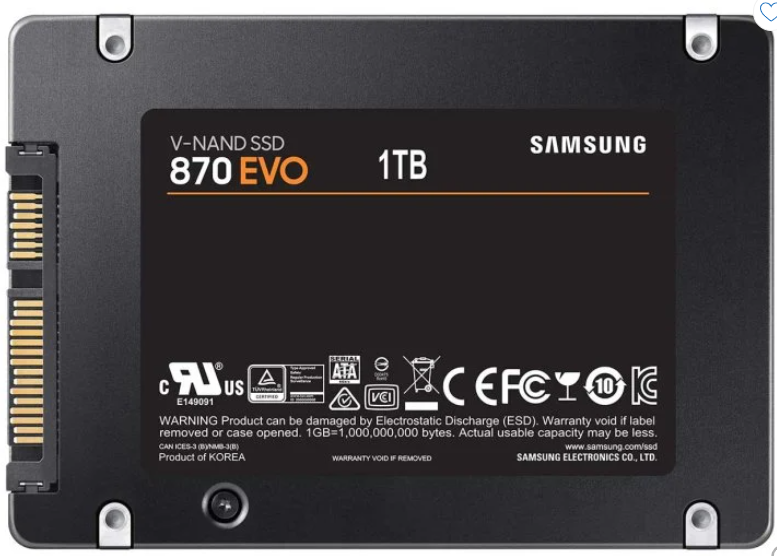
1. Samsung 870 EVO—Best Overall SSD Upgrade for Old Laptops
The Samsung 870 EVO remains the gold standard for SATA SSD upgrades in 2026. It delivers consistent 560 MB/s reads, excellent endurance ratings, and works in virtually every laptop made after 2010. If your laptop only has a 2.5-inch SATA bay, this model is the one to buy. Available in 500GB to 4TB capacities.
Key specifications:
- Interface: SATA III (2.5-inch)
- Read/Write: 560/530 MB/s
- Price (1TB): ~$55–$65
- Best for: Pre-2018 laptops, everyday office use, Windows users upgrading from HDD
The 870 EVO also benefits from Samsung’s V-NAND TLC technology—more durable and consistent than QLC alternatives at a similar price point. Samsung Magician software is included free and makes health monitoring and performance optimization straightforward.
Who should buy it: Anyone with a pre-2018 laptop running Windows 8.1, Windows 10, or Windows 11 who wants a reliable, no-fuss upgrade that will last 5+ years.
Who should skip it: Users with confirmed NVMe M.2 slots—the Kingston NV3 or WD Black SN7100—will deliver dramatically better speeds for a similar price.
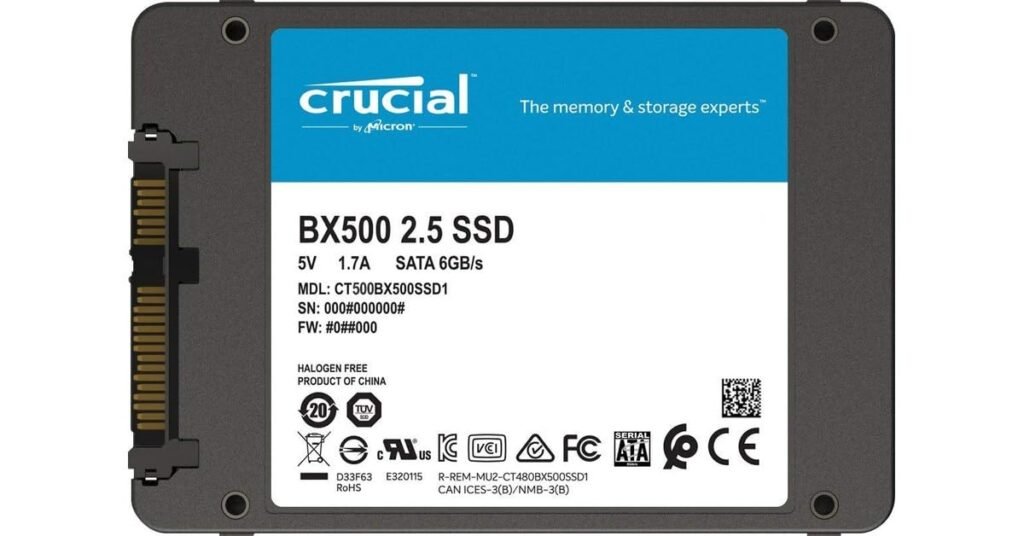
2. Crucial BX500—Best Budget SATA SSD Under $40
If budget is the primary concern, the Crucial BX500 is the most reliable option under $40. It uses QLC NAND flash, which is slightly slower under sustained workloads, but for day-to-day use—browsing, Office, email—the difference is invisible. It comes in a 2.5-inch form factor and is beginner-friendly with Crucial’s free Acronis cloning software bundled in.
Key specifications:
- Interface: SATA III (2.5-inch)
- Read/Write: 540/500 MB/s
- Price (1TB): ~$35–$45
- Best for: Budget users, older laptops, first-time upgraders
Crucial is a brand trusted by millions of home users globally—their lifetime warranty and accessible support make the drive a safe first purchase for someone who has never opened a laptop before.
Who should buy it: Home users on a tight budget, students, and anyone upgrading from a mechanical hard drive for the first time.
Who should skip it: Users who do heavy sustained file transfers or large video exports—the QLC NAND will throttle under prolonged write loads.
3. WD Black SN7100—Best NVMe M.2 SSD for Mid-Range Old Laptops
The WD Black SN7100 hits the value sweet spot for midrange NVMe upgrades. It runs on PCIe 4.0 but is backward compatible with PCIe 3.0 slots—so it works in 2018–2022 laptops. Excellent performance for its price, with read speeds up to 7,200 MB/s on compatible hardware and respectable thermal efficiency.
Key specifications:
- Interface: PCIe 4.0 NVMe M.2 2280
- Read/Write: 7,200/6,500 MB/s
- Price (1TB): ~$60–$75
- Best for: 2018–2022 laptops with NVMe M.2 slots
The SN7100 also runs noticeably cooler than many competing PCIe 4.0 drives—an important consideration for older laptops with limited thermal headroom.
Who should buy it: Anyone with a confirmed NVMe M.2 slot on a laptop from 2018 to 2022 who wants maximum performance per dollar.
Who should skip it: Users with SATA-only M.2 slots—this drive will not be recognized.
4. Kingston NV3—Best 1TB SSD Value Sweet Spot Pick
The Kingston NV3 is one of the best value NVMe SSDs of 2026. It offers solid PCIe 3.0 NVMe speeds, a competitive price, and broad compatibility. It runs cool enough for thin-and-light laptops and is widely available across the US, India, and Europe—making it a practical pick regardless of where you are shopping.
Key specifications:
- Interface: PCIe 3.0 NVMe M.2 2280
- Read/Write: 6,000/4,000 MB/s
- Price (1TB): ~$50–$60
- Best for: Most 2017–2021 laptops with NVMe M.2 slots
At this price point, the Kingston NV3 regularly undercuts competitors by $10–$20 without meaningful real-world performance sacrifices for home users and small office environments.
Who should buy it: Home users and small business owners who want a reliable NVMe upgrade without overspending.
Who should skip it: Power users who need maximum sustained write performance—a TLC-based drive like the WD Black SN7100 will serve heavy workloads better.
5. Samsung 990 Pro—Best SSD for Gaming Laptop Upgrades
Gamers need more than fast sequential speeds—they need strong 4K random read performance for loading game worlds and assets quickly. The Samsung 990 Pro delivers exactly that. It is a high-end PCIe 4.0 NVMe drive with exceptional IOPS performance and thermal management built in. Ideal for gaming laptops from 2021 onward.
Key specifications:
- Interface: PCIe 4.0 NVMe M.2 2280
- 4K Random Read: 1,400K IOPS
- Read/Write: 7,450/6,900 MB/s
- Price (1TB): ~$85–$100
- Best for: Gaming laptops, high-end workloads, demanding users
The 990 Pro also includes a heat spreader label that meaningfully reduces operating temperatures—critical in gaming laptops where the M.2 slot sits close to other heat-generating components like the GPU.
Who should buy it: PC gamers upgrading a 2021+ gaming laptop and power users who run demanding applications that benefit from high IOPS.
Who should skip it: Budget users and casual laptop owners—the Kingston NV3 or WD Black SN7100 deliver 90% of the real-world performance at 60% of the price.
6. Sabrent Rocket 4 Plus—Best SSD for Ultra-Thin Ultrabooks and Old Laptops
Thin ultrabooks sometimes use the shorter M.2 2230 form factor (30 mm long) instead of the standard 2280 (80 mm). The Sabrent Rocket 4 Plus is one of the few high-performance NVMe SSDs available in the 2230 size—an important detail for Microsoft Surface, some Dell XPS, and certain Lenovo ThinkPad models.
Key specifications:
- Interface: PCIe 4.0 NVMe M.2 2230
- Read/Write: 7,100/6,600 MB/s
- Price (1TB): ~$90–$110
- Best for: Ultrabooks with 2230 M.2 slots, Surface devices
Before buying this drive, physically check your laptop’s M.2 slot length. A 2280 drive will not physically fit in a 2230 slot regardless of performance.
Who should buy it: Microsoft Surface Pro and Surface Laptop owners, Dell XPS 13 users, and anyone with a compact ultrabook confirmed to use a 2230 M.2 slot.
Who should skip it: Anyone with a standard 2280 M.2 slot—the WD Black SN7100 or Kingston NV3 deliver similar performance at a lower price.
7. WD Black SN850X—Best High-End NVMe PCIe 4.0 Upgrade
The WD Black SN850X is the performance benchmark for PCIe 4.0 NVMe drives in 2026. Blazing fast sequential speeds, excellent thermal design, and WD’s proven reliability make it the top pick for power users. Overkill for casual use, but ideal for video editing, large data workloads, and professionals who need sustained high performance.
Key specifications:
- Interface: PCIe 4.0 NVMe M.2 2280
- Read/Write: 7,300/6,600 MB/s
- Price (1TB): ~$95–$115
- Best for: Power users, 4K video editing, Intel 12th Gen / AMD Ryzen 5000+ laptops
The SN850X also includes a game mode feature via WD Dashboard software that optimizes performance specifically for gaming workloads—a thoughtful addition for users who mix professional and gaming use.
Who should buy it: Content creators, professionals doing 4K video editing or large data work, and power users with confirmed PCIe 4.0 support on their laptop motherboard.
Who should skip it: Anyone on a PCIe 3.0 laptop—you will pay premium prices for PCIe 3.0 speeds. The Kingston NV3 is a far better value choice in that scenario.
8. Crucial P3 Plus—Best SSD for Dell Laptop Upgrades
Dell laptops—from the budget Inspiron to the business-grade Latitude—are among the most commonly upgraded models. The Crucial P3 Plus offers broad Dell compatibility, straightforward installation, and Crucial’s free Acronis cloning software bundled in. It is a no-fuss upgrade for Dell users who want to get up and running quickly without compatibility headaches.
Key specifications:
- Interface: PCIe 4.0 NVMe M.2 2280
- Read/Write: 5,000/4,200 MB/s
- Price (1TB): ~$55–$70
- Best for: Dell Inspiron, Latitude, Vostro, and XPS upgrades
The P3 Plus runs efficiently and cool, which matters for Dell’s mid-range chassis that tend to have modest thermal solutions around the M.2 slot area.
Who should buy it: Dell laptop owners who want a proven, compatible NVMe upgrade at a fair price with included cloning software.
Who should skip it: Users with high-end Dell XPS models that support PCIe 4.0 at full bandwidth—the WD Black SN850X will better utilize that hardware.
9. Seagate FireCuda 530—Best SSD for Engineering and 4K Workload Laptops
Engineers and content creators working with CAD software, 4K footage, and large simulation files need sustained performance—not just peak speed. The Seagate FireCuda 530 uses high-grade TLC NAND with a large cache, delivering consistent performance under prolonged heavy workloads. It is one of the few SSDs that maintains speed even during large file copy operations lasting several minutes.
Key specifications:
- Interface: PCIe 4.0 NVMe M.2 2280
- Read/Write: 7,300/6,900 MB/s
- Price (1TB): ~$100–$120
- Best for: Engineering laptops, 4K video editing, CAD, high-end workloads
The FireCuda 530 also comes with a 5-year warranty—one of the longest in the consumer SSD category—which reflects Seagate’s confidence in its endurance ratings under sustained professional use.
Who should buy it: Engineers, architects, video editors, and professionals who regularly work with large files and cannot afford performance throttling mid-task.
Who should skip it: For home users and casual buyers, the price premium is only justified by sustained heavy workloads that most everyday users will never encounter.
How to Upgrade Your Old Laptop’s SSD—Step-by-Step Guide
This guide assumes you are upgrading from an HDD or an older SSD on a Windows laptop. The process takes about 60–90 minutes from start to finish.
What Tools You’ll Need (Physical + Software)
Physical tools:
- A small Phillips-head screwdriver (#0 or #1)
- An anti-static wrist strap (optional but recommended)
- A plastic pry tool or old credit card (to open laptop panels)
- A USB-to-SATA or USB-to-M.2 enclosure (to connect your new SSD externally for cloning)
Software tools (all free):
- Macrium Reflect Free—the best Windows disk cloning tool
- Clonezilla—advanced open-source cloning, more technical
- Samsung Magician or Crucial Storage Executive—drive health and optimization after install
Step 1—Back Up Your Data First (Don’t Skip This)
Before touching anything, back up your important files to an external hard drive or cloud storage (OneDrive, Google Drive). Cloning is usually seamless, but data backups are non-negotiable insurance. This takes 15 minutes and protects years of work.
Step 2 — Clone Your OS to the New SSD (Free Tools: Macrium Reflect, Clonezilla)
- Connect your new SSD via a USB enclosure to your laptop.
- Download and install Macrium Reflect Free from macrium.com.
- Open Macrium Reflect → Click “Clone this disk.”
- Select your old drive as the source and your new SSD as the destination.
- Let the clone complete—usually 30–60 minutes depending on data size.
- Once done, shut down your laptop.
💡 Do NOT skip cloning and jump straight to a clean Windows install. Cloning preserves all your programs, settings, and files. A clean install means reinstalling everything from scratch—completely unnecessary for most users.
Step 3—Open Your Laptop and Locate the SSD Slot Safely
Shut down and unplug the laptop. Remove the battery if possible. Unscrew the back panel—typically 8–12 Phillips screws. Gently pry open the panel with a plastic tool. Locate either the 2.5-inch drive bay or the M.2 slot on the motherboard. If unsure, search your laptop model on YouTube—there is almost always a disassembly video.
Step 4—Remove the Old Drive and Install Your New SSD
For 2.5-inch SATA: Disconnect the SATA cable, unscrew the drive bracket, and slide in your new SSD. Reconnect the SATA cable and secure the bracket.
For M.2: Unscrew the single retaining screw, pull out the old M.2 drive at a 30-degree angle, insert the new SSD at the same angle, press down, and screw in the retaining screw. Do not overtighten.
Step 5—Boot Up, Verify, and Optimize Your New SSD in Windows
- Power on your laptop. It should boot directly from the cloned SSD.
- Open Disk Management (Windows + X → Disk Management) to confirm that the new SSD shows the full capacity.
- If there is unallocated space, right-click the main partition → Extend Volume.
- Open Settings → System → Storage → Storage Sense—enable automatic optimization.
- Run the SSD manufacturer’s software to confirm drive health and enable firmware updates.
What to Do With Your Old HDD or SSD After the Upgrade
Do not throw it away. Put your old drive in an inexpensive USB enclosure ($8–$15) and use it as a portable external backup drive. It is perfect for storing photos, old documents, and backups—even if it is slow as a main drive, it is perfectly fine for external storage.
Thermal Performance & Throttling—The Hidden Problem With SSD Upgrades in Old Laptops
This chapter is the section competitors never write. And it is the one that can make the difference between a wonderful upgrade experience and a frustrating one.
Why High-Speed NVMe SSDs Can Throttle in Old Thin Laptops
High-end NVMe SSDs generate significant heat—especially the powerful PCIe 4.0 drives. Older thin-and-light laptops often have minimal airflow and no thermal padding on the M.2 slot. When the SSD reaches its thermal limit (typically 70–80°C), it throttles itself to prevent damage, dropping speeds dramatically. You may not notice the issue during light use, but it shows up clearly during large file transfers or game loading sequences.
How to Check SSD Temperatures After Installation
Download CrystalDiskInfo (free) after your upgrade. It shows your SSD temperature in real time. A healthy operating temperature is under 50°C when idle and under 70°C when under load. If you regularly see temperatures above 70°C, your SSD is at risk of throttling.
Best Low-Heat SSDs for Old Laptops With Poor Airflow
If your laptop runs hot, choose SSDs known for efficient thermal management:
- Kingston NV3—runs notably cool for a PCIe 3.0 NVMe drive
- Crucial P3 Plus—efficient power consumption with good thermal headroom
- Samsung 870 EVO (SATA)—SATA drives generate far less heat than NVMe; the right choice for very thin old laptops
For very thin laptops with no thermal pad support, an SATA SSD may actually give better sustained performance than a thermally throttled NVMe drive.
Common Mistakes to Avoid When Upgrading Your Laptop’s SSD in 2026
Buying an NVMe SSD When Your Laptop Only Has a SATA M.2 Slot
An M.2 slot can be either SATA or NVMe—they look identical from the outside. If you put an NVMe drive in a SATA-only M.2 slot, it simply will not be recognized. Always verify your slot’s protocol before purchasing. Your laptop’s service manual or the Crucial System Scanner will confirm this information in 30 seconds.
Ignoring BIOS/UEFI NVMe Boot Compatibility on Older Motherboards
Some 2014–2016 laptops physically have M.2 slots but cannot boot from NVMe drives. You will end up with a non-bootable system that appears to have failed. If your laptop’s BIOS does not list NVMe as a boot device option, stick with SATA.
Choosing the Wrong Physical Size (2280 vs 2242 vs 2230)
M.2 SSDs come in different lengths. 2280 is 80 mm long (most common). 2242 is 42 mm. 2230 is 30 mm. Installing a 2280 drive in a 2230 slot will not physically fit. Measure your slot or consult your service manual before ordering. Some boards have multiple mounting holes, but many do not.
Skipping the OS Clone and Doing a Clean Install Unnecessarily
Many users assume they need to do a fresh Windows install on a new SSD. You do not. Cloning with Macrium Reflect takes less than an hour and preserves everything. A clean install means hours of reinstalling drivers, programs, and reconfiguring settings—completely unnecessary for most users.
Overspending on PCIe 5.0 When Your Laptop Maxes Out at PCIe 3.0
PCIe 5.0 SSDs are the fastest available in 2026—and the most expensive. But if your laptop only supports PCIe 3.0, the drive will run at PCIe 3.0 speeds regardless. You will have paid a significant price premium for zero real-world benefit. Always match your SSD to your laptop’s actual supported PCIe generation.
2026 SSD Trends—What’s New and What’s Coming
PCIe 5.0 SSDs in 2026—Worth It for Laptop Users?
PCIe 5.0 SSDs offer read speeds up to 14,000 MB/s. Impressive on paper. But for laptop users, they will almost never be worth the cost in 2026. Very few laptops support PCIe 5.0; they run extremely hot, and the real-world difference over PCIe 4.0 is negligible for any non-server workload. Skip PCIe 5.0 for laptop upgrades—PCIe 4.0 is the performance ceiling you actually need.
How AI PC Chipsets (Intel Core Ultra, AMD Ryzen AI) Change SSD Needs
The new wave of AI-integrated laptop chips—Intel Core Ultra (Meteor Lake) and AMD Ryzen AI—requires fast local storage to handle AI inferencing tasks efficiently. If you are buying a new laptop and plan to use AI features, prioritize PCIe 4.0 NVMe as a minimum. This trend does not affect your decision to upgrade older systems that are currently in use; instead, prioritize compatibility.
Are QLC NAND SSDs Good Enough in 2026? The Honest Answer
QLC (quad-level cell) NAND packs more data per chip, making it cheaper. The trade-off is slower sustained write speeds and slightly lower endurance compared to TLC NAND. For everyday home use—documents, web browsing, email, and Office apps—QLC is perfectly fine. For sustained heavy workloads like video editing or database work, spend a little more for a TLC-based drive like the Samsung 870 EVO or WD Black SN7100.
SSD Prices in 2026—When to Buy and When to Wait
NAND flash prices have been relatively stable in early 2026 after modest increases in late 2025. Industry analysts expect prices to remain flat or slightly increase through mid-2026 before potentially dipping in Q4. There is no strong case for waiting—if you need the upgrade now, buy it presently. The difference between today’s price and Q4’s price on a $70 drive is unlikely to exceed $10.
Can any old laptop be upgraded with an SSD?
Most laptops made after 2010 can accept an SSD upgrade, either via a 2.5-inch SATA bay or an M.2 slot. However, ancient models may lack M.2 support and are limited to SATA. Always check your laptop’s service manual or use a compatibility tool like Crucial’s Advisor before purchasing. The process is straightforward and takes under two hours.
Is a SATA SSD or NVMe SSD better for upgrading an old laptop?
It depends on your laptop’s available slot. SATA SSDs max out around 550 MB/s but work in nearly all older laptops. NVMe SSDs deliver 3,500 MB/s or more but require an M.2 NVMe-compatible slot. If your laptop supports NVMe, choose NVMe—otherwise, an SATA SSD is still a massive upgrade over any HDD.
How much does it cost to upgrade an old laptop’s SSD in 2026?
In 2026, a good 1TB SATA SSD costs between $35 and $60, and a 1TB NVMe M.2 SSD costs between $55 and $90. Factoring in the cost of a new laptop ($500–$1,200), an SSD upgrade at under $100 offers an exceptional return on investment for laptops that are otherwise still functional.
Will upgrading to an SSD make my old laptop significantly faster?
Yes—replacing an HDD with an SSD is the single highest-impact upgrade for most old laptops. Boot times drop from 60–90 seconds to under 15 seconds. App load times improve by 3–5x. Real-world performance gains are far more noticeable than a RAM upgrade for typical everyday tasks.
What M.2 size do I need for my old laptop’s SSD upgrade?
The most common M.2 SSD size is 2280 (22 mm wide, 80 mm long), which fits the majority of laptops. However, some ultrabooks and compact models use 2242 or 2230 sizes. Check your laptop’s manual or physically measure the slot before buying to avoid a size mismatch that makes the drive unusable.
Does upgrading my laptop’s SSD void the warranty?
In most cases, upgrading RAM or storage is explicitly permitted under consumer rights laws and manufacturer policies, especially following EU Right to Repair regulations. However, some manufacturers like Apple void warranties on unauthorized internal modifications. Always verify your specific laptop’s warranty terms before opening the chassis.
Final Verdict—Which SSD Upgrade Should You Buy for Your Old Laptop in 2026?
After reviewing 9 of the best SSD upgrades for old laptops available in 2026, here is the honest summary.
Our Top Pick for Most People
The Samsung 870 EVO wins for pre-2018 laptops, and the Kingston NV3 wins for anyone with a confirmed NVMe M.2 slot. Both hit the perfect balance of price, reliability, and real-world performance. If you are not sure which one fits your laptop, use the Crucial System Scanner before you buy—it takes 30 seconds and removes all guesswork.
Best SSD Upgrade by Budget Bracket
| Budget | Our Recommendation |
|---|---|
| Under $40 | Crucial BX500 (SATA) |
| $40–$65 | Samsung 870 EVO (SATA) or Kingston NV3 (NVMe) |
| $65–$80 | WD Black SN7100 (NVMe PCIe 4.0) |
| $80–$100 | Samsung 990 Pro (Gaming/High Performance) |
| $100–$120 | WD Black SN850X or Seagate FireCuda 530 |
Best SSD Upgrade by Use Case
| Use Case | Our Recommendation |
|---|---|
| Everyday home use | Crucial BX500 or Samsung 870 EVO |
| Gaming laptop upgrade | Samsung 990 Pro |
| Engineering / 4K editing | Seagate FireCuda 530 |
| Ultrabook (2230 slot) | Sabrent Rocket 4 Plus |
| Dell laptop upgrade | Crucial P3 Plus |
TL;DR Summary
Back up your data, clone your OS, swap the drive, and enjoy a laptop that feels entirely new. The whole process takes under two hours and costs a fraction of a new machine. There is no reason to keep suffering through slow boot times when the fix is this simple—and this affordable.
Whether you are a home user running Windows 8.1, a small business owner on Windows 10, or just someone whose laptop has slowed to a crawl, an SSD upgrade in 2026 is the smartest $60 you can spend on technology this year.
