
You liked Windows 7 so much, that you are facing trouble with the Metro UI of Windows 8. In Windows 7, there was an easy option to customize windows color and appearance using the advanced appearance settings. If you are not well versed with that feature in Windows 7, here’s a quick look around.
How to change Color, Size and Font for Window Item in 7 ?
Right-click on your Windows 7 desktop (mine is Windows 7 Ultimate) and from the context-menu select Personalize. Otherwise, you can also browse through Control PanelAll Control Panel ItemsPersonalization to arrive at the same.
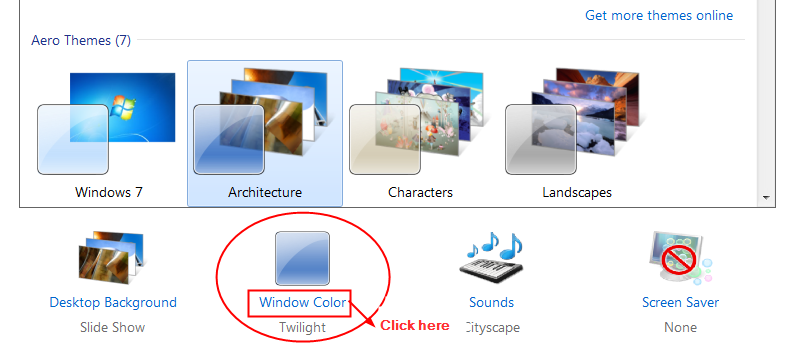
You will be presented with the themes available on your system. Below the theme you selected you will see several options like Desktop Background, Window Color, Sounds, Screen Saver etc. Click on Window Color.
This will take you to the next screen. At the bottom you see, Advanced Appearance Settings. Click on it. This will open up Window Color and Appearance pop-up window. There you have a label Item and the options to change font, size, color etc. Generally its possible to change the font for Aero themes only. For customized themes and themes downloaded from online, this may not be available.

You can also reach this pop-up window through this navigation – Control PanelAll Control Panel ItemsPersonalizationWindow Color and Appearance and click on Advanced Appearance Settings at the bottom.

What about Windows 8 ?
As we have just stated earlier it was very easy to customize text size, font and color of Window Items in XP, Vista and 7. So if you are testing the Windows 8 release preview, you might have found that this option is not accessible as simple as in other Windows operating systems.
——————————
Update 1 : From comments I observed, that this post is not a clear solution to all the problems related to advanced appearance settings of Windows 8. You can change a few things like text size etc of some elements. But many want to change settings like window color, font color, active title bar color, scroll bar color etc. in their Windows 8 system. Even after Google searching, I found that there is no 100% solution to this problem. Also the registry tweaks are not working as intended and work only for high contrast mode.
Update 2 : Also you cannot change the Metro font of Windows 8 using these tweaks. If you want to make title bar and buttons on it smaller, you can adjust the text size of it, and that will reduce both text size and title bar and buttons.
———-
So if you are looking for ways to change text size, color, font of title bars, menus, message boxes, palette titles, icons and tooltips in Windows 8, there are two methods.
- METHOD 1: Using Desktop Personalization
- METHOD 2: Using Registry Editor
METHOD 1: Using Desktop Personalization
Open the “Display” settings window by selecting the “Personalize” option from Desktop context menu and then click on “Display” link given at the bottom of left-side bar.

[Source : askvg.com]
Once you change the text size of various items such as icons, title bars, etc by selecting the item from drop-down list and then selecting the desired size for it from the 2nd drop-down box, click on Apply button.
METHOD 2: Using Registry Editor
The above method faces the deficiency that you cannot change the background color, border padding, caption buttons size, icon size, icon spacing, scrollbar size, etc, then you can customize the advanced appearance settings in Windows 8 using Windows registry.
1. Press “WIN+R” key combination to launch RUN dialog box then type regedit and press Enter. It’ll openRegistry Editor. Now go to following keys one by one:
HKEY_CURRENT_USERControl PanelColors
HKEY_CURRENT_USERControl PanelDesktopColors
HKEY_CURRENT_USERControl PanelDesktopWindowMetrics
These registry keys have different DWORD values and strings on the right-side pane. By changing these values, you can customize advanced appearance settings information in Windows 8.

Important Tip:
The above Registry keys are the same in Windows Vista, 7 and 8. So, in order to make things easier, you can customize the advanced appearance settings in 7 or Vista and open the Registry Editor and take a back-up of the above mentioned registry keys. You can do this by right-clicking on each key and select Export option. This will create .REG files. Import these .REG files into Windows 8 Registry Editor and restart Windows 8 desktop. This will make the new settings take into effect.
If you are still facing any other problems related to advanced appearance settings in Windows 7 or 8, please mention in the comments section. Let us know your experience how you customized your different settings and which text, font of Window item you change mostly.

Oh, thanks for this! I couldn’t figure out where Advanced Appearance settings had gone in Windows 8. I wanted to make the title bar and the buttons smaller and adjusting the text size for the title bar actually changed the size of the buttons and made the whole thing smaller. Two birds with one stone XD.
Registry recommendations do not work in Win8 RTM. Karri, you write this as if you tested this and you know what you are writing about. Please, fix your crap or at least post proper comments why it is not working, etc.
@disqus_31cvKTV6YT:disqus : I tested this in Windows 7. So I assumed this should work in Windows 8 desktop mode. I suggest you use method 1 above before using the Registry method. As always, backup your registry before you make any changes.
Thanks for responding. I was not expecting this. I’m sorry if my comment was offending. Nevertheless what you are writing “…icons and tooltips in Windows 8, there are two methods…” does not work in Win8. I would recommend you to test this again and update your post. p.s. I have no doubt this works in Win7.
I have installed Windows 8 on my desktop earlier and checked as you said. Method 1 options are available. I tried to change the tooltips option and Windows 8 responded with a message. I attached a screenshot (same like that one before, but more clearly). So try the Desktop personalization. I checked the Registry options also and the keys were there. So you need know how to change the keys or just import those keys from an Windows 7 installation as I said before. Hope this helps.
Below is the screenshot as I said earlier.
Registry options are only for high contrast mode. Try it before you go posting it, please.
Sorry. I don’t have a “testing” machine to try the registry settings. But, those who tried with registry settings, can you post a screenshot, if you are successful. This will help further users.
Thanks Lester, I have come to the same conclusion. Windows has plenty of registry trash that lead to this dead in on Win 8’s final release. I specifically wanted to alter the font color of the active window and the reg edits just don’t work for “that”. It’s a shame the title of this article brought me in and it’s only your comments that confirmed I was out of luck. Thanks for that.
I can’t find this in windows 8 either. It’s my boss’s computer so I am not about ot mess with his registry.
I changed successfully, but the Metro Font does not change.
Is there any way to change the Metro Font ?
Thank you
How do I fix my right click menu? It’s appearance has changed and I don’t know why. It only has a different appearance when I am using the internet. It’s not different on my desktop. I want to return it to it’s original appearance. Please help.
Did you scan for viruses on your computer? Also r u using Windows 7 or 8?
I’m using Windows 8 and there are no viruses. I’m taking web design 1 class and had to check if a table worked properly and the problem only occurred after I did that. I don’t know why it changed my right click menu’s appearance.
Can you send me a screenshot of your right-click appearance or context menu?
I don’t know how to do that.
Thanks for your help. I understand what I was asking about thanks to you. ^o^
How do you change the keys in 8 in order to not have to import from 7? This whole thing stinks. Why couldn’t they just leave Advanced appearance settings in 8 as it was in 7? It was so simple and easy. I bought a new computer with 8. But I fear I may have to send it back. I have several programs where I need something besides white backgrounds because of the wear on my eyes. Maybe I can make this Registry thing work. We shall see. What a crock!
Hi,
I need to change the “Size” of the Tooltip in Win7 – which registry parameter is this?
Thanks!
Stephan
I don’t get this screen http://eightonetech.solutions/wp-content/uploads/2012/advanced-appearance-settings-windows-8_1307F/Advanced_apperance_settings_in_Windows_7.png when I click what your guide tells me to click. I get the next “advanced” panel which doesn’t do shit in terms of getting rid of the blinding white backgrounds like it does on XP. I’m hoping the linked picture will allow more customization options that I haven’t seen yet but I can’t seem to get to it.
I used Method 2 on my Windows 8.1 computer my Windows laptop and my old Windows XP desktop. The changes to the registry made no difference whatsoever! If Windows 8.1 has any advantages over its predecessors I have yet to notice them.
@Robert : As I noticed the advanced appearance settings are not much available in Windows 8 and 8.1.. Only a few things can be changed here and there.. See the updates in the article.!!!
Palla,
Thanks for the great tutorial
[Tutorial] Change Advanced Appearance Settings in Windows 8 and 7
With your obvious superior expertise with this subject, I am hoping you could help me with a vexing problem.
I have been unable to find a a site that explains exactly what each of the items in the Win7 “Window Color and Appearance” change.
Some I have discovered by trial and error; some change things that are not expected; others seem to make changes inconstant with there name.
I would greatly appreciate if you could take a few minutes to provide a link explaining the location of the changes each of the 22 items make.
E.G, when I change Windows, it not only changes my desktop color it seems to changes Thunderbird, Jarte (My word processor), and Firefox colors!
Thanks for any help.
Best Regards,
B