You’re still running Windows 8.1, and your PC feels slower every week. You’ve heard Microsoft stopped supporting it, and now you wonder whether to upgrade to Windows 10 or 11 or just buy a new computer entirely.
It’s a real dilemma. Spend $30 on a fix that might not work, or spend $400 on a new machine you weren’t planning to buy?
This guide gives you the actual numbers. We break down the true cost of upgrading Windows 8.1 — the OS license, any hardware you might need, and the hidden costs most people miss. We also compare that against what a new PC or refurbished laptop actually costs today.
Whether you’re a home user, a small business owner, or managing an old Dell desktop in an office, this guide will help you make a smart, confident decision—buy a new PC or upgrade Windows 8.1 cost.
Let’s start with why this decision can’t wait any longer.
⭐ FEATURED SNIPPET
Target Query: Should I buy a new PC or upgrade Windows 8.1?
Upgrading Windows 8.1 to Windows 10 costs $20–$139 for a license; buying a new PC costs $300–$700. If your PC is less than 7 years old and has a modern processor, upgrading is cheaper. If it’s older, fails Windows 11’s TPM 2.0 check, or hardware upgrades push costs above $200, buying new is the smarter investment.
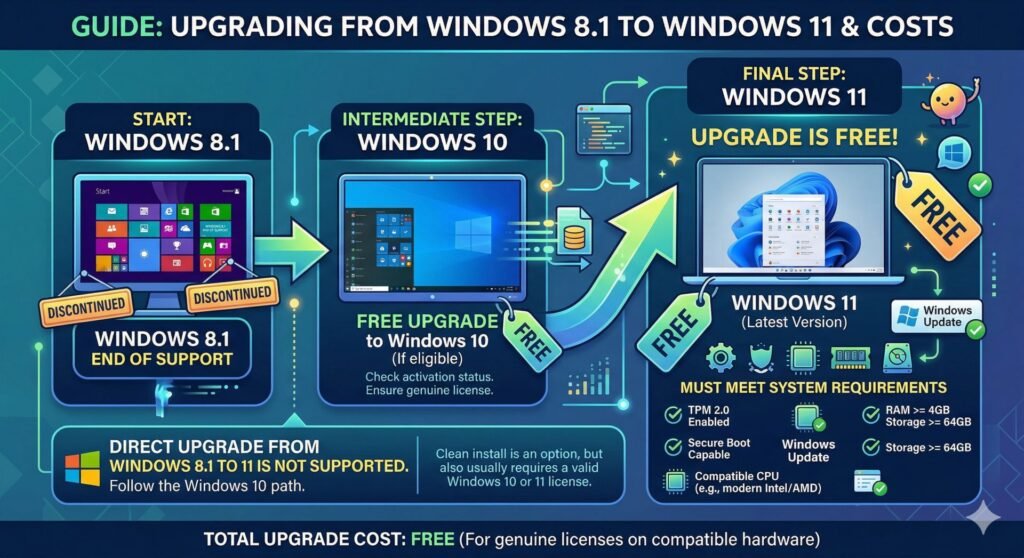
Why Windows 8.1 Users Must Make This Decision Now (Not Later)
Windows 8.1 End-of-Life — What Microsoft’s January 2023 Deadline Really Means
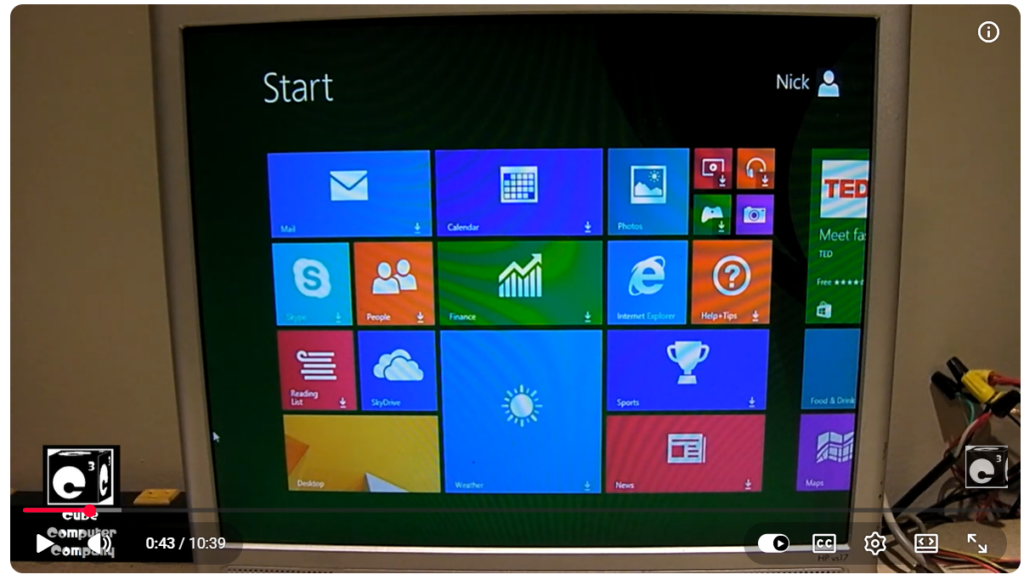
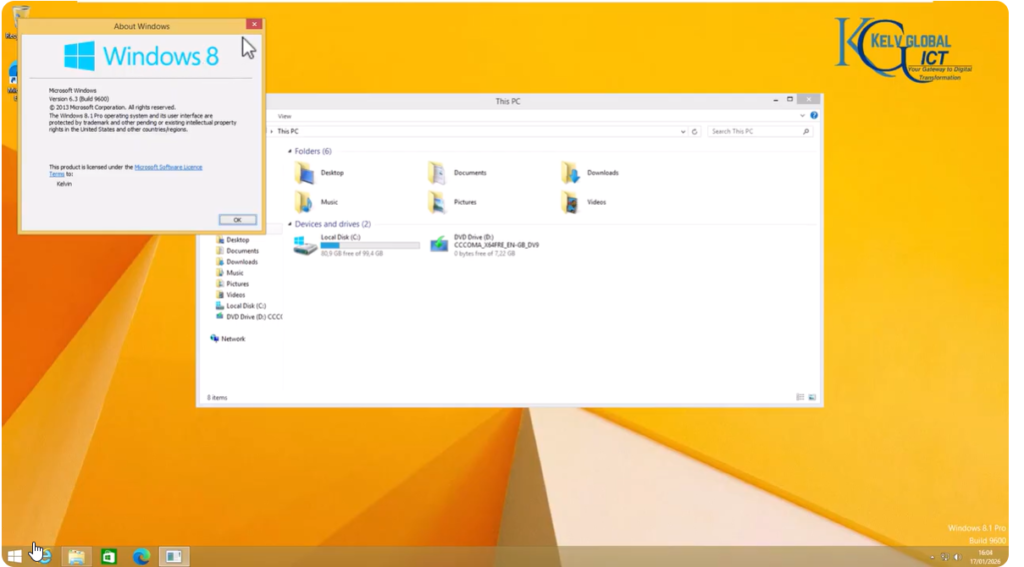
Microsoft ended all support for Windows 8.1 on January 10, 2023. That date marked the end of security updates, bug fixes, and technical support from Microsoft.
If you’re still running Windows 8.1 in 2025, your operating system hasn’t received a single security patch in over two years.
What “End of Support” Actually Does to Your PC’s Security
New malware and security exploits emerge every week. When Windows was supported, Microsoft issued patches to close those gaps. Now it doesn’t. Your PC is permanently exposed to every vulnerability discovered since January 2023 — and that list is growing.
Browsers like Chrome and Firefox have already dropped or limited support for Windows 8.1. Basic functionality continues, but you’re falling further behind every month.
How Long Can You Safely Run Windows 8.1 in 2026?
Honestly? You’re already in risky territory. If your PC handles any sensitive information—banking, business files, or personal email—the risk isn’t theoretical. It’s real. Security experts consistently advise moving off unsupported operating systems within 12 months of EOL. You’re now two years past that.
The Hidden Cost of Doing Nothing — Running Windows 8.1 in 2026
Most people think “doing nothing” costs zero. It doesn’t.
Security Vulnerabilities That Now Go Unpatched
One malware infection can cost you far more than a Windows upgrade. Data recovery, professional IT support, and lost productivity add up fast — often $200–$500 or more for a home user, and significantly more for a small business.
Software and Browser Compatibility Dropping Fast
Many apps now require Windows 10 or higher. New versions of Microsoft Office, accounting software, and even some printers (like Epson models) have dropped Windows 8.1 driver support entirely. You may already be unable to install software you need.
The Productivity Tax of a Slow, Unsupported System
You lose time with every extra minute spent waiting for your PC to boot, every app crash, and every browser tab that won’t load. On an old HDD-based Windows 8.1 machine, that “tax” is paid daily.
Who This Guide Is For
Home Users on a Tight Budget
You want the cheapest reliable option. This guide shows you exactly where you can save and where cutting corners costs more later.
Small Business Owners Running Old Desktop PCs
One compromised machine can affect your whole network. The business case for upgrading is stronger than most owners realize.
Dell and OEM Laptop Users Stuck on Windows 8.1
Dell, HP, and Lenovo have specific BIOS settings that affect Windows 11 compatibility. We cover that in detail below.
Understanding the 3 Upgrade Paths Available to You
Before we get into costs, here are the three options in plain terms.
Path 1 — Upgrade Your OS Only (Windows 8.1 to Windows 10 or 11)
This means keeping your existing hardware and just replacing the operating system.
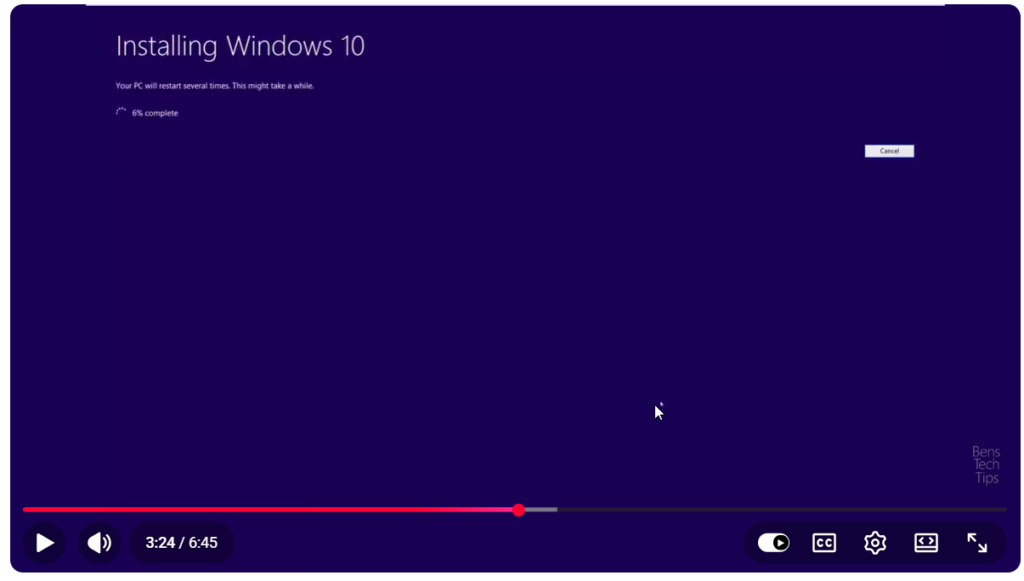
Can You Still Upgrade to Windows 10 from Windows 8.1 in 2025?
Yes — but not for free. Microsoft’s official free upgrade window closed long ago. You’ll need to buy a Windows 10 license or use the Media Creation Tool with a valid product key. Some users still report the free path working with an old Windows 7 or 8.1 key, but it’s not guaranteed or officially supported.
Windows 11 Upgrade Eligibility — The TPM 2.0 and UEFI Problem
Windows 11 has strict hardware requirements. The biggest hurdle for Windows 8.1 users is TPM 2.0 — a security chip that most pre-2017 machines simply don’t have. Without it, Windows 11 won’t install through normal means.
Your PC also needs UEFI firmware (not the older legacy BIOS) and secure boot capability. Many older desktops—including older Dell and HP models—have legacy BIOS and cannot run Windows 11 without a workaround.
Could you please provide the cost of a Windows 10 or Windows 11 license?
| License Type | Windows 10 | Windows 11 |
|---|---|---|
| Microsoft Retail (official) | $139 (Home) | $139 (Home) |
| OEM key (authorized resellers) | $20–$50 | $25–$60 |
| Microsoft Store digital | $139 | $139 |
Budget path: A legitimate OEM key from a reputable reseller costs $20–$50 and is the most common choice for home users upgrading an existing machine.
Path 2 — Upgrade Your OS + Key Hardware Components
This path makes sense if your PC’s core is still capable but is being held back by slow storage or limited RAM.
Which Hardware Upgrades Make a Windows 8.1 PC Worth Saving?
The two highest-impact upgrades for an aging PC are the following:
- Replacing the hard drive (HDD) with an SSD makes the biggest real-world speed difference
- Adding RAM helps with multitasking and browser performance
An Intel Core i5 (4th gen or newer) desktop with 8GB RAM and an SSD can handle Windows 10 and Windows 11 comfortably for everyday tasks.
Adding an SSD + RAM to Support a New Windows Install
| Upgrade | Estimated Cost (2025) |
|---|---|
| 256GB SATA SSD | $25–$40 |
| 512GB SATA SSD | $40–$60 |
| 8GB DDR3 RAM module | $15–$25 |
| Windows 10 OEM key | $20–$50 |
| Total Path 2 estimate | $60–$135 |
Total Cost of Path 2: Realistic Budget Estimate
For most people, Path 2 costs $60–$135 total. That’s the sweet spot if your CPU is still decent and your machine has standard upgrade options.
Path 3 — Buy a New PC or Laptop Entirely
Sometimes the right answer is simply starting fresh.
When Does Buying New Make More Financial Sense?
Buy new if your PC is 8–10+ years old, has a first or second-generation Intel CPU, or fails the Windows 11 compatibility check entirely. If Path 2 costs approach $150–$200 for hardware that’s already outdated, a new machine is a better value.
What Can You Get for $350, $500, and $700 in 2025?
| Budget | What You Get |
|---|---|
| $300–$450 | AMD Ryzen 3 or Intel i3, 8GB RAM, 256GB SSD, Windows 11 |
| $500–$650 | AMD Ryzen 5 or Intel i5, 8GB–16GB RAM, 512GB SSD |
| $650–$800 | Intel Core i5/i7 (12th gen+), 16GB RAM, 512GB–1TB SSD |
New Desktop vs. New Laptop — Which Is the Better Value?
For home users who don’t move around, a new desktop gives more performance per dollar. A $400 desktop will outperform a $400 laptop in raw speed and upgradeability. If portability matters, a $450–$500 laptop hits the sweet spot for everyday use.
Real Cost Breakdown — Buy New PC or Upgrade Windows 8.1 Cost
Cost of Upgrading Windows 8.1 to Windows 10
Official Microsoft Pricing vs Third-Party License Costs
Microsoft’s retail price for Windows 10 Home is $139. Most home users go the OEM key route — these are legitimate licenses sold by authorized resellers for $20–$50. They work for personal use but are tied to one machine.
Free Upgrade Paths — Do They Still Work in 2025?
Officially, no. The free upgrade from Windows 7/8.1 ended in 2016. Some users still report it working using the Media Creation Tool — but don’t plan your upgrade around a method Microsoft could block at any time. Budget for a paid license.
Hidden Costs: Driver Updates, Software Reinstalls, Compatibility Fixes
This is where people get surprised. After a Windows upgrade you may need to
- Reinstall printer drivers (especially Epson and older HP models)
- Repurchase software tied to a Windows 8.1 license
- Spend 1–3 hours on setup, driver hunting, and troubleshooting
Factor in $0–$50 for these hidden extras, plus your time.
Cost of Upgrading Windows 8.1 to Windows 11
Windows 11 License Price and Where to Buy
Windows 11 Home retails at $139 from Microsoft. OEM keys are available from $25–$60. The upgrade from Windows 10 to Windows 11 is free — so many users buy Windows 10 first, then upgrade to Windows 11 at no extra cost.
Hardware You May Need to Buy to Meet Windows 11 Specs
| Requirement | What You Might Need to Buy | Cost |
|---|---|---|
| TPM 2.0 | TPM module (if slot available) | $15–$30 |
| SSD (64GB+ required) | 256GB SATA SSD | $25–$40 |
| 4GB RAM minimum | 8GB DDR3 module | $15–$25 |
| UEFI firmware | May require motherboard replacement | $60–$120 |
If your motherboard needs replacing to support UEFI, that’s when Path 3 (buy new) becomes the obvious choice.
The TPM 2.0 Chip — Do You Need to Buy One?
Check first. Many motherboards made after 2014 have a TPM header where you can add a module for $15–$30. If your board has no TPM support at all, you’re looking at a motherboard upgrade—which often costs more than buying a refurbished PC.
Cost of Buying a New PC or Desktop in 2025
Budget New Desktop: $300–$450 — What You Actually Get
At this price point you’ll find machines with AMD Ryzen 3 or Intel Pentium/Celeron processors, 8GB RAM, 256GB SSD, and Windows 11 Home pre-installed. Fine for browsing, email, office work, and streaming. Not great for multitasking or anything demanding.
Mid-Range New Desktop: $500–$750 — The Sweet Spot
This is where the value is strongest. An Intel Core i5 (12th gen) or AMD Ryzen 5 machine with 8–16 GB RAM and a 512 GB SSD handles everything a home user or small business needs—and will remain capable for 5–7 years.
Refurbished PCs — The Underrated Bargain Option
A certified refurbished desktop from Dell, Lenovo, or HP — with an Intel Core i5 (6th–8th gen), 8GB RAM, SSD, and Windows 10 or 11 — typically costs $200–$380. These come with a 90-day to 1-year warranty and represent exceptional value for budget-conscious buyers.
[→ Browse certified refurbished desktops on Amazon] [→ See Dell Outlet refurbished PCs]
3-Year Total Cost of Ownership Comparison Table
| Path | Year 1 Cost | Ongoing Cost | 3-Year TCO | Risk Level |
|---|---|---|---|---|
| OS upgrade only | $20–$139 | Low | $50–$180 | Medium (old hardware) |
| OS + hardware upgrade | $60–$200 | Low | $100–$250 | Low–Medium |
| Buy new PC | $300–$750 | Very low | $300–$800 | Very low |
| Buy refurbished | $200–$380 | Low | $220–$430 | Low |
| Do nothing (stay on 8.1) | $0 | High security risk | $200–$600+ | Very high |
The “do nothing” row includes the estimated cost of one malware incident or IT support call, which wipes out the apparent savings quickly.
How to Check If Your Windows 8.1 PC Can Even Be Upgraded
Run through these five steps before spending anything.
Step 1 — Check Your Current Windows 8.1 PC Specs
How to Find Your Processor, RAM, and Storage Type
- Press Windows Key + Pause/Break → note your processor and RAM
- Open File Explorer → This PC → right-click → Properties for storage details
- Use the free tool. Speccy (by Piriform) for a full hardware overview
Minimum Specs Required for Windows 10 vs Windows 11
| Requirement | Windows 10 | Windows 11 |
|---|---|---|
| Processor | 1 GHz, 32 or 64-bit | 1GHz+, 64-bit, 2 cores |
| RAM | 1GB (32-bit) / 2GB (64-bit) | 4GB |
| Storage | 16–20GB | 64GB |
| TPM | Not required | TPM 2.0 required |
| BIOS | Legacy or UEFI | UEFI with Secure Boot |
Step 2 — Run Microsoft’s PC Health Check Tool
What the PC Health Check Tool Tests
Download the PC Health Check tool free from Microsoft’s website. It checks your processor compatibility, TPM status, UEFI availability, Secure Boot, RAM, and storage — all at once. It takes about 60 seconds.
What to Do If Your PC Fails the Check
If you fail, note which requirement failed. Failing TPM or UEFI might mean a cheap fix ($15–$30 TPM module) or might mean your motherboard is incompatible. Failing processor requirements means Windows 11 isn’t possible without new hardware.
Step 3—Identify Your BIOS Type: UEFI vs Legacy BIOS
Why UEFI Matters for Windows 11 Upgrades
UEFI (Unified Extensible Firmware Interface) is the modern replacement for the old legacy BIOS. Windows 11 requires UEFI with Secure Boot enabled. Most PCs from 2012 onward have UEFI, but some were shipped with legacy BIOS mode enabled by default.
How to Check UEFI Support on Dell and Other OEM Desktops
- Press Windows Key + R, type
msinfo32, press Enter - Look for “BIOS Mode”—it should say “UEFI,” not “Legacy.”
On Dell machines, you can access BIOS settings by pressing F2 at startup. Look for “Boot Mode” under the Boot Settings tab.
Can You Convert Legacy BIOS to UEFI Without Reinstalling Windows?
Sometimes Windows 10 and 11 include a tool called MBR2GPT that converts your disk from MBR to GPT format (required for UEFI). However, this only works cleanly on systems with functioning hardware support. For most home users, a clean install is simpler and more reliable.
Step 4 — Check TPM 2.0 Status on Your PC
What Is TPM 2.0 and Why Does Windows 11 Require It?
TPM (Trusted Platform Module) is a small security chip that stores encryption keys and protects system integrity. Microsoft made it mandatory for Windows 11 to improve resistance to firmware attacks and malware. Think of it as a hardware lock that makes your system significantly harder to compromise.
How to Enable TPM in Your BIOS/UEFI Settings
- Restart your PC and enter BIOS (usually F2, F10, or Delete key at startup)
- Look for “Security” or “Advanced” settings
- Find TPM, PTT (Intel Platform Trust Technology), or fTPM (AMD)
- Enable it, save, and exit
Many people find their PC already has TPM—it was just turned off by default.
What to Do If Your Motherboard Has No TPM Support
If there’s no TPM option anywhere in your BIOS, your motherboard either lacks the chip or the header. Check your motherboard model online to see if a TPM module can be added. If not, Windows 11 requires new hardware — which tips the balance toward buying new.
Step 5—Assess Your Storage: HDD vs SSD
Why Running Windows 10/11 on an HDD Is a Bad Idea
Windows 10 and 11 were designed with SSD performance in mind. Installing a modern OS on a traditional hard drive results in slow boot times, delayed app launches, and frequent freezing. You’ll have a newer OS but a machine that still feels sluggish.
Cost and Steps to Add an SSD Before Installing a New Windows Version
A 256GB SATA SSD costs $25–$40 and takes 20–30 minutes to install. Pair this with a Windows upgrade, and the performance difference is night and day. This one step alone makes the biggest difference for most old PCs.
[→ Check SSD prices on Amazon]
Step-by-Step Guide — How to Upgrade Windows 8.1 to Windows 10 or 11
Option A — Upgrading to Windows 10 from Windows 8.1
Step 1: Back Up Everything Before You Start
Copy your documents, photos, and important files to an external drive or cloud storage (Google Drive, OneDrive). Never start an OS upgrade without a current backup.
Step 2: Download the Windows 10 Media Creation Tool
Go to Microsoft’s official website and download the Media Creation Tool. Run it and choose “Upgrade this PC now.” If prompted for a product key, enter your purchased OEM key.
Step 3: Run the Upgrade and What to Expect
The process takes 30–90 minutes depending on your hardware speed. Your PC will restart multiple times. Don’t turn it off during the process. Most personal files are preserved during an in-place upgrade.
Step 4: Verify Drivers and Software Post-Upgrade
After install, check Device Manager for any yellow warning icons indicating missing drivers. Update your printer drivers (Epson and HP) manually from the manufacturer’s website. Test your most important apps — particularly any business software.
Option B — Upgrading to Windows 11 from Windows 8.1
Step 1: Clean Install vs. In-Place Upgrade — Which Is Better?
For Windows 8.1 users, a clean install is strongly recommended. In-place upgrades from Windows 8.1 to Windows 11 carry a higher risk of compatibility issues. A clean install starts fresh — you’ll reinstall your apps, but you’ll have a stable, fast system.
Step 2: Create a Bootable Windows 11 USB Drive
Download the Windows 11 Media Creation Tool from Microsoft. Use a USB drive with at least 8GB of free space. The tool creates a bootable installer automatically — no technical knowledge required.
Step 3: Install Windows 11 and Configure Initial Setup
Boot from the USB drive (press the F12 or Boot Menu key at startup), select your language and region, enter your product key, and follow the on-screen prompts. Choose “Custom Install” and select your SSD as the target drive.
Step 4: Restore Files and Reinstall Software
Reconnect your external backup drive and copy your files back. Reinstall your essential software — Office, your browser (Chrome or Firefox), and any work applications. Check for all Windows updates immediately after setup.
Option C — Installing Linux as a Free Windows Alternative
Not everyone needs to stay on Windows. If your hardware is too old for Windows 11 and you mainly browse the web, send emails, and use basic apps, Linux is a genuine option.
Why Linux Mint Is the Best Free Replacement for Windows 8.1
Linux Mint has a familiar interface (similar to the Windows Start menu layout), runs well on older hardware, and is completely free. It receives regular security updates and has a growing user community. It works well on machines that would struggle with Windows 10 or 11.
How to Install Linux Mint Alongside or Instead of Windows 8.1
Download the Linux Mint ISO from linuxmint.com. Create a bootable USB using Rufus (free). Boot from the USB and choose to install Linux Mint — either replacing Windows 8.1 or creating a dual-boot setup where you choose which OS to use at startup.
Which Apps Work on Linux? (Browsers, Office, Media)
- Browsers: Chrome, Firefox—both run natively on Linux
- Office: LibreOffice (free, compatible with Word/Excel files) or Microsoft 365 via browser
- Media: VLC, Spotify web player, YouTube all work fine
For basic home use, Linux Mint covers everything most users need.
The Windows Version Comparison — 8.1 vs 10 vs 11
Windows 8 vs Windows 8.1 — What Actually Changed?
Windows 8.1 was Microsoft’s response to widespread criticism of Windows 8. It restored a version of the Start button (though not the classic Start menu), improved search, and fixed many early bugs. If you’re on Windows 8, updating to 8.1 was free — but both are now end-of-life.
Windows 8.1 vs Windows 10 — Key Differences That Matter for Old PCs
Performance Differences on Older Hardware
Windows 10 is significantly better optimized than Windows 8.1 for modern hardware, but it runs acceptably on older machines — especially with an SSD. Boot times are faster, update management is smoother, and driver support is far broader.
Security and Support Differences
Windows 10 receives security updates until October 14, 2025. That gives you roughly one more year of official support before you face the same decision again. Windows 8.1 is completely unpatched and has been since January 2023.
Software Compatibility: Running Windows 8.1 Apps on Windows 10
Almost all software that ran on Windows 8.1 runs on Windows 10. The transition is smooth for most home users and small businesses. The main exceptions are very old specialized software—like legacy accounting packages or industry-specific tools from the XP era.
Windows 10 vs. Windows 11—Is the Upgrade Worth It on Older Hardware?
Interface and Performance Differences
Windows 11 has a cleaner, more modern interface with a centered Start menu — though you can move it back to the left if you prefer classic shell behavior. On capable hardware, it’s slightly faster than Windows 10. On older hardware that just barely meets requirements, performance differences are minimal.
Windows 10 End of Support in October 2025 — Plan Ahead Now
This is critical. If you upgrade from Windows 8.1 to Windows 10 today, you’re buying yourself less than a year of security updates. It’s a short-term bridge, not a long-term solution. If your hardware supports Windows 11, skip Windows 10 entirely and go straight to 11.
What About Windows 7 and Windows XP Users Migrating Forward?
Vista and XP Era Hardware — When It’s Simply Too Old
If your PC originally ran Windows XP or Vista and you’ve limped it through to Windows 8.1 via upgrades, the hardware is almost certainly too old to support any modern Windows version reliably. Processors from 2008–2010 lack the instruction sets Windows 11 requires.
Skipping Windows Versions—Can You Go Straight from 8.1 to 11?
Yes — with a clean install. You cannot do an in-place upgrade from Windows 8.1 directly to Windows 11. But you can buy a Windows 11 license and do a clean install from USB without touching Windows 10 at all. It’s the recommended path for most users.
Special Cases — Dell, OEM Desktops, and Branded PCs
Upgrading a Dell Desktop Running Windows 8.1 — What to Know
Dell BIOS/UEFI Settings for Windows 11 Compatibility
Dell desktops from 2014 onward generally support UEFI and TPM — but these features are often disabled by default. To enable them:
- Press F2 at startup to enter BIOS
- Navigate to Security → TPM Security — enable it
- Navigate to Boot → Boot Mode—switch from Legacy to UEFI
- Enable Secure Boot under the Secure Boot menu
- Save and exit
After these changes, rerun the PC Health Check tool — your machine may now qualify for Windows 11.
Dell-Specific Drivers and Software After OS Upgrade
After upgrading, visit Dell.com/support, enter your Service Tag, and download the latest drivers for your specific model. Pay particular attention to chipset, audio, and network drivers—these are the most commonly missing after a clean install.
OEM License vs. Retail License — Which Do You Need?
What Happens to Your OEM Windows License When You Upgrade Hardware?
An OEM Windows license is tied to the original machine it was installed on. If you replace the motherboard, you technically need a new license. If you only upgrade RAM or add an SSD, the existing license remains valid.
Can You Transfer a Windows License to a New PC?
A retail Windows license can be transferred to a new PC after deactivating it on the old one. An OEM license cannot; it’s permanently linked to the original hardware. If you’re buying new, a retail license offers more flexibility long-term.
The Decision Framework — 5 Factors That Determine Your Best Option
Factor 1 — Your PC’s Age and Processor Generation
| PC Age | CPU Generation | Best Path |
|---|---|---|
| Under 5 years | Intel 8th gen+ / Ryzen 3000+ | Upgrade OS to Win 11 |
| 5–8 years | Intel 4th–7th gen / AMD A10+ | OS + SSD upgrade |
| 8–10 years | Intel 2nd–3rd gen | Refurbished PC |
| 10+ years | Intel 1st gen / Atom / XP-era | Buy new |
Factor 2—Your Current Specs vs Windows 10/11 Requirements
If your machine has 4GB+ RAM, a 64-bit processor, and space for an SSD, it can run Windows 10. Add TPM 2.0 and UEFI, and it can run Windows 11. If it lacks multiple requirements, the hardware upgrade cost makes buying new more sensible.
Factor 3—Total Upgrade Cost vs New PC Cost
Apply the 50% rule: if your total upgrade cost exceeds 50% of a comparable new or refurbished PC, buy new. Example: if a refurbished PC costs $300 and your upgrades would cost $180, the gap isn’t worth it for aging hardware.
Factor 4 — Your Use Case (Home, Business, Gaming, Tech Work)
- Home browsing and email: Even an upgraded old PC works fine
- Office and productivity: 8GB RAM + SSD + Windows 10/11 is adequate
- Video calls (Zoom, Teams): 8GB RAM minimum recommended
- Gaming or graphic work: Buy new—old hardware simply can’t compete
Factor 5 — How Long You Need the Machine to Last
If you need 1–2 more years: upgrade OS + SSD. If you need 4–6 years: buy a new or quality refurbished PC. If you need 6+ years: invest in a mid-range new desktop with 16GB RAM.
Common Mistakes to Avoid
Buying a Windows License Without Checking Hardware Compatibility First
Always run the PC Health Check tool before purchasing a Windows 11 license. Finding out your machine doesn’t support TPM 2.0 after buying the license is a frustrating and avoidable mistake.
Upgrading the OS Without Upgrading to an SSD — A Recipe for Disappointment
Windows 10 or 11 on a spinning hard drive is genuinely painful to use. The OS upgrade alone won’t fix the slowness — the HDD will. Add an SSD first, then install the new OS.
Ignoring Windows 10’s Own End-of-Support Date (October 2025)
Upgrading to Windows 10 today gives you less than a year of security updates. It’s a short-term bridge at best. If your hardware supports Windows 11, skip Windows 10 entirely.
Spending More on an Old PC Than It’s Actually Worth
Before upgrading, look up your laptop or desktop model on eBay. If used versions sell for $60–$100, spending $150 on upgrades makes no financial sense.
Overlooking Refurbished PCs as a Cost-Effective Middle Ground
Most people compare upgrading vs. buying brand new and forget the refurbished middle ground. A certified refurbished Dell or Lenovo with an SSD and Windows 11 at $250–$380 is often the single smartest purchase in this whole comparison.
[→ Browse certified refurbished laptops on Amazon] [→ Shop Dell Outlet refurbished desktops]
Our Verdict — Buy New PC or Upgrade Windows 8.1?
✅ Upgrade Your OS (+ SSD) If…
- Your PC is 5–7 years old with an Intel Core i3/i5 (4th gen or newer)
- Your machine passes the Windows 11 PC Health Check
- You have a free RAM slot and no SSD yet
- The total cost of OS key + SSD stays under $80
- You mainly browse, email, and use Office
Recommended products:
- [→ Windows 11 OEM key — best value option]
- [→ Top-rated 256GB SSD for laptop upgrades]
✅ Upgrade OS + Hardware If…
- Your CPU is solid (Intel i5, 4th–7th gen) but storage is an HDD
- TPM 2.0 can be enabled in BIOS settings
- The total upgrade budget is under $130
- You want to extend the machine’s life by 3–4 years
Recommended products:
- [→ 512GB SATA SSD — best performance/price ratio]
- [→ 8GB DDR3 RAM module for laptops]
✅ Buy a New (or Refurbished) d) PC If…
- Your PC is 8+ years old with an Atom, Celeron, or 1st/2nd gen Intel CPU
- RAM is soldered with no upgrade path
- Your machine fails the Windows 11 Health Check on multiple counts
- The total upgrade cost exceeds $150 on a machine worth under $100
Recommended products:
- [→ Best budget laptops under $400 in 2025]
- [→ Top certified refurbished desktops — verified sellers]
Quick-Reference Cost Comparison Table (2026)
| Option | Estimated Cost | Lifespan Added | Best For |
|---|---|---|---|
| OS upgrade only (Win 10) | $20–$139 | 1–2 years | Very tight budget |
| OS + SSD upgrade | $50–$100 | 2–4 years | Capable older PCs |
| OS + SSD + RAM | $75–$150 | 3–4 years | Best upgrade combo |
| New budget PC | $300–$450 | 4–5 years | Ready for a fresh start |
| Refurbished PC | $200–$380 | 4–6 years | Best value overall |
| New mid-range PC | $500–$750 | 6–8 years | Long-term investment |
Future-Proofing — What Comes After This Decision?
Windows 10 Reaches End of Life in October 2025 — Plan Now
What This Means If You Just Upgraded to Windows 10
If you’re upgrading to Windows 10 in 2025, your security updates run out in October of the same year. You should plan to either move to Windows 11 (if your hardware qualifies) or purchase a new machine before that deadline.
Should You Skip Windows 10 and Go Straight to Windows 11?
Yes — if your hardware supports it. Buying a Windows 11 license today and doing a clean install skips an entire OS cycle and gives you security support until 2031. It’s the better long-term move.
What to Do With Your Old Windows 8.1 PC After Replacing It
Sell, Donate, or Repurpose — Best Options for Old Desktops
- Sell on eBay or Facebook Marketplace—even Windows 8.1 machines sell for $30–$100 for parts
- Donate to local schools or charities—many accept working old hardware
- Repurpose as a media server or file storage device—with Linux, it can run 24/7 quietly in the background
Installing Linux to Give Old Hardware a New Life
Linux Mint or Ubuntu runs well on machines that can’t handle Windows 11. It’s free, secure, and surprisingly capable for home use. Rather than letting old hardware collect dust, a Linux install gives it real daily value—and keeps it out of landfills.
FAQ Section
How much does it cost to upgrade a Windows 8.1 PC to Windows 10 or 11?
A Windows 10 license costs $20–$139 depending on the source. Windows 11 Home costs around $139 from Microsoft, or $25–$60 via OEM key. Factor in hardware upgrades—SSD, TPM chip—and total upgrade costs can realistically reach $60–$200 depending on your existing specs.
Would it be advisable to upgrade a Windows 8.1 PC, or would purchasing a new computer be a better option?
If your PC is under 7 years old with an Intel Core i5 (4th gen+), upgrading the OS and adding an SSD is often cheaper than buying new. If it’s 8–10+ years old, fails the Windows 11 check, or upgrade costs approach $200, buying a new or refurbished machine makes more financial sense.
Can I still upgrade from Windows 8.1 to Windows 10 for free in 2026?
Microsoft’s official free upgrade ended years ago. Some users still report success using the Media Creation Tool with a valid Windows 7 or 8.1 product key—but this isn’t officially supported and may not work reliably. For a guaranteed licensed upgrade, budget $20–$139 depending on where you buy.
What are the minimum specs needed to upgrade a Windows 8.1 PC to Windows 11?
Windows 11 requires a 64-bit processor (1 GHz+, 2 cores), 4 GB RAM, 64 GB storage, UEFI firmware with Secure Boot, and TPM 2.0. Most Windows 8.1-era machines — especially pre-2017 desktops — fail the TPM 2.0 check. Use Microsoft’s free PC Health Check tool to confirm compatibility before spending anything.
Conclusion
Here’s the straight answer: If your PC is reasonably modern, passes the Windows 11 Health Check, and upgrade costs stay under $100, upgrade the OS and add an SSD. It’s the cheapest path to a safe, fast machine.
If your hardware is old, TPM 2.0 is missing, or you’d be spending more than 50% of a refurbished PC’s cost on repairs, stop. Buy new or buy refurbished instead.
Whatever you decide, one thing isn’t optional: getting off Windows 8.1. It has been without security updates since January 2023. Every day you stay on it is a real risk — not a theoretical one.
Use the cost comparison table above to find your number. Pick your path. Then take action today — because the longer you wait, the more that “free” decision of doing nothing is quietly costing you.
