

Let’s see how to open the control panel in Windows 7 when there is no problem. There are several ways to do it.
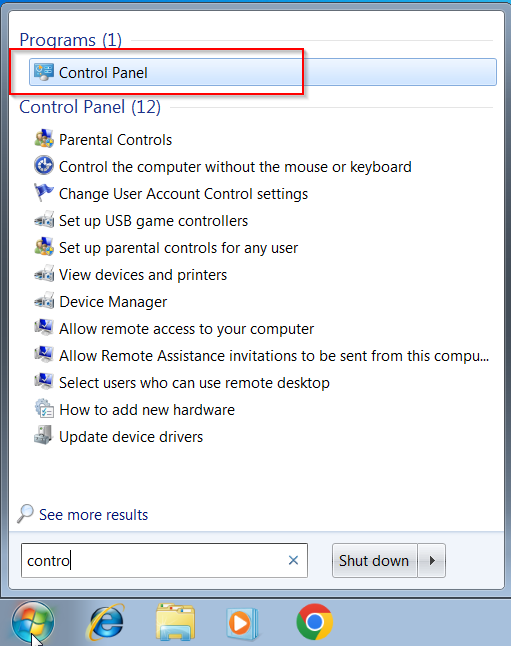
1. Open the Start Menu and type “control panel” in the search box. This will display the item in the Programs list. Click it to open.
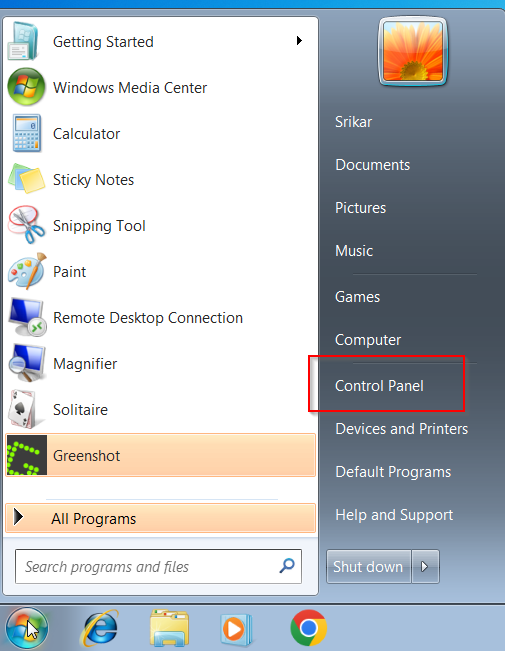
2. One of the advantages with Windows 7 is that the Control Panel item is available directly in the Start Menu. You just have to click the Start Menu and click it.
3. There is a slightly difficult way to access it. Click on “All Programs,” and from the slide-in, click on the “System Tools” folder. Control Panel is one of the subcategories in it.
4. You can use the “Run” tool. Press Win + R, and in the pop-up box, type “control panel.” Press Enter or OK. It should open.
5. One can launch the control panel from the cmd window. When you type “cmd” in the Run box, the Command Prompt will open. In the window, type the command “control panel.” It will open.
6. Task Manager is another way to open the control panel. Press the Ctrl, Shift, and Esc keys at the same time. If the Task Manager opens in compact mode, click on “More details” for full options. From File > Run new task. A new “Create new task” window will open. Type “control panel” and press OK.
7. Windows Explorer is another place to start Control Panel. Navigate to “Computer” and click on the “Open Control Panel” item at the top of the window.
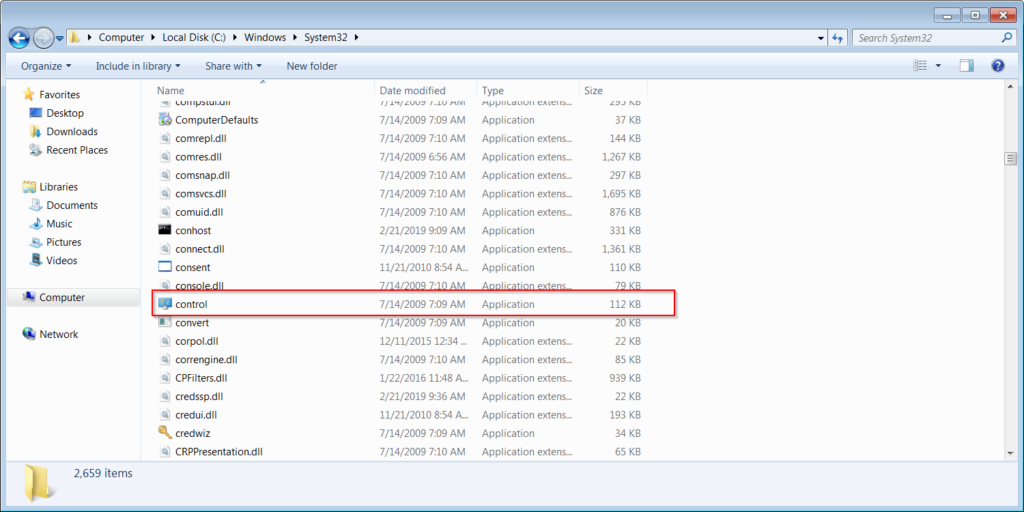
8. control.exe is the executable file for Control Panel. You can find it in the C:\Windows\System32 subfolder. When you run that file, your control panel is accessible.
In my experience, the Windows 7 control panel is the easiest to launch. This tool is readily visible. Also, the control panel is the default way of opening several system items in Windows 7. There is no better way to open Device Manager, Administrative Tools, Mouse settings, etc.
Windows Update can also be launched from here. If your sound settings are corrupt, you can manage it from here.