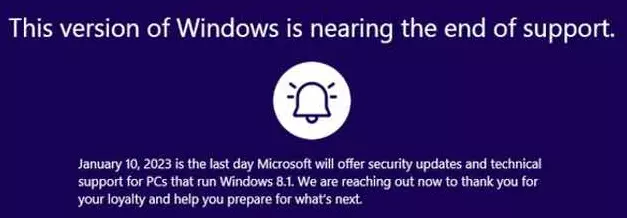
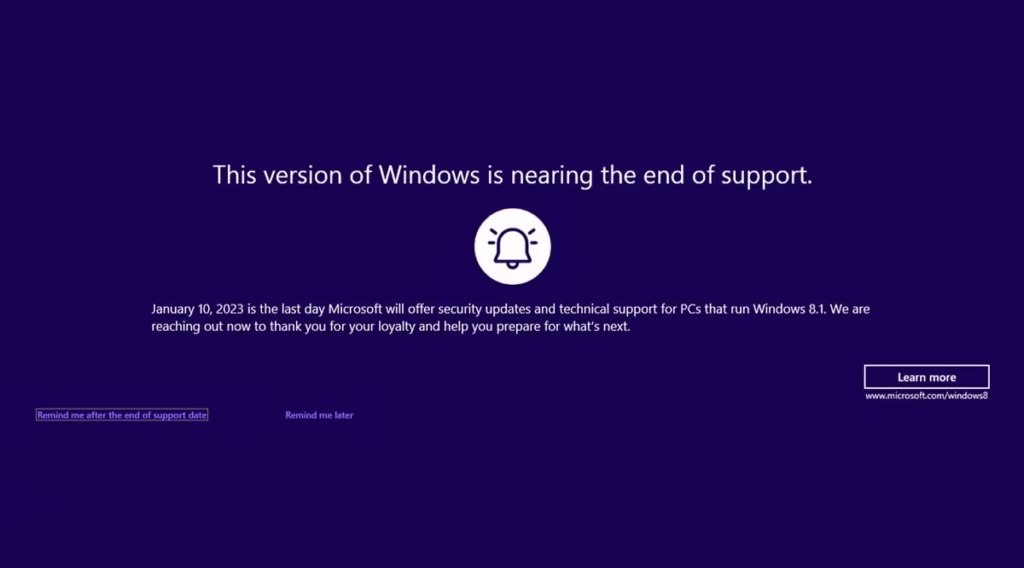
If you’re still using Windows 8.1, it’s important to note that Microsoft ceased all support for it on January 10, 2023. No more security updates. No more bug fixes. No more help from Microsoft customer service.
That puts millions of users in an uncomfortable spot—not because their PC suddenly stopped working, but because every day they stay on an unsupported OS, the security risks quietly pile up. Ransomware, viruses, and unpatched vulnerabilities become very real threats.
What steps should you consider taking? This guide gives you a complete, honest answer. We’ll walk through what the end of support for Windows really means, whether you can still upgrade for free, how to check if your current PC can handle Windows 11, and when it genuinely makes more sense to just buy a new machine. No fluff, no upselling—just a clear action plan based on your situation.
Featured Answer
What should I do now that Windows 8.1 support has ended?
Windows 8.1 support ended on January 10, 2023, meaning Microsoft no longer provides security updates. You have three main options: upgrade to Windows 10 for free using Microsoft’s Media Creation Tool, upgrade to Windows 11 if your PC meets hardware requirements, or buy a new Windows 11 PC. Staying on Windows 8.1 is a security risk.
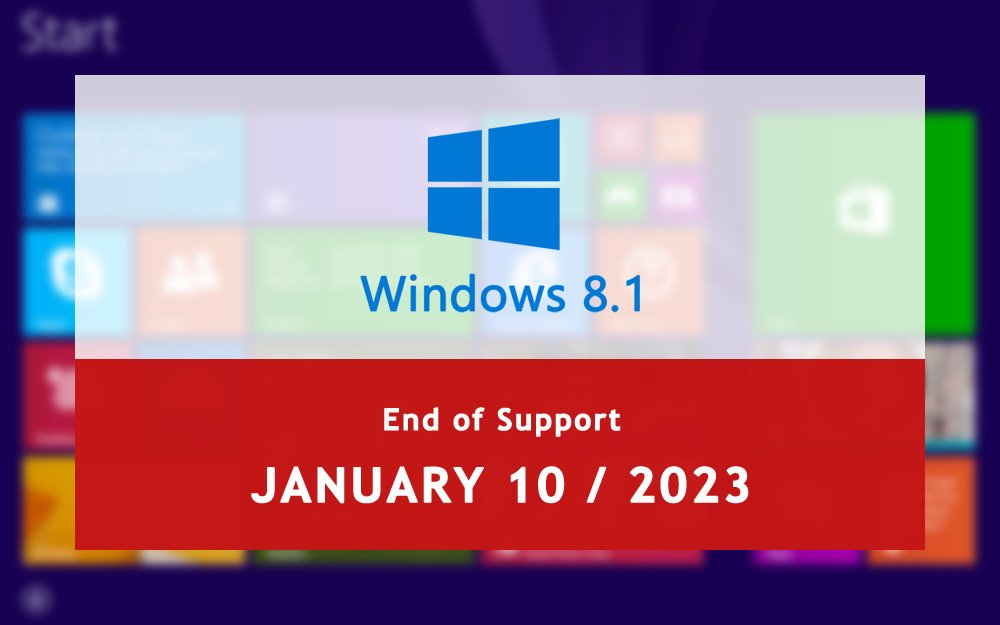
Could you please clarify what “Windows 8.1 End of Support” actually means?
Before you panic or rush to the store, it helps to understand exactly what “end of support” means—and what it doesn’t mean.
What Happened on January 10, 2023?
Windows 8.1 was released in October 2013 as Microsoft’s follow-up to the widely criticized Windows 8. It received mainstream support on January 9, 2018, and extended support on January 10, 2023—marking the final day Microsoft would maintain it.
“End of extended support” means Microsoft has permanently stopped delivering:
- Security patches and updates
- Bug fixes and performance improvements
- Technical support via Microsoft customer service
- Updates for Microsoft 365 apps on Windows 8.1 devices
In practical terms, your Windows 8.1 PC is now on its own.
Will Your Windows 8.1 Computer Stop Working?
No—and this is the part that confuses people. Your PC will not suddenly shut off or brick itself. You can still log in, run apps, browse the internet, and play games on a Windows 8.1 machine just like before.
What changes is the safety net. When hackers discover a new vulnerability in the Windows code base, Microsoft will no longer release a patch to fix it on 8.1 devices. That vulnerability stays open—permanently.
Think of it like a house where the locks still work, but the security company has stopped monitoring it.
What Security Risks Come With Running an Unsupported Windows Version?
This scenario is where things get serious. Running an unsupported OS exposes you to:
- Zero-day exploits—newly discovered vulnerabilities that never get patched
- Ransomware attacks—cybercriminals actively target outdated Windows devices
- Browser and app incompatibility—Chrome, Firefox, and Microsoft Edge will eventually drop support for Windows 8.1
- Microsoft Store access loss—the store on your Windows 8.1 device will lose functionality over time
- Microsoft 365 disconnection—Microsoft has confirmed that Microsoft 365 apps will stop receiving updates on unsupported Windows versions
The longer you wait, the riskier it gets.
Your 4 Options After Windows 8.1 Support Ended
You’re not out of options—in fact, you have four clear paths forward.
Option 1—Upgrade to Windows 10 for Free (Still Possible)
Surprisingly, the free upgrade from Windows 8.1 to Windows 10 still works through Microsoft’s Media Creation Tool. Microsoft officially ended the free upgrade promotion years ago, but the activation servers still accept genuine Windows 8.1 keys—for now.
This method is the fastest and cheapest route if your PC is reasonably modern. Windows 10 Home or Windows 10 Pro will run on most hardware that currently runs Windows 8.1.
Important caveat: Windows 10 support will end in October 2025. So this option is a 2-year bridge, not a long-term solution.
Option 2—Upgrade to Windows 11 for Free (If Your PC Qualifies)
Windows 11 is currently free for eligible devices. If you first upgrade to Windows 10 and your PC passes the hardware compatibility check, you can then upgrade from Windows 10 to Windows 11 at no cost through Windows Update.
Windows 11 is the most current version of Windows and will be supported well into the 2030s. It comes with built-in security features like TPM 2.0 enforcement, Windows Hello for secure sign-ins, and ongoing updates to help safeguard your device.
The challenge? Windows 11 has strict hardware requirements, and older PCs often don’t qualify.
Option 3—Buy a New PC With Windows 11 Pre-Installed
If your current hardware is too old or underpowered, the cleanest solution is buying a new PC with Windows 11 pre-installed. New Windows 11 PCs come with modern processors, TPM 2.0 built in, faster SSDs, and better RAM—everything you need to stay supported for years.
Budget Windows 11 laptops start around $300–$400, and refurbished options are even cheaper.
Option 4—Switch to Linux (The Overlooked Alternative)
Almost no competitor mentions this, but Linux is a legitimate option—especially if your PC is old but still functional. Older hardware runs smoothly on distributions like Ubuntu, Linux Mint, or Zorin OS, which are completely free and actively maintained with security updates.
Linux won’t run all Windows software natively, but for everyday tasks like browsing, email, documents, and streaming, it’s more than capable.
Should You Upgrade or Buy a New PC? (Decision Framework)
The core question of whether to upgrade or buy a new PC depends on the age and specifications of your current PC. Here’s how to think it through.
How Old Is Your PC? The Age Rule of Thumb
As a general guideline:
- Under 4 years old—Upgrade first. Your hardware can almost certainly handle Windows 10 and possibly Windows 11.
- 4–7 years old—Check compatibility. Run the PC Health Check tool before deciding.
- 7+ years old—lean toward buying new. Older hardware often lacks TPM 2.0, has limited RAM, and will struggle with Windows 11’s performance demands.
PCs originally built with Windows 7 or early Windows 8 hardware are typically in that last category.
Does Your PC Meet Windows 11 Hardware Requirements?
The minimum requirements for Windows 11 are:
| Requirement | Minimum Spec |
|---|---|
| Processor | 1 GHz, 2+ cores, 64-bit |
| RAM | 4 GB |
| Storage | 64 GB |
| TPM | Version 2.0 |
| Firmware | UEFI, Secure Boot capable |
| Display | 720p, 9″ or larger |
The TPM 2.0 requirement is the most common dealbreaker for older machines. Most PCs made before 2017 either don’t have it or have it disabled in BIOS.
Cost Comparison: Free Upgrade vs. New PC vs. Refurbished PC
| Option | Cost | Longevity | Best For |
|---|---|---|---|
| Free upgrade to Win 10 | $0 | Until Oct 2025 | Modern-ish hardware |
| Free upgrade to Win 11 | $0 | 2030s+ | PC that passes health check |
| Purchase a copy of Windows 11 | ~$139 | 2030s+ | PC that fails free path |
| Refurbished Windows 11 PC | $200–$400 | 5–7 years | Older hardware users |
| New Windows 11 PC | $350–$800+ | 5–8 years | Users wanting reliability |
Quick Decision Checklist: Upgrade or Replace?
Upgrade for free if:
- ✅ Your PC is less than 6 years old
- ✅ It has at least 4 GB RAM and 64 GB storage
- ✅ It passes the PC Health Check for Windows 11
- ✅ You’re comfortable with a brief technical process
Buy a new PC if:
- ✅ Your PC is 7+ years old
- ✅ It lacks TPM 2.0 and can’t be enabled in BIOS
- ✅ It’s slow or struggling even on Windows 8.1
- ✅ You need reliability for work or school
How to Check If Your PC Can Run Windows 11
Don’t guess—use Microsoft’s own free tool to know for certain.
How to Run the Microsoft PC Health Check Tool
- Go to Microsoft’s official website and search for “PC Health Check app.”
- Download and install the free tool
- Open it and click “Check now” under the Windows 11 compatibility section
- Wait 10–15 seconds for the result
You’ll get a clear pass or fail, plus a specific list of which requirements your PC doesn’t meet.
What Is TPM 2.0, and Why Does Windows 11 Require It?
TPM stands for Trusted Platform Module. It’s a small security chip that stores encryption keys, protects your login credentials, and enables features like Windows Hello (biometric sign-in) and BitLocker encryption.
Microsoft made TPM 2.0 mandatory for installing Windows 11 as a security baseline. It’s a legitimate security improvement—but it does mean many older devices are locked out.
If your PC was manufactured after 2017, there’s a decent chance TPM 2.0 is present but disabled in BIOS. You may be able to enable it without buying new hardware.
What to Do If Your PC Fails the Windows 11 Compatibility Check
If your device fails, you have three realistic paths:
- Enable TPM 2.0 in BIOS—search your PC model + “enable TPM 2.0 BIOS” for specific instructions
- Upgrade to Windows 10 only and use it until October 2025, then reassess
- Buy a new PC compatible with Windows 11 and enjoy modern hardware alongside the upgrade
Step-by-Step: How to Upgrade From Windows 8.1 to Windows 10 for Free
This process takes 30–90 minutes depending on your internet speed and PC performance.
Step 1—Back Up Your Data Before Upgrading
Never skip this step. Before you do anything else:
- Copy important files to an external drive or USB
- Back up your browser bookmarks
- Note down any software license keys you’ll need to reinstall
Upgrades rarely destroy data, but hardware failures during the process can. Don’t take the risk.
Step 2—Download the Windows 10 Media Creation Tool
- Visit Microsoft’s official Windows 10 download page
- Click “Download tool now” under “Create Windows 10 installation media.”
- Run the downloaded file (MediaCreationTool.exe)
- Select “Upgrade this PC now” when prompted
Step 3—Run the Upgrade and Keep Your Files
During setup, you’ll be asked what to keep:
- “Keep personal files and ‘apps’—recommended for most users
- “Keep personal files only”—if you want a cleaner install
- ““Nothing”—full clean install (only for advanced users)
The upgrade will restart your PC several times. This behavior is normal. Don’t interrupt it.
Step 4—Activate Windows 10 Using Your Existing License
Once Windows 10 is installed, it should activate automatically using your Windows 8.1 product key. If it doesn’t:
- Go to Settings > Update & Security > Activation
- Click “Troubleshoot” and follow the prompts
- If activation fails, use the Microsoft automated phone activation system
Step-by-Step: How to Upgrade From Windows 10 to Windows 11 for Free
Once you’re on Windows 10, upgrading to Windows 11 is even simpler—provided your PC qualifies.
Step 1—Check for the Windows 11 Upgrade in Windows Update
- Open Settings > Windows Update
- Click “Check for updates.”
- If your PC is compatible, you’ll see an offer: “Windows 11 is ready—and it’s free.”
- Click “Download and install.”
If you don’t see the offer, your PC may not meet requirements. Use the PC Health Check tool to confirm.
Step 2—Set Up or Link a Microsoft Account (Required for Windows 11 Home)
Windows 11 Home requires a Microsoft account during setup. This is a notable change from older Windows versions.
If you don’t have one, create a free account at microsoft.com before starting the upgrade. If you use Windows 11 Pro, you can bypass the requirement with a local account workaround—but for most home users, a Microsoft account is simply part of the deal.
Step 3—Complete the Installation and Verify Activation
The upgrade takes 20–45 minutes and involves multiple restarts. After completion:
- Go to Settings > System > About to confirm you’re on Windows 11
- Check Settings > Windows Update > Activation to verify it’s activated
- Run Windows Update again immediately to install the latest security updates
Warning—Windows 10 End of Support Is Coming in October 2025
This step is the piece of the puzzle most guides skip entirely—and it matters.
Is Upgrading to Windows 10 Just Delaying the Problem?
Partially, yes. If your PC can only run Windows 10 (because it fails Windows 11 requirements), you’re buying yourself about two years of support—until October 14, 2025. Thereafter, Windows 10 reaches its end of support, and you’ll be back in this same situation.
For some users, that’s a reasonable trade-off—two more years to save up for a new PC. But it’s important to go in with eyes open.
Why Windows 11 Is the Longer-Term Solution
Windows 11 is the most current version of Windows and Microsoft’s long-term investment. Microsoft regularly updates Windows 11 with new features, enhances its built-in security, and plans to support it well beyond 2025. If your PC can run it, Windows 11 is unambiguously the smarter destination.
The new features available with Windows 11—including a redesigned interface, better multitasking with Snap layouts, Android app support, and many improvements since Windows 10—make it a genuine upgrade, not just a security patch.
What Microsoft’s Support Lifecycle Means for Your Planning
Microsoft follows a predictable support lifecycle:
- Mainstream support—feature updates, security patches, full support
- Extended support—security updates only, no new features
- End of support—nothing, you’re on your own
Windows 8.1 reached the end of extended support on January 10, 2023. Windows 10 will do the same in October 2025. Avoiding surprises in the future requires planning around these dates.
When Buying a New PC Makes More Sense Than Upgrading
Occasionally the most pragmatic answer is the simplest one: just get a new machine.
Signs Your Current PC Is Too Old to Upgrade Reliably
Consider buying new if your current Windows 8.1 PC:
- Was manufactured before 2015
- Has less than 4 GB RAM and can’t be upgraded
- Uses a hard disk drive (HDD) rather than an SSD—Windows 11 will be noticeably slow
- Lacks TPM 2.0 and has no BIOS option to enable it
- Already runs slowly on Windows 8.1
- Has a battery that barely holds a charge (for laptops)
Forcing Windows 11 onto aging hardware often results in a worse experience than staying on the old OS.
What to Look for in a New Windows 11 PC in 2023
When shopping for a new Windows 11 PC, prioritize:
- Intel 12th/13th Gen or AMD Ryzen 5000/7000 series processor for long-term relevance
- 8 GB RAM minimum (16 GB preferred for any professional use)
- 256 GB SSD minimum (512 GB recommended)
- TPM 2.0 built in—all new PCs have this, but verify
- Windows 11 Home or Pro pre-installed—avoid “S Mode” unless you understand its limitations
Best Budget Windows 11 PCs Worth Considering
At the $300–$500 price point, strong options include:
- Acer Aspire 5—reliable, upgradeable, widely available
- Lenovo IdeaPad 3—business-grade reliability at consumer prices
- HP 15 Laptop—a solid all-rounder for home and office use
- Dell Inspiron 15—popular for students and home users
If the budget is tight, refurbished business laptops (Dell Latitude, Lenovo ThinkPad, HP EliteBook) from certified refurbishers are excellent value and come with Windows 11 licenses.
Should You Buy New or Refurbished?
Buy new if you want a warranty, the latest hardware, and plan to use the PC heavily for 5+ years.
Buy refurbished if budget is the primary concern, you need something quickly, or you want a premium brand (ThinkPad, EliteBook) at a budget price. Look for “Certified Refurbished” listings from reputable sellers.
What About Windows 7 Users—Same Situation?
Yes—Windows 7 users are in an even more precarious position.
Windows 7 End of Support: What Already Happened
Support for Windows 7 ended on January 14, 2020—over three years before Windows 8.1’s end of support. If you’re still running Windows 7, you’ve been without security updates for years. The risk is significantly higher than even Windows 8.1.
Can You Still Upgrade From Windows 7 to Windows 10 or 11 for Free?
The official free upgrade ended in 2016, but the Media Creation Tool workaround still worked for many users as of 2023 using a Windows 7 product key. Results vary—some keys are accepted, others aren’t. Your safest bet is to try the upgrade path and purchase a copy of Windows 11 if the free route doesn’t work, or move to a new PC entirely.
Common Mistakes to Avoid When Leaving Windows 8.1
Not Backing Up Before Upgrading
This is the number one regret people have after a failed upgrade. Even if the process works 99% of the time, hardware can fail mid-install. Spend 20 minutes backing up your files. It could save you everything.
Upgrading to Windows 10 Without Knowing It Ends in 2025
Plenty of users upgraded to Windows 10 thinking they’d solved the problem permanently—only to find out it enters end of support in October 2025. Know what you’re getting into. If your hardware is compatible with Windows 11, please proceed directly to that version.
Ignoring TPM/Hardware Requirements Until Too Late
Don’t wait until you’re mid-install to discover your PC lacks TPM 2.0. Run the PC Health Check tool first, check your BIOS settings, and know your options before starting any upgrade.
Skipping Driver Updates After the Upgrade
After any major Windows upgrade, old drivers—especially for graphics cards, audio, and network adapters—can cause issues. After upgrading, go to Device Manager and check for any yellow warning icons. Visit your PC manufacturer’s support site to download the latest drivers for your model.
Frequently Asked Questions
Yes. Microsoft officially ended all support for Windows 8.1 on January 10, 2023. This means no more security updates, bug fixes, or technical assistance. Devices still running Windows 8.1 remain functional but are increasingly vulnerable to malware, exploits, and unpatched security threats over time.
Yes, the free upgrade path from Windows 8.1 to Windows 10 still works for most users via Microsoft’s Media Creation Tool. However, Windows 10 itself reaches end of support in October 2025, so upgrading to Windows 11—if your hardware qualifies—is the smarter long-term move.
Download and run Microsoft’s free PC Health Check app. It checks for key requirements, most notably TPM 2.0, a compatible 64-bit processor, 4 GB RAM, and 64 GB storage. If your PC fails, Microsoft will provide specific information about the unmet requirement, aiding your decision to upgrade hardware or purchase a new one.
If your PC is more than 6–7 years old, buying new is often smarter. Older hardware may struggle with Windows 11’s performance demands, lack TPM 2.0, and have outdated drivers. A budget Windows 11 PC or refurbished device typically offers better speed, security, and longevity than forcing an old machine through multiple upgrades.
Final Verdict—Upgrade for Free or Buy a New PC?
TL;DR Summary Table
| Situation | Best Action |
|---|---|
| PC under 4 years old, passes Health Check | Upgrade free to Windows 11 |
| PC 4–6 years old, fails Windows 11 check | Upgrade to Windows 10 for free now; plan for new PC by 2025 |
| PC 7+ years old, slow or outdated | Buy a new or refurbished Windows 11 PC |
| PC any age, privacy-focused, basic use | Consider Linux |
| Budget is zero, PC still functional | Windows 10 free upgrade as a bridge |
Our Recommendation Based on PC Age and Budget
If your PC is relatively modern and passes Microsoft’s compatibility check, there’s no reason to spend a single dollar right now. The free upgrade path from Windows 8.1 → Windows 10 → Windows 11 is well-documented, still works, and gets you onto a supported, secure OS in an afternoon.
If your hardware is aging—slow, lacking TPM 2.0, or just exhausted—don’t waste time forcing it through upgrades. A refurbished Windows 11 machine for $250–$350 will serve you far better and cost less than the frustration of wrestling with old hardware.
Either way, one thing is clear: staying on Windows 8.1 is not a real option anymore. The security risks are real, the software compatibility issues will only grow, and the upgrade paths are still open. The best time to act was January 10, 2023. The second best time is right now.