
Many users still use Windows 7. Microsoft support ended long back.
The only way to troubleshoot problems is to remotely connect Windows 7 to Windows 10.
An expert then tries resolving the problem of the software.
You can make use of the Control Panel and System Properties to enable remote access in Windows 7.
What steps should you follow to enable Remote Desktop on Windows 7?
You can access the “System Properties” window using Control Panel, as mentioned above. Otherwise, you can right-click the “Computer” icon in the Start Menu and select the Properties item.
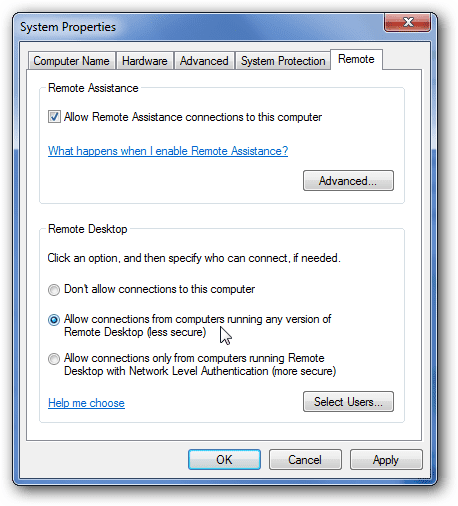
Here, you can also check the “Remote Assistance” option.
If you want to remotely connect to this Windows 7 PC from Windows 10, 8.1, or 8, you can use the last option.
“Allow connections only from computers running Remote Desktop with Network Level Authentication (more secure).”
But in case you want to connect from a lower-level PC like Windows XP or 2k, you can use the less secure option—”Allow connections from computers running any version of Remote Desktop (less secure).”
