
Files and folders are the basic entities of any OS. With Windows 7, you can find them in your Windows Explorer. But, like its earlier counterparts, it doesn’t show folder size.
One common issue regarding folder size display is memory storage management. Just like any OS, Windows also believes in the file structure system. Also Read—How Control Your Windows 7 Firewall—A Review
By providing folder size details, it would waste precious resources and slow down performance. How to see folder size in Windows 7?
That is the reason Microsoft has not provided any folder size to date. So what is the solution? More to Read: How to Create a Bootable USB Drive for Windows 7 and 8
Windows 7 Folder Size—Why You Need It
So, if you have a small hard-disk capacity, it becomes much more important to reduce redundant files and folders. Using Explorer, you can check the file size under folders or subfolders. But you cannot view folder size using any Windows utility instantaneously.
There are several tools that give a graphical representation of the disk size if you run their tool. Some examples are Overdisk, DiskFerret, Disk Space Fan, etc. But all these tools take some time to analyze your hard drive and give a statistical report of your folder size.
Here I provide two quick ways to view folder size within a very short time.
Method 1 – Folder Size Windows 7 [Manual Way]
The best and quickest way to know your folder size is to hover your cursor over the folder in your Windows Explorer. Just after 3 seconds, a tooltip will pop up, which contains brief information about folder size and other details.
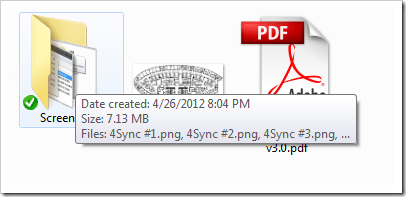
[Image Source: nextofwindows.com]
But sometimes, if the folder is of larger capacity, then it may not display the full-size details. It just says that the folder is “larger than X,” where X was the size it managed to calculate within those 3 seconds.
Method 2: Windows 7 show Folder Size
A third-party tool called “Folder Size” exists, which displays folder size information more clearly than in the above tip. Before Windows 7, you could see a “column” in your Windows Explorer that displayed folder size just like your file size information.
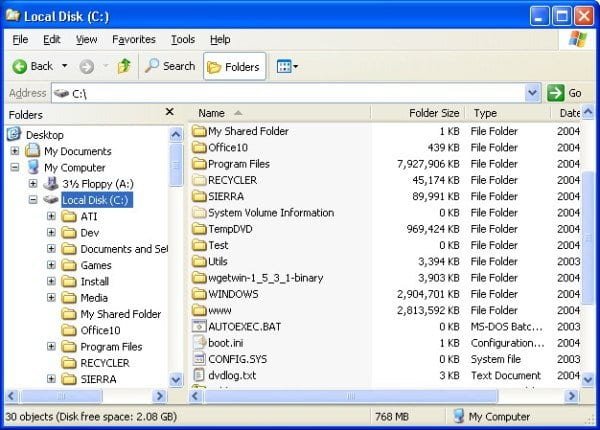
This application works in earlier Windows OS.
But if you are using the latest OS, like Windows 10 or 8.1, the display format varies a little.
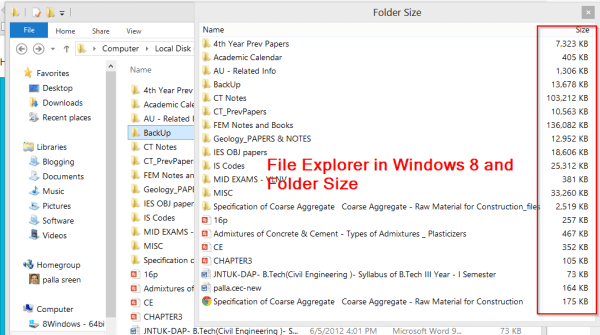
The above screenshot is in the Windows 8.1 64-bit version. The above screenshot shows that you don’t have a separate “column” like in older versions of Windows.
In Windows 10 or 8.1, a separate pop-up opens showing the folder size. This behavior can be annoying sometimes, as it covers the main window and obscures other details. But if you want an instant display of folder size, you have to bear a little.
Disadvantages—
The tool is not without any problems. According to the site owner, the tool has some little headaches, which are not too annoying.
- For example, before Windows 7, the sizes are difficult to interpret. In this case, the same physical file may appear in multiple directory entries. So the result may show your Windows folder larger than it actually is.
- The background service is difficult to manage with Windows’s UAC model. So sometimes, the process may take up time to compute the folder sizes. Furthermore, background scanning is not optimized, which can cause the same problem as above.
- Popup windows frequently cover up Explorer’s Close button. These issues can make you resize the pop-up windows to adjust your visibility of File Explorer details.
So the above two ways should suffice enough to view folder size in Windows 7. The above program works on both 32-bit and 64-bit operating systems.

Thank you Palla for the tips regarding folder size!
I prefer to use a program: Directory Report
It looks just like the MS-Explorer but always shows the folder size
@Binjamin. Thanks for the new info.