
Windows 7, released in 2009, introduced a unique feature called “Gadgets” that allowed users to enhance their desktop experience with small, customizable applications.
These gadgets provided quick access to useful information and tools, such as weather updates, news feeds, system monitors, and mini-games.
Users could easily add, remove, and arrange gadgets on their desktop to suit their preferences. The gadget functionality was designed to improve productivity and personalization, giving users a more dynamic and interactive desktop environment.
Although the feature was discontinued in later versions of Windows due to security concerns, Windows 7 Gadgets remain a memorable part of the operating system’s history.
In the later years, third-party websites started releasing new gadgets. But with the advent of Windows 8.1 and 10, apps have replaced gadgets. Just like the Apple Store and Google Play Store, there is the Microsoft Store to download apps.
Warning: So if you want to still use gadgets on Windows 7, do it at your own risk. It is important the source and download links of these gadgets are important. It can have a potential impact on your system performance and security.
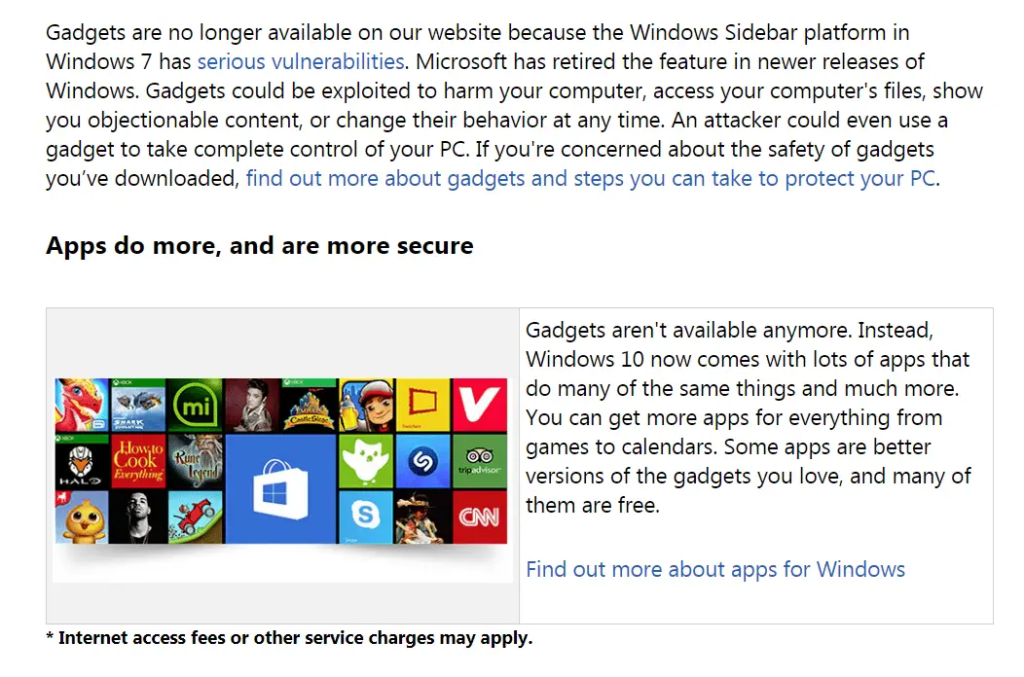
Source: https://support.microsoft.com/en-in/help/13787/gadgets-have-been-discontinued
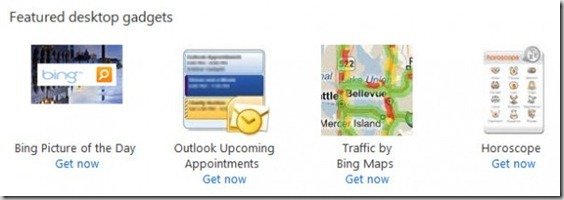
9 Trusted Windows 7 Gadgets available
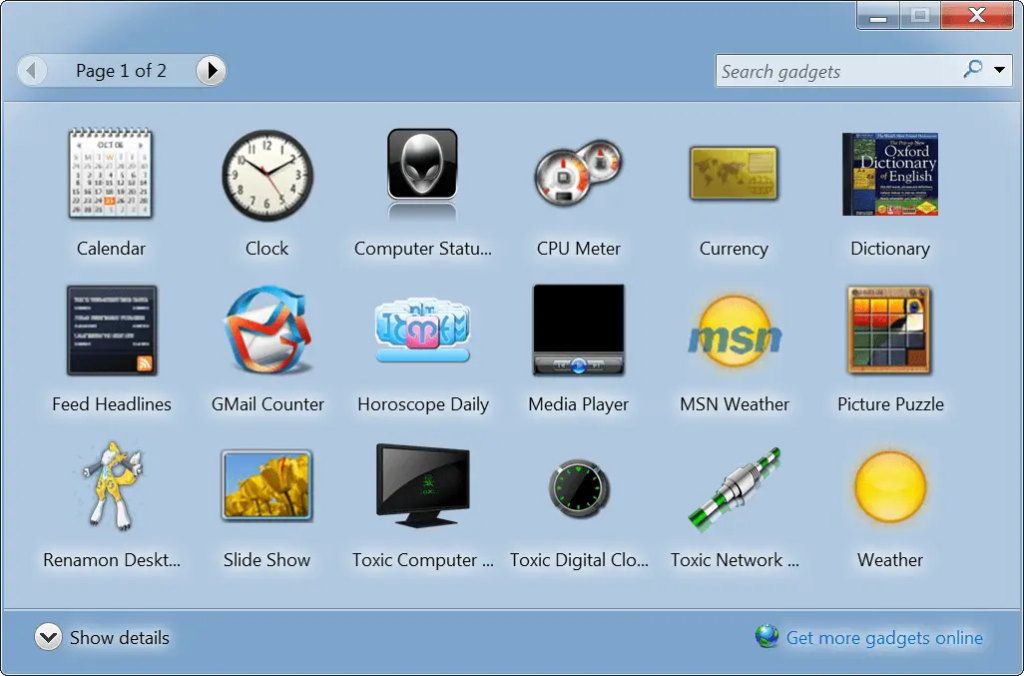
Even in the latest stable release of SP1 and version 7601, gadgets still work, and some are available by default. Let’s see those gadgets that are available by default when the gadget platform is enabled.
You can access these trusted and stable gadgets from the Control Panel or by right-clicking the Desktop.
1. Calendar
2. Clock
3. CPU Meter
4. Currency
5. Feed Headlines
6. Picture Puzzle
7. Slide Show
8. Weather
9. Windows Media Center
How to Fix Windows 7 default Weather Gadget
But many of the widgets are not working properly. The Weather widget displays an error that it “cannot connect to service.” When you use the gear icon to change the settings and enter the location, it does not work out.
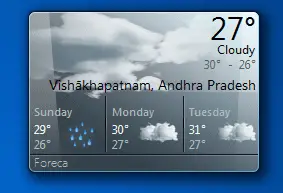
In some forums in 2015, it is mentioned that this problem can be overcome by using the following tip.
Navigate to the following path.
%localappdata%\Microsoft\Windows Live\Services\Cache\Config.xml
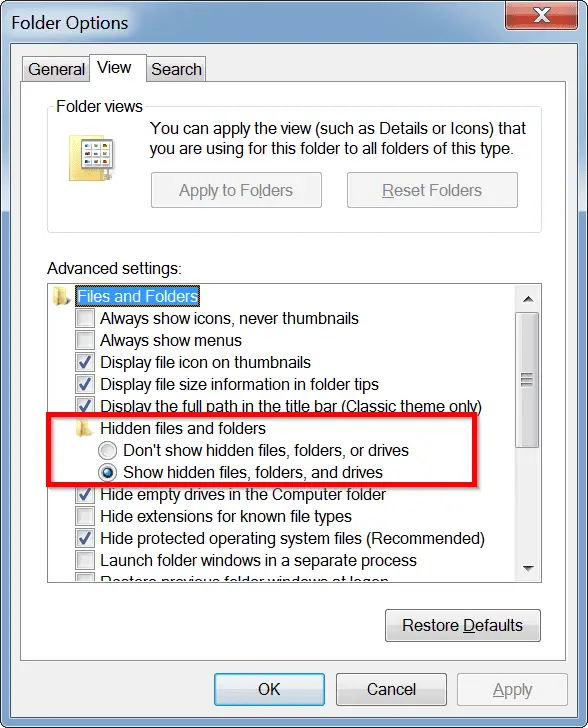
Just enter the above path in the Run dialog box or in Windows Explorer. You should also make sure the hidden items are visible with the help of Folder Options (Windows Explorer > Organize > Folder and search options > View).
I used the MSN Weather gadget as a substitute for the default weather widget. Otherwise, you can download the same gadget from reputable sources that store the working versions.
10 Popular Windows 7 Gadgets that are Fun and Productive
In 2019, there are certain gadgets from trustworthy sources that can still be tried. As before, many of them have some problems but have features that are useful.
1. HUD Time
The default clock and widget in Windows 7 can get boring sometimes. This widget is useful if you want to display the current date and time in heads-up display style. This clock gadget is transparent and works with any type of desktop background.
Using the settings menu, you can change the color of the font to suit your current background.
2. Weather Underground
It provides accurate information for local weather conditions. In addition to common weather reports, you can find interactive radar, weather alerts, and satellite maps. The data reports are from a community who maintain their own backyard weather stations. Status notifications, 10-day forecasts, current local weather conditions, sunrise and sunset timing, etc., are other features of this widget.
3. AccuWeather Forecast
This was working 2 years ago and should have no problems. This is a good alternative for the default weather widget in Windows 7. This will show weather data only in locations in America. It does not other worldwide countries. The unit of measure can be changed to English or metric. You can type the zip code or place to get the weather details.
4. Weather Monitor
It helps in tracking the weather condition of a particular city. There are 7 tabs in the settings to suit your needs. You need to find your location code on the first tab. For example, my site code is “ASI|IN|IN002|VISAKHAPATNAM.” Just press Enter. You will get details like pressure, humidity, visibility, UV index, wind speed, and precipitation. You can change the units if you like.
Sunrise and sunset can be seen. You can also view the weather details for the next 10 days.
5. Computer Status Red
This is a useful gadget to show the details of your computer configuration. It will display CPU and RAM usage. But the details are so small that you have to particularly look at it. You can also find the hard disk space usage. It will also display your Wi-Fi network. One major feature is that you can select one of the different radio stations to play while you work. These include Radio21, metal radio, Gotham radio, Funky Dance, Goldies, Club High, Mainstream etc.
6. Toxic Gadgets
These are a set of 4 gadgets. The computer status widget will show the system details like RAM, CPU, disk space, etc. The number of items in the recycle bin is also shown. There are more radio stations than the previous gadget. The buffering will take a little time to hear the audio. Sound quality is not good. The clock widget will display the time and date. Network Meter and Top 5 are the other gadgets.
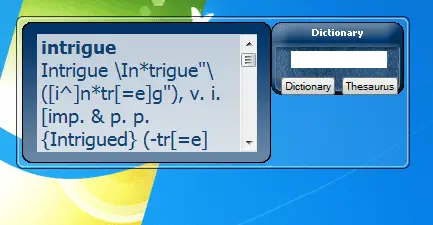
7. Dictionary
This is a useful grammar tool. You enter a word and get its meaning instantaneously. The Thesaurus dictionary is not working as intended. It is asking for an Internet connection, though the computer is connected. Pronunciation and parts of speech can also be seen.
8. Media Player
Using this gadget, you can listen to your favorite songs and playlists throughout the day. It will automatically play the songs. There are two settings. 1. Shuffle and 2. Start playing on startup. You can change to the next song, just like any other media player. You can pause, play, and increase the sound.
9. Maomo
This is a fun gadget that is useful to de-stress yourself. It is a small cat-kind of icon waving at you. This will make you happier if you like pets. It is a Chinese app and does not have any major settings. There is nothing to play with, as nothing happens when you click the pet icon.
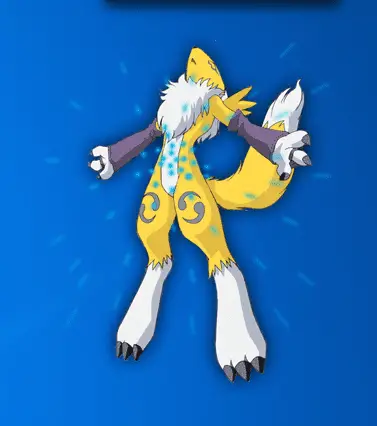
10. Renamon Desktop Gadget
These Japanese characters in the gadget will make you adventurous. They are more like the Pokémon cartoons we watch on TV. There are about 15 images to display. You can also set your own image as a photo slider. The docked and undocked image sizes can be set in percentage. These look like rabbit characters and are big in size to be visible.
Information about Windows 7 Gadgets
The message from Microsoft is clear. They are not going to support Windows 7 Gadgets in the next OS. You can see the message below.
Desktop gadgets
The Windows website no longer hosts the gadget gallery because it wants to focus on the exciting possibilities of the newest version of Windows. Gadgets installed from untrusted sources can harm your computer and can access your computer’s files, show you objectionable content, or change their behavior at any time. If you’re worried about the safety of previously downloaded gadgets, you can learn more about them and how to protect your PC. Some info for developers: You can now use your HTML5, CSS3, and JavaScript skills to build modern apps for Windows 8. To get started developing modern apps, go to Windows Dev Center.
According to “TheWindowsClub.com,” the actual reason behind removing the sidebar and gadgets was different. It appears that there were vulnerabilities in Sidebar Gadgets, and remote code execution was possible, which could be a security threat to the computer.
In its Security Advisory 2719662, Microsoft thanked Mickey Shkatov and Toby Kohlenberg for working with them regarding this security loophole. The two security researchers made the point that instead of sending an executable, you can just send a “sidebar gadget” to hack into your computer or do a security breach of your Windows system.
Very soon, Microsoft recommended Windows 7 and Vista users disable the Sidebar gadgets and also released an automated “Fix It.” The Fix It will automatically and quickly disable the Sidebar and the Desktop Gadgets. “Fix It“” “ can be downloaded from KB2719662.
How to Disable the Windows 7 Gadgets & Sidebar Manually?
Open Control Panel > Uninstall Programs > Turn Windows Features on or off.
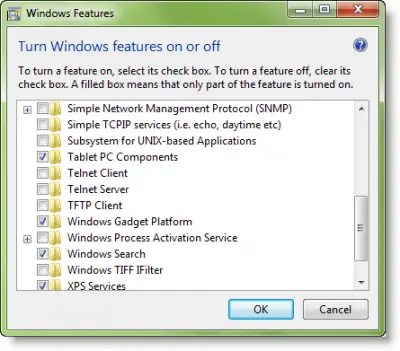
Here, uncheck the Windows Gadget Platform and click OK. This will turn off the Windows Gadget Platform and the gadgets. You may have to reboot. Now if you right-click on the desktop, you will see that the Gadget option does not exist.
Windows Desktop Gadgets are a sort of mini-application that are based on CSS, script, and HTML. These Windows 7 gadgets are used to display information like CPU and RAM usage, system properties, and RSS feeds or to launch and control applications. You can also use Windows 7 gadgets to display a picture slide show or view continuously updated headlines.
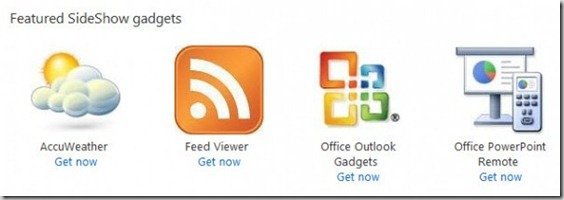
A Windows SideShow Gadget is one written by programming against the Windows SideShow Platform API. Windows SideShow is a technology introduced in Windows Vista that enables Windows PCs to drive various auxiliary display devices connected to the main PC.
In Windows 7 you will not find Windows SideShow in the Control Panel, unlike in Vista. But the SideShow icon appears when you install a compatible device.
While in Windows Vista, the Sidebar starts multiple instances of the sidebar.exe process. In Windows 7, only one instance of the sidebar.exe process starts. Moreover, this single instance does not start until a gadget is added to the desktop.
Want to know more about Windows 7 Applications tweaks
The Gadget Picker starts, or a new user session starts with existing gadgets on the desktop. If the Gadget Picker is closed with no gadgets added to the desktop, or the last gadget is deleted from the desktop, the sidebar.exe process stops automatically.
