
Library Icon Changer is an icon-changer software tool applicable to Windows 7.
Libraries are a new feature of Windows 7. It is a convenient way of grouping important folders in one place.
The feature reduces the number of clicks to access a file or folder in Windows.
For standard folders like Music, Pictures, Documents, etc., you have the default icons. Once you start adding your song, video, and image folders to the library, you will want a custom icon for each.
Library in Windows 7
This is like a central location or category to have a shortcut to all the frequently used folders.
Typically, these multiple folders are spread across various drives and disks. So remembering their locations is a bit of a “memory-draining task.”
In Windows, icons are symbols of the use of a file or folder.
For example, if you see a suitcase-kind of symbol, it represents a folder. Similarly, a music-note icon represents a music file. That way, icons are an easy way to remember the purpose of files and folders.
What is Library Icon Changer
To people who are interested in changing these library icons, this free, lightweight tool called Library Icon Changer can be used to change the Windows 7 library icons effortlessly.
How does Library Icon Changer work?
To change Windows 7 Library icons, select that particular library item from the right pane of the Library Icon Changer software, and then select the new icon on the left pane in the same window.
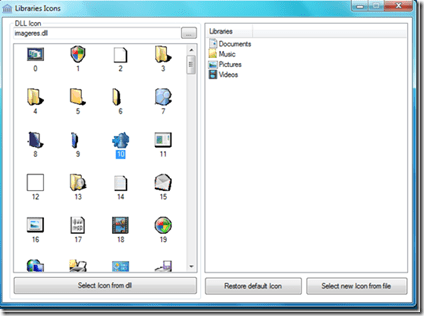
Though there are many default icons to change to, you can have the option of changing to a custom icon as well.
But the icon file must be in .ico format as a substitute for the default icon.
How to Assign Custom Icon to Library in Windows 7
To make a custom icon, you can search Google for different blogs. After creating a custom icon, you can click the button that says, “Select a new icon from the file.” ”.
Even if you have a corrupted icon set for your Windows 7 Library icons, or you think the icons you changed are not to your taste, you can restore them back using the “Restore default icon” button. This tiny piece of software works on all versions of Windows 7, including 32- and 64-bit OS.
Change Windows 7 Library Icons—Manual Way
If you’re wary of using software, especially if you’re a geek, there’s a manual way.
This method requires creating a small text file with some commands embedded in it.
Open the Search bar or Explorer bar and enter the following command.
%appdata%\microsoft\windows\libraries
Next, drag one of the Library icons in Explorer to a Notepad file like this:
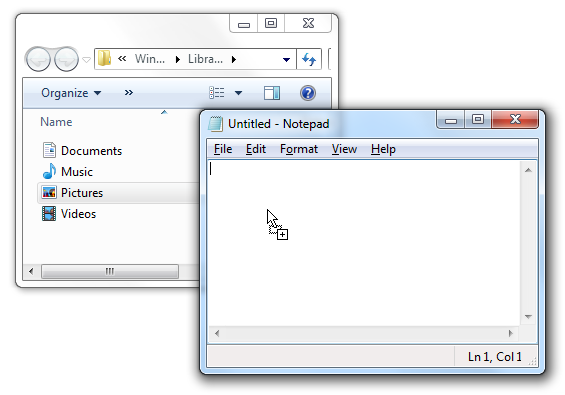
Once you do this, I’m assuming that the icon will be converted into some “code.” The code will look something like this:
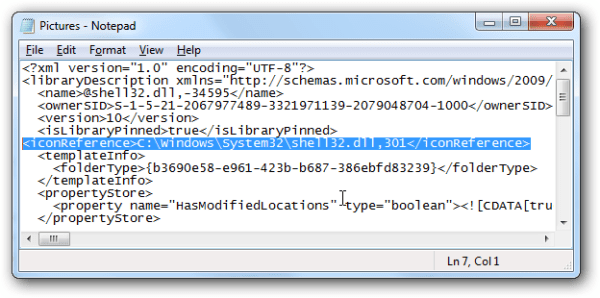
In the middle there will be reference to your .ico file or a DLL file, whichever you are referencing.
If it’s a DLL, you need to add the comma and the number position of the icon in the file. The piece of code highlighted in the above screenshot refers to the icon file path.
So if that line is not there, you need to manually add it.
<iconReference>C:\Windows\System32\shell32.dll,301</iconReference>
This manual hack is generally useful to swap different Windows 7 icons with Library icons. But you can also use it to change a Windows 7 library icon with custom icons found elsewhere.

