
Sometimes the expectations from the Windows 7 OS are so huge that you wish they’d provided a single app like “Windows 7 Application Launcher” to fulfill all your needs. The significant feature I like about Windows 7 is the Hibernate feature, which allows you to store the status of your system, and you can shut down.
Upon restarting, all the existing applications that were kept open during Hibernate are opened. So, the Hibernate feature is also one way to open multiple applications in Windows 7 at once without much hassle.
There is another method by which you can open multiple applications very easily, i.e., using a batch script. You can create a batch file or script containing the executable files of all the programs or applications you want to open at once and run the batch script at startup or run it whenever you want.
Though this requires some skills to create a batch file and add executables to the batch file, this is a low-level method by which you can launch multiple applications at once.
The simple gadget/widget I’d like to introduce is Windows 7 App Launcher, which can open multiple applications at once with a single click. The downloaded file is just 523 KB and is developed by Se7enIIIX, and the latest build is still in the beta stage. The documentation for this is available on the same page at a different link.
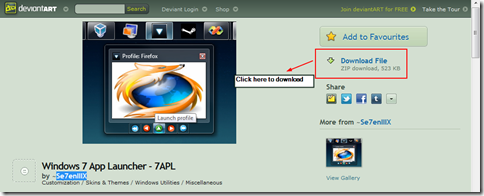
You don’t even need to install this application, but just unzip the zip file and run the 7APLauncher.exe file. First you need to create a profile to add all the multiple applications, shortcuts, etc., that you want to open with a single click. This can be done using the Create Profile option provided on the New Profile tab.
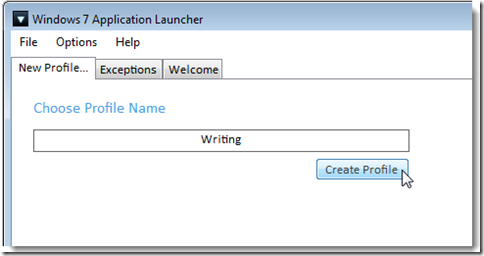
A new tab is created, to the left of the New Profile tab, with the name you just created. Now you click on the tab (the one you created just now). There’ll be options to add multiple applications, shortcuts, etc., to this profile.
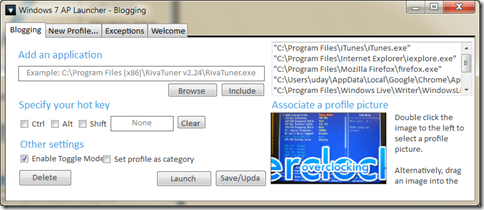
Browse to the folder containing the executable of that application using the Browse button. Next (don’t forget), click on the Include button. This will add the application executable to the profile list and can be seen on the right side.
Like this, you can add multiple applications and also specify a hotkey for each application, and also you can enable the toggle mode. The image of the first application you included in the profile will be listed as the profile picture, which you can change by double-clicking the image file.
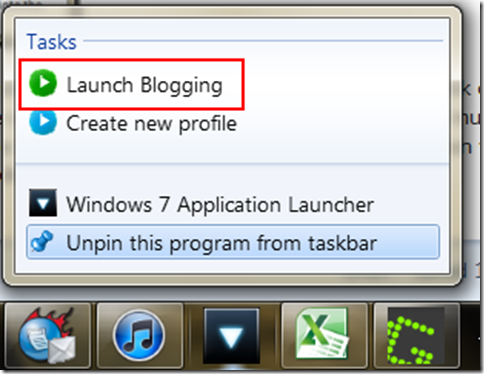
So you’re done with simple settings for now. Now, if you want to launch a profile, just open the 7AP executable file and pin the program to the taskbar. So next time, you can right-click the icon on the Windows 7 taskbar and, from the jump list, launch the created profile.
Now if you want additional settings like categories, hotkeys, jump list support, thumbnails, profiles, etc., so that you can open individual applications from each profile, etc., using the Windows 7 application launcher, you can follow this post launch-multiple-apps-at-once-in-windows-7 from How-To-Geek.

it is very good site your post is very good